
Setting up the CHR integration
Request the integration
- Fill out the Integration Request Form to send your request to our team. If you have issues with the form, email our Customer Success Team for assistance.
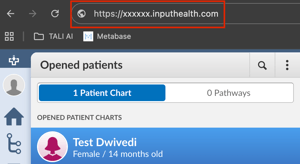
Note: You will need your CHR URL (e.g., https://xxxxxx.inputhealth.com).
- Once the request form is signed, we will handle the paperwork and submit it to Telus.
- Telus will connect your EMR, which may take up to 10 business days.
- You will receive a confirmation email when the integration is complete.
Steps to Launch Tali in CHR
- Log in to CHR
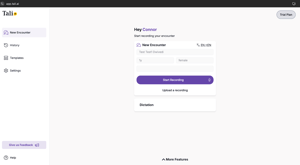
- Open a patient chart and look for the Tali AI button in the top-right corner

- Click the button to launch Tali. After signing into Tali once, you’ll be logged in automatically
- Use the “Expand Tali” button to access all features
Click here for our guide on how to Record patient notes using Tali with CHR
Getting help
- Need a Tali AI account? Create one by following these instructions.
- Need support? Contact Tali’s Customer Success Team here
- Having trouble with your EMR? Visit our troubleshooting guide here