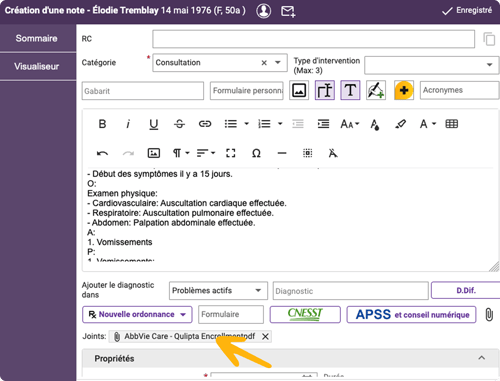
Before you start
Make sure you are uninf Tali-Medesync integration, launching Tali from Medesync, and working from an encounter linked to the correct Medesync patient chart.
How to generate and send a form to Medesync
1. Select a form from an encounter
Click Generate.
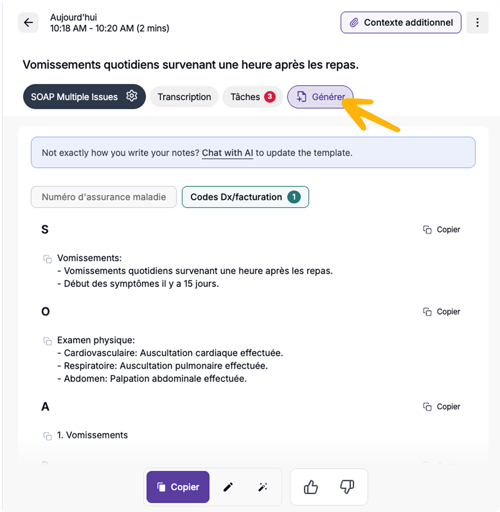
In the form selection window, go to the Forms tab, then search for or select the form you want to complete.
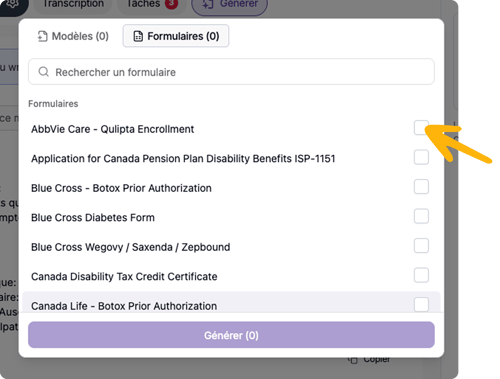
Click Generate to create the form.
2. Review the generated form
Once the form is generated, it will open in the encounter view.
Review the completed fields carefully to make sure the information is accurate and complete.
3. Edit or complete the form
To make changes, click Form Helper.
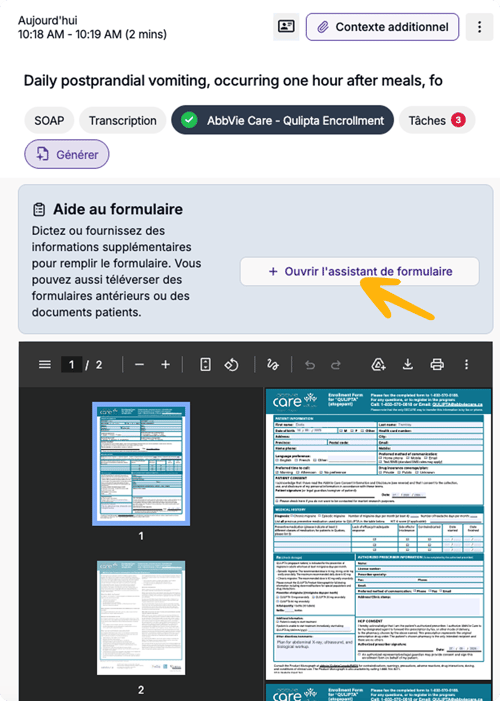
You can edit the form directly and add any missing information before sending it to Medesync.
4. Send the form to Medesync
When the form is ready, click Send to EMR at the bottom of the form viewer.
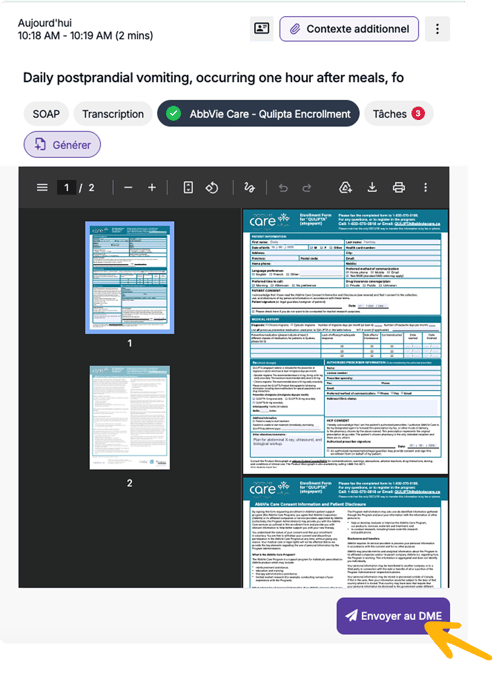
Tali will securely send the completed form to the patient’s Medesync chart in one click, removing the extra steps of downloading the file, saving it locally, and uploading it manually.
5. Attach the form in Medesync
After the form is sent, open or refresh the patient chart in Medesync. The form will appear as an available attachment option in the patient chart.
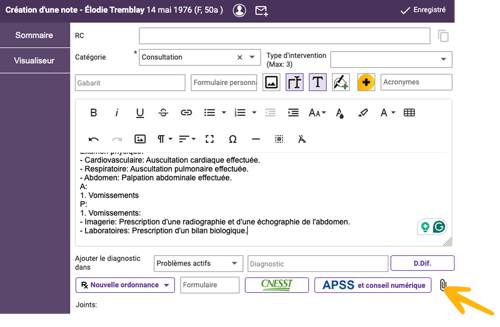
Select the form to attach it to the chart. Select and click Attach.
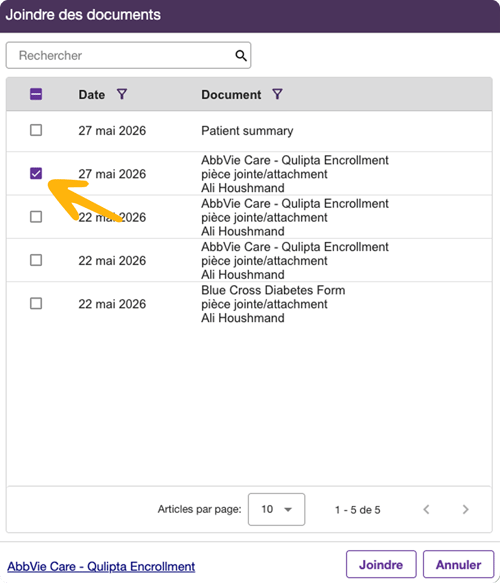
The form is now attached to the patient's chart.