
Record patient notes using the Tali–Medesync integration
Follow these steps to launch Tali and send documentation directly into a patient’s chart in your Medesync EMR.
Launching Tali inside Medesync
You must launch Tali from within a patient’s chart and from a new note. Do not launch Tali from the main page, as it will not pull in the patient context correctly.
- Log in to Medesync.
- Open an appointment from the Agenda.
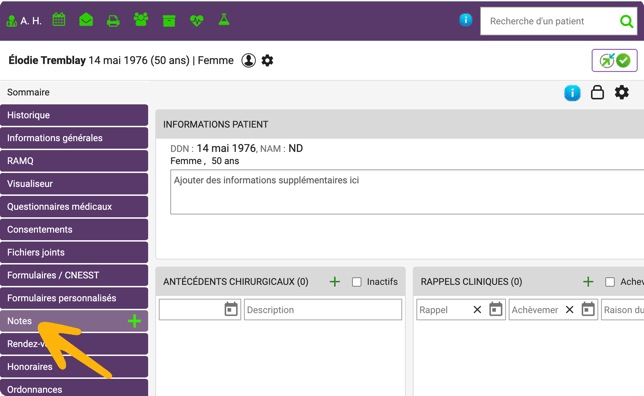
- Once the patient chart opens, go to the sidebar on the left side and click Notes.
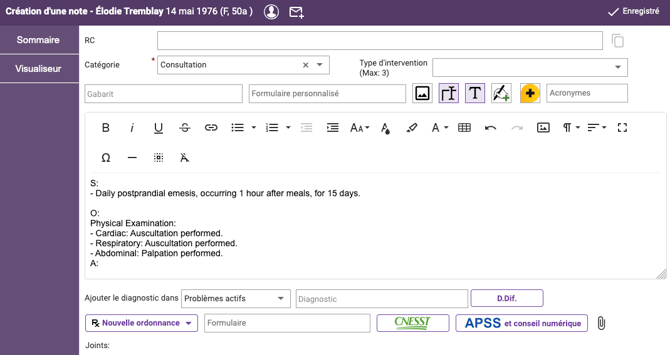
- Click the Add (+) button to create a new note.
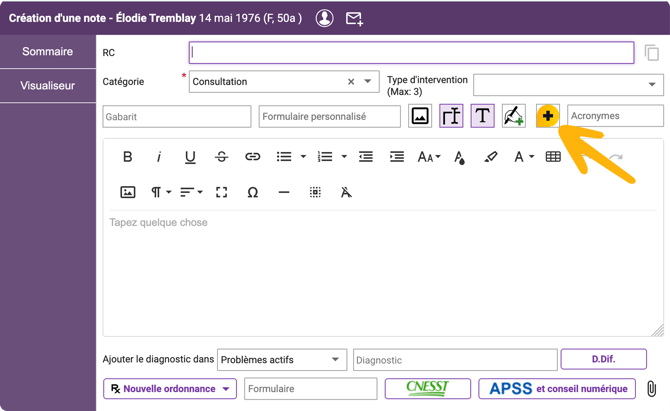
- In the new note, click the Tali icon to launch Tali.
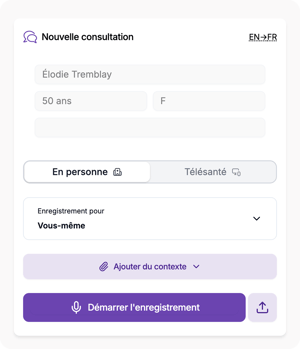
- Tali automatically pulls patient details, such as name, age, and gender, into your notes. This is called Patient Context.
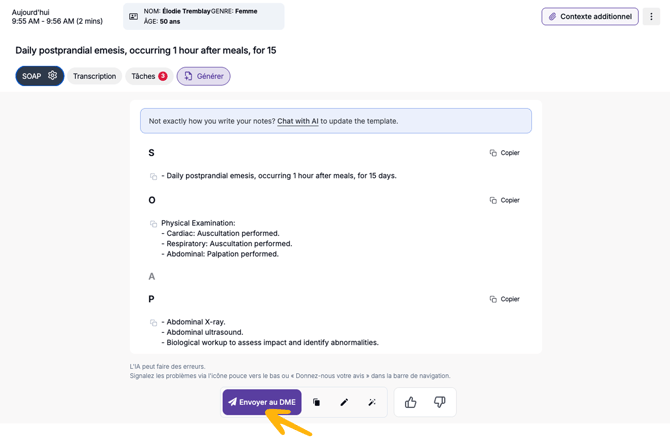
- Create a note with Tali.
- Click Send to EMR.
- Your note will appear in the patient’s chart.
Troubleshooting
| Situation | Action |
|---|---|
| “Session expired” pop-up — your secure connection has expired due to TELUS security requirements | Close Tali and reopen it from the Medesync patient chart by creating a new note and clicking the Tali icon again. No data will be lost. |
| Missing patient context — name, age, or other patient details are not pulling over | Close the browser tab and relaunch Tali from the patient’s chart by opening Notes, creating a new note, and clicking the Tali icon. |
| “Send to EMR” failing | Close the browser tab and relaunch Tali from the patient’s chart by opening Notes, creating a new note, and clicking the Tali icon. |