
What changed in this update
- Filter by patient: you can now filter history by patient to quickly find past encounters and notes for a specific patient.
Your History tab lets you store, review, and finalize your notes. Each item in the tab is an Encounter, showing the time, patient, reason/title, and the templates generated for that visit, as well as lables.
This article covers how to:
- Access your history
- Read the History table
- Add labels to an encounter
- Filter your encounters
- Change how encounters are displayed
- Copy notes to your EMR
- Delete an encounter
- Clear all history
- Recover lost notes and encounters
Accessing your history
- Desktop or Chrome extension: Click History on the left navigation panel.
- Mobile app: Tap History at the bottom of the screen.
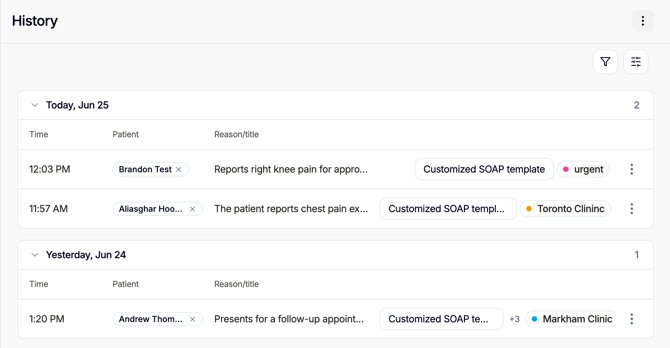
Reading the History table
Encounters are grouped by day, with the most recent at the top. Each row shows:
- Time — when the visit took place.
- Patient — the patient name or, if none is set, an option to add one.
- Reason/title — the encounter title, followed by any
- Templates (outlined pills), and
- Labels (a coloured dot and name)
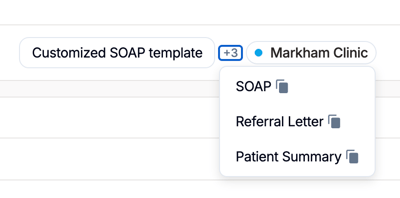
When an encounter has several labels or templates, they collapse to the first pill plus a +N count so rows stay easy to scan. On smaller screens the table switches to a card view that drops the title but keeps the patient, time, labels, and templates.
Add labels to an encounter
Labels help you group and find related encounters — for example, clinic name, visit type, or anything else useful to your workflow. A label shows as a coloured dot and name next to the encounter title.
To add a label:
- On the encounter, select a label pill, the +N overflow, or the add-label control.
- In the picker, type to search your labels and select one to apply it. Your choice is saved right away.
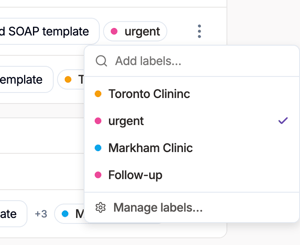
- To create a new label, type a name that doesn't exist in Add lables box, click on Create "template name". You can also click on manage lables to create or edit lables in from the settings.
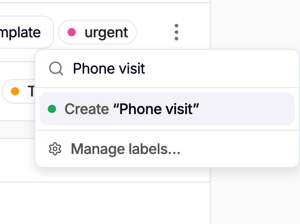
To remove a label, open the picker again and select the applied label to turn it off.
Filter your encounters
Use the Filter menu to narrow your list. Select the funnel icon in the top-right toolbar, then add one or more filters:
- Date range — choose a preset (Today, Yesterday, Last 7 days, Last 30 days, This month, Last month) or set a Custom range with a start and end date, then select Apply.
- Label — show only encounters carrying the selected label(s).
- Template — show only encounters that include the selected template(s).
- Patient — show only encounters for selected patients.
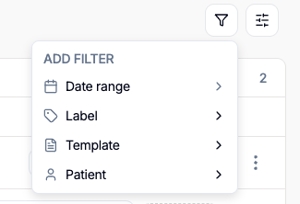
Each active filter appears as a removable pill. Filters combine together (an encounter must match every active filter), while multiple selections within one filter are inclusive. Click a pill to adjust that filter, or remove it to clear it.
Change how encounters are displayed
Select the Display options icon (sliders) in the top-right toolbar to control how the list is organized:
- Grouping — group encounters by Day, Week, Month, or Label.
- Ordering — sort by Newest first or Oldest first.
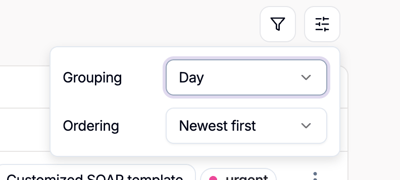
Display options change how your encounters are presented without filtering any out, and can be combined with the Filter menu.
Copy notes to your EMR
You can copy a note without opening the full encounter.
- Open the History tab.
- Select the template on the relevant encounter to open its list of notes.
- Choose the note you want (e.g. SOAP, Note). Tali copies the text to your clipboard.
- Paste the note into your EMR.
Delete an encounter
Note: Deleting an encounter permanently removes the transcript and all associated note types (SOAP, Assessment, etc.).
Web, desktop, and Chrome extension
- Open the History tab.
- Find the encounter you want to remove.
- Hover over the encounter row and select Delete.
Mobile app
- Tap History.
- Open the specific encounter.
- Tap the three vertical dots in the top-right corner.
- Select Delete Encounter and confirm.
Clear all history
You can clear your entire list to remove all encounter data from your workspace. This action cannot be undone.
- Open the History tab.
- Open the three-dot menu in the top-right corner of the History pane.
- Select Delete All History.
Recovering lost notes and encounters
If you accidentally deleted a note, we may be able to help if it hasn't been too long since it was deleted. Please reach out via our in-app chatbot.