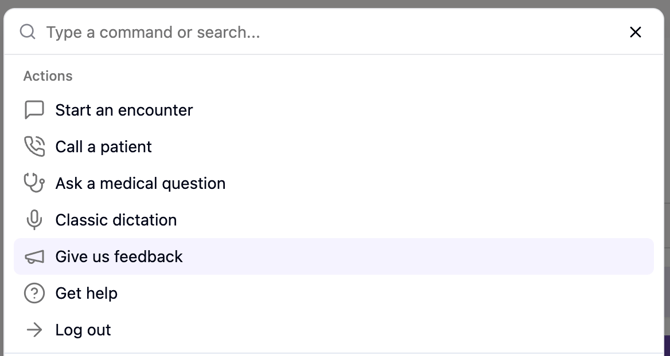
Command Centre gives you one keyboard shortcut for the actions you use most in Tali.
Instead of clicking through menus or remembering multiple shortcuts, you can open Command Centre from anywhere in Tali and quickly start an action, navigate to a page, ask a medical question, call a patient, or work inside an encounter.
To open Command Centre:
Windows: Press Ctrl + K
Mac: Press Command + K
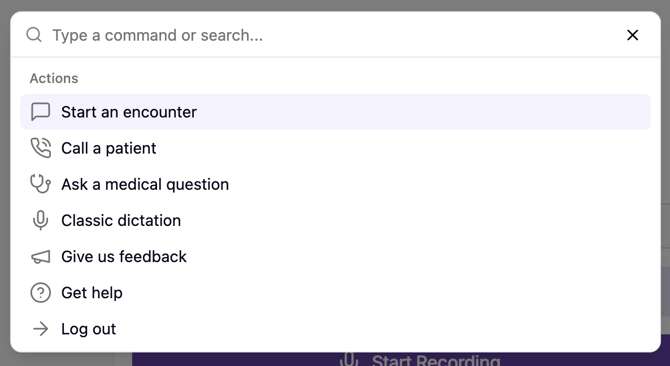
You can start typing right away after the Command Centre opens, and use your arrow keys on the keyboard to navigate between options within the Command Centre.
Options will appear as soon as you start typing, in most cases you don’t need to type the entire action name to find it.
What can I use the Command Centre for?The Command Centre helps you quickly access common actions across Tali. The options you see may change depending on where you are in the app.
For example, when you are inside an encounter, Command Centre can show encounter-specific actions like Smart Edit, Generate a form, Add context, and Customize template.
Note
To avoid inadvertently losing a recording, except for asking a medical question, all other capabilities of the Command Centre are disabled while a recording is in progress.
Universal actions
Start a new encounter
You can use the Command Centre to quickly start a new encounter.
To start a new encounter:
- Press Cmd + K or Ctrl + K
- Use the arrow keys to navigate to ‘Start an encounter’ (This should be the option you are on by default
- Hit Enter
- Continue with your encounter workflow
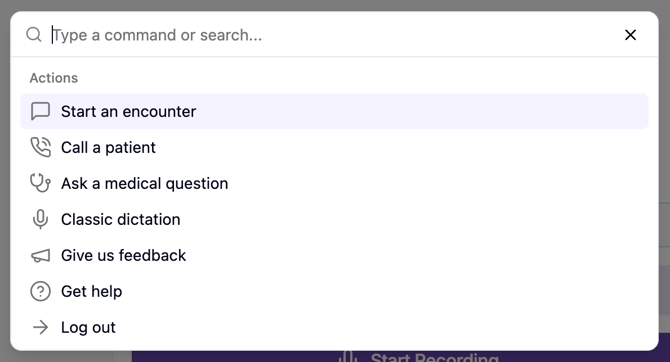
This is useful when you want to begin documenting a patient visit without navigating back through the app.
Call a patient
You can use the Command Centre to start a patient call.
To call a patient:
- Press Cmd + K or Ctrl + K
- Use the arrow keys to navigate to ‘Call a patient’
- Hit enter
- Use the telephone keypad to call a patient, as you would normally do (link)
You can also type a phone number directly into the Command Centre. If the number is recognized, Tali will show a call option for that number.
To call a number directly:
- Press Cmd + K or Ctrl + K
- Type or paste a Canadian phone number
- Once you type a full phone number, a ‘Cal
- A new option will to call that phone number
- Hit enter
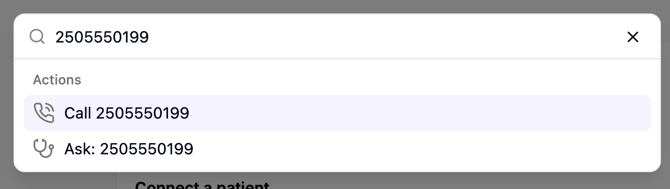
Do not enter any unnecessary patient information into the Command Centre. Only enter the phone number needed to start the call.
Ask a medical question
You can use the Command Centre to quickly ask a medical question in Tali.
To ask a question:
- Press Cmd + K or Ctrl + K
- Type your medical question
- Select Ask: followed by your question
- Hit enter
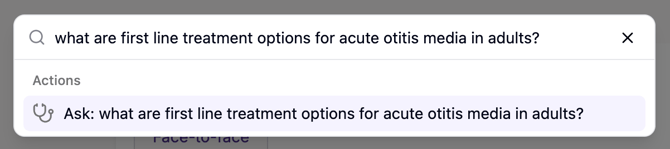
Tali will open a medical search and submit your question.
If you are already in an encounter, Tali can open a medical search in the encounter view so you can continue working without leaving the page.
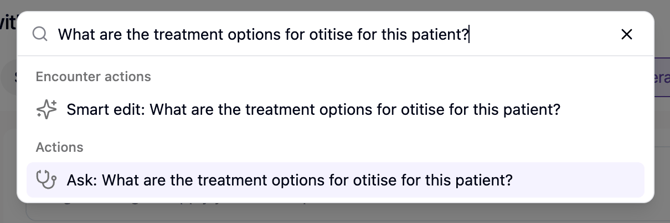
If you are in the middle of recording, the Command Centre will bring the medical search sidebar into focus. See how Medical Search works.
Note
To avoid inadvertently losing a recording, all other capabilities of the Command Centre are disabled while a recording is in progress.
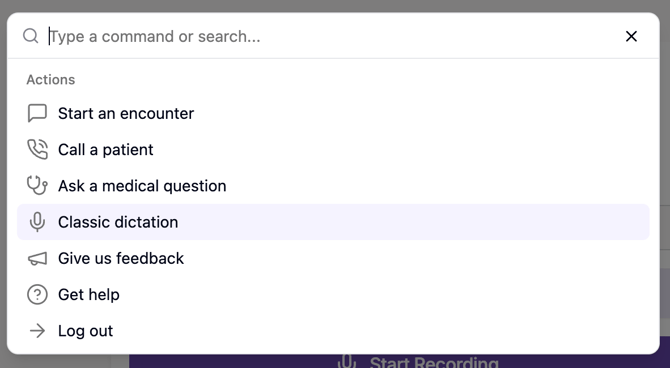
Dictation, audio feedback, getting help, and logging out
Using the Command centre, you can easily access these options.
- Press Cmd + K or Ctrl + K
- Navigate to the desired action
- Hit enter
Navigate to a page in Tali
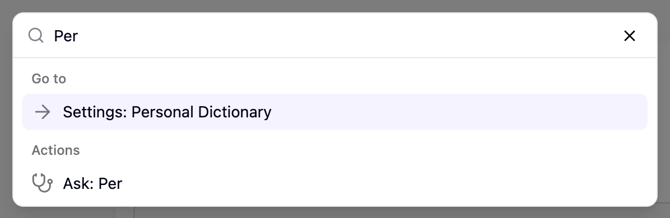
You can use the Command Centre to quickly move around Tali. e.g. if you are looking for a certain setting but don’t remember where in Tali it was located.
To navigate to a page:
- Press Cmd + K or Ctrl + K
- Type the page or area you want to open
- Select the result
- Hit enter
Customize templates
You can use the Command Centre to search for templates.
To open a template:
- Press Cmd + K or Ctrl + K
- Type the template name
- Select the template from the results
- Hit enter
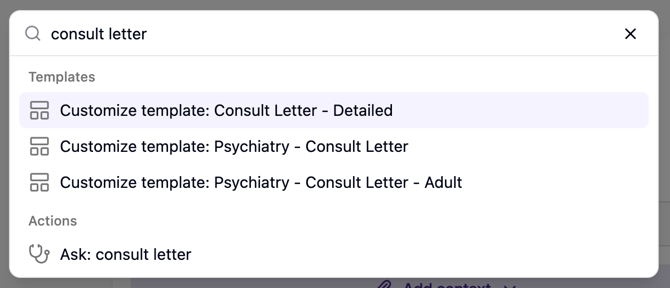
The Command Centre will show matching templates as you type.
Open recent encounters
The Command Centre can show recent encounters you have visited.
To open a recent encounter:
- Press Cmd + K or Ctrl + K
- Look for the Recent encounters section
- Select the encounter you want to open
- Hit enter
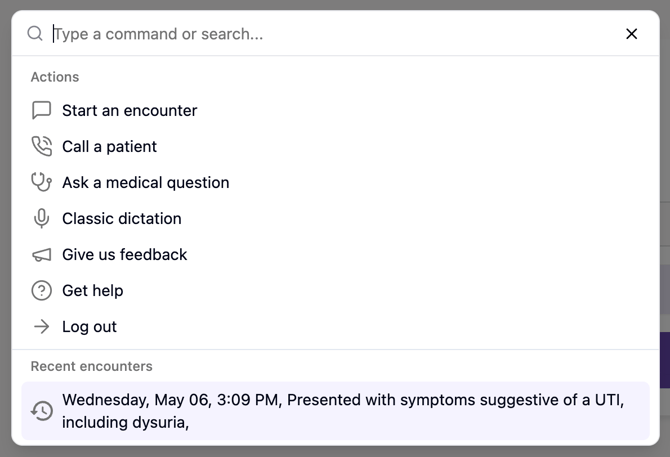
Recent encounters appear when you open the Command Centre without typing a search.
Pro tip
Recent encounters are located at the bottom of the action list. To quickly navigate to one, hit the up arrow key to navigate the list bottom-to-top.
When viewing an encounterUse Smart Edit
When you are viewing an encounter, you can use the Command Centre to edit your note with Smart Edit.
To use Smart Edit:
- Open an encounter
- Press Cmd + K or Ctrl + K
- Type the edit you want Tali to make
- Select Smart edit: followed by your instruction
For example, you can type an instruction like:
Make the assessment more concise
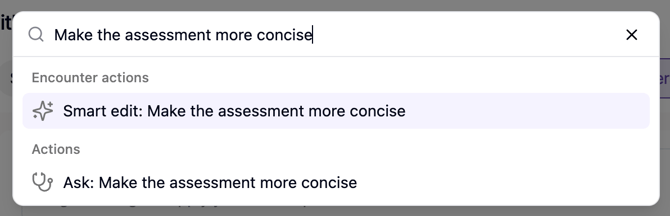
Tali will use Smart Edit to update the note based on your instruction. See how that works.
You can also open Smart Edit without typing an instruction first:
- Open an encounter
- Press Cmd + K or Ctrl + K
- Select to the smart edits
- Hit Enter
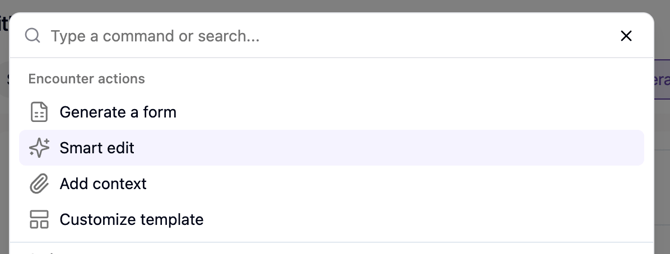
Generate a form inside an encounter
When you are in an encounter, you can use the Command Centre to quickly generate a form.
To generate a form:
- Open an encounter
- Press Cmd + K or Ctrl + K
- Select Generate a form
- Hit enter
- Type in the form name you want
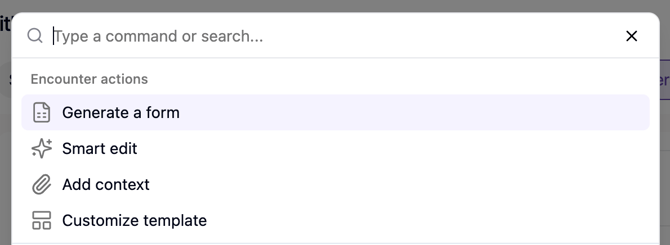
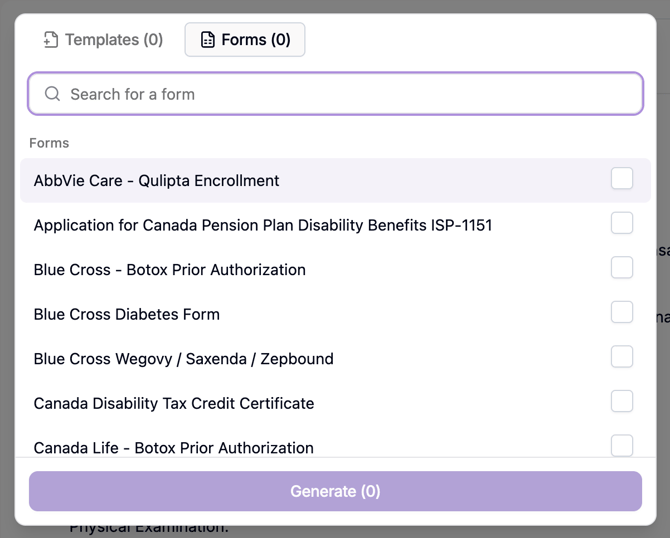
Tali will open the form generation experience for that encounter. See how that works.
Add context inside an encounter
You can use the Command Centre to add extra context to an encounter.
To add context:
- Open an encounter
- Press Cmd + K or Ctrl + K
- Select Add context
- Hit enter
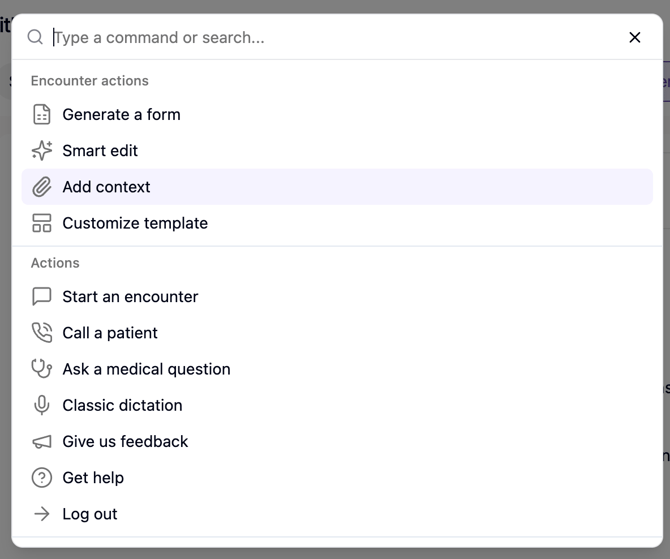
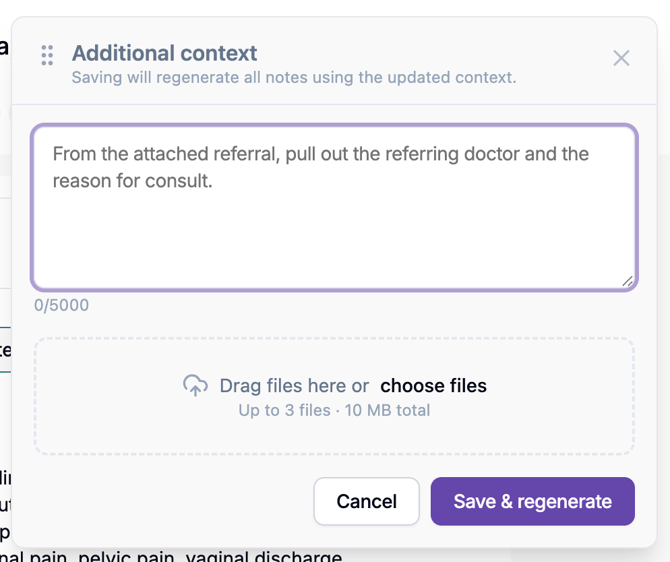
This can be helpful when you want Tali to consider extra information that was not captured in the original conversation. See how that works.
Customize the template inside an encounter
You can use the Command Centre to quickly customize the template for the current encounter.
To customize a template:
- Press Cmd + K or Ctrl + K
- Select Customize template
- Hit enter
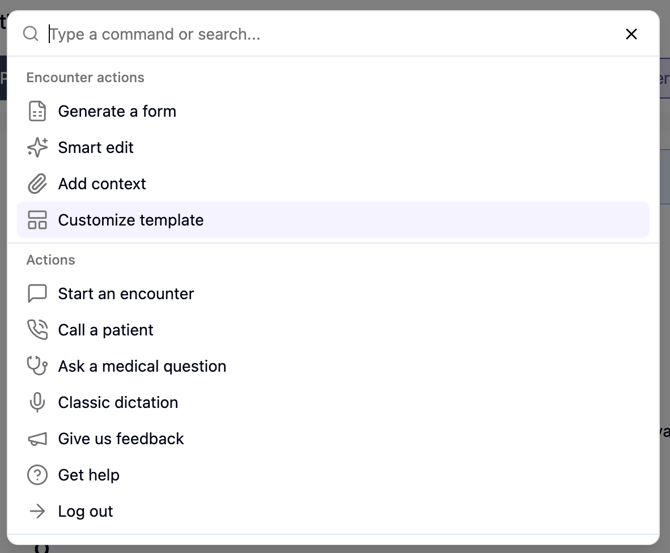
Tali will take you to the template customization experience for the encounter’s current template. See how that works.
Close Command Centre
You can close Command Centre in a few ways:
- Press Cmd + K or Ctrl + K again
- Press Escape
- Click outside the Command Centre window
- Select an action
- Click the close button
When the Command Centre closes, your search is cleared.
Pro tip
Is there anything that you want to be added to Command Centre?
- Press Cmd + K or Ctrl + K
- Select ‘Give us feedback’
- Hit enter
- Record a voice note and tell us what you wish Command Centre did.