
Instead of reviewing the complete RA line by line, you can quickly see your net payment, where the payment came from, and how each category compares with your recent average.
This article covers how to:
- Open Reconciliation
- Select a Remittance Advice
- Read your payment summary
- Understand the payment categories
- Interpret comparisons with your average
- Review your payment trend
- Switch between the Overview and Details tabs
Opening Reconciliation
To review a Remittance Advice:
- Sign in to Tali.
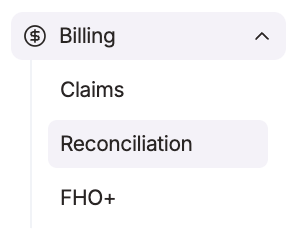
- Select Reconciliation from the navigation menu.
- Use the date selector at the top of the page.
- Choose the month you want to review.
Tali will display the Remittance Advice associated with the selected payment period.
Reviewing your payment summary
The summary card on the right side of the page provides a quick overview of the selected RA.
It includes:
- Net payment: The total payment shown for the selected RA
- Comparison with average: How the payment compares with your fiscal year-to-date average
- Plan: The payment model associated with the RA, such as FHO
- Provider: The provider associated with the payment
- Payment date: The date associated with the RA payment
- Six-month trend: A visual comparison of your recent monthly payments
A green amount indicates that the payment was higher than your calculated average. A red amount indicates that it was lower.
Understanding the Overview tab
The Overview tab groups your payment into the major categories included in the RA.
Depending on your payment model and the contents of the selected RA, you may see the following sections.
Capitation
The Capitation section summarizes payments and adjustments related to your rostered population.
It may include:
- Capitation net
- Base rate
- Acuity
- Comprehensive care
- Adjustments
The net amount represents the combined result of the components shown beneath it.
Premiums
The Premiums section summarizes eligible premium payments included in the RA.
This may include:
- Blended premiums or shadow billing
- Other premium categories included in your payment
Access Bonus
The Access Bonus section summarizes Access Bonus payments and separates the amount into relevant patient categories.
It may include:
- Access Bonus net
- Long-term care
- Non-long-term care
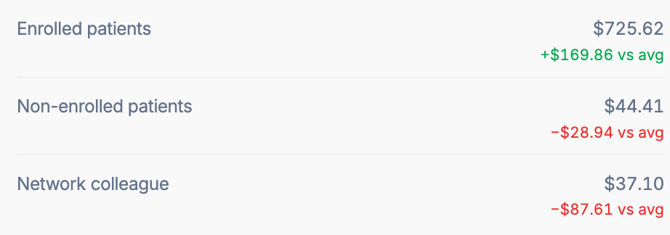
Out of basket
The Out of Basket section summarizes eligible fee-for-service payments outside the core basket.
It may include payments related to:
- Enrolled patients
- Non-enrolled patients
- Network colleagues
Special premiums
This section displays special premium payments included in the RA.
Preventive care
This section displays preventive care payments included in the selected RA.
Other payments and adjustments
This section contains amounts that do not fall under the other summary categories, including additional payments or adjustments reported in the RA.
Distribution
The Distribution section shows how the total payment was allocated.
It may include:
- Paid to physician
- Paid to group
Understanding “vs avg”
Where enough information is available, Tali compares each amount with your fiscal year-to-date average.
For example:
- +$53.31 vs avg means the amount was $53.31 higher than your calculated average.
- -$28.94 vs avg means the amount was $28.94 lower than your calculated average.
Green values are above average. Red values are below average.
These comparisons can help you identify categories that changed meaningfully from your usual payments. However, a higher or lower amount does not necessarily indicate an error. Payment amounts may vary because of roster changes, billing activity, adjustments, payment timing, or other factors represented in the RA.
How averages are calculated
Averages are fiscal year-to-date estimates calculated from the current and previous Remittance Advice reports available to Tali.
If earlier RAs are unavailable, the calculation may be based on a smaller number of reports. This can make the comparison less representative of your typical payment.
Reviewing the six-month trend
The Six-month trend chart shows your recent net payments by month.
Use it to quickly identify:
- Whether your total payment has increased or decreased
- Months that appear unusually high or low
- Whether the current payment is consistent with your recent payments
Select a different month using the date selector to review its complete summary.
Why does a category appear above or below average?
A category may change from month to month for several reasons, including:
- Changes in your roster or patient population
- Differences in monthly billing activity
- Retroactive payments or recoveries
- Adjustments included in the RA
- Differences in when claims or premiums were processed
- Limited historical RAs available for calculating your average
The comparison is intended to draw your attention to changes. It does not determine whether the payment is correct or incorrect.
Why is an average not displayed?
Tali may not display a comparison when there is not enough historical RA information to calculate a meaningful average.
As more Remittance Advice reports become available, additional comparisons may appear.
Important note
Tali organizes information from your RA to make it easier to review. The original Remittance Advice remains the authoritative source for exact payment amounts and details.
For questions about how an amount was calculated or paid, consult the original RA or contact the appropriate billing administrator.
Using the Details tab
Select Details to review the individual entries included in the selected Remittance Advice.
Use this view when you need to:
- Investigate an amount shown in the Overview
- Understand which RA entries contributed to a category
- Review specific payments or adjustments
- Compare the Tali summary with the original RA
The Overview is designed for quickly understanding the payment. The Details tab provides the additional information needed to investigate it.