This article covers:
- Starting an intake triage from the Appointments page
- The triage sections and what they capture
- The right-side panel: listening control, Ask the patient, Timeline, and Transcript
- How Tali fills fields while you talk
- Saving the triage to the appointment
- Re-opening a triage that already has saved context
Start an intake triage
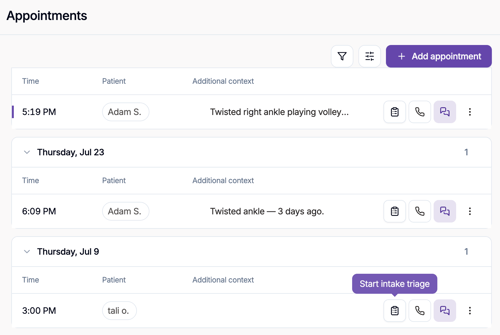
- Go to Appointments.
- Find the appointment you want to triage. Each appointment row has three actions on the right: the clipboard icon (Start intake triage), the phone icon (call), and the encounter icon.
- Select the clipboard icon. The intake triage screen opens, titled with the patient's name.
The triage sections
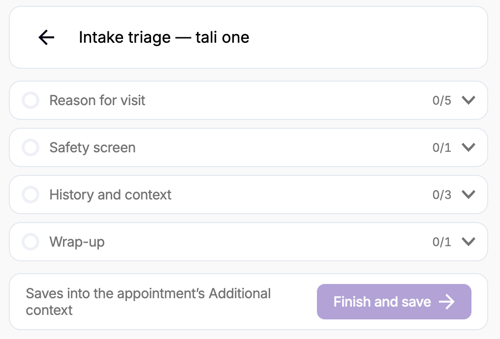
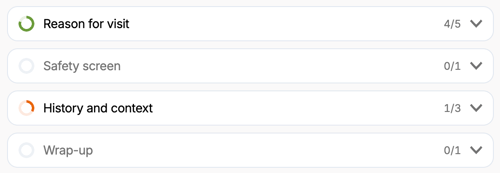
The left side of the screen is the triage form, organized into four sections. Each section shows how many of its fields are filled (for example, 2/5).
- Reason for visit — the main reason for the visit, when it started, whether it has changed since, current severity (0–10), and what makes it better or worse.
- Safety screen — a red-flag symptom toggle (chest pain, trouble breathing, severe bleeding, sudden weakness or numbness, fainting, confusion, thoughts of self-harm) with a details field.
- History and context — what the patient has already tried and whether it helped; relevant conditions, medications, or allergies (including possible pregnancy); and recent travel, sick contacts, or injuries.
- Wrap-up — what the patient is hoping for from the visit.
You can expand or collapse any section, and type into any field directly at any time.
The right-side panel
The right side of the screen holds four items that run alongside the conversation:
- Listening control — the microphone button starts listening; while active it shows a timer and a pause button.
- Ask the patient — questions Tali suggests to close gaps in the record. When there are no gaps, the panel reads "No open questions." Open questions appear here as the conversation progresses, with a count on the panel. These nudges also appear in the form itself, alongside the fields they relate to.
- Timeline — everything Tali wrote, newest first. Each entry shows the section, the field, the value written, and a timestamp — so you can follow exactly what was captured and when.
- Transcript — the live conversation as Tali hears it, timestamped line by line. The panel shows Idle before listening starts and Live while recording.
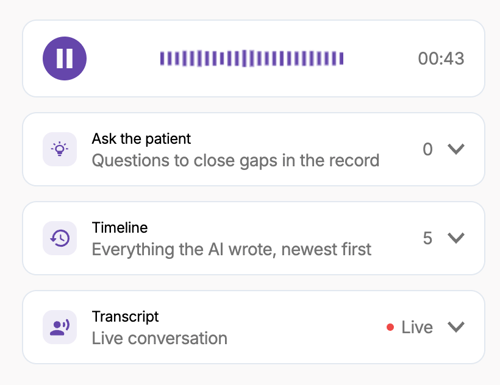
Each panel opens and closes individually, so you can keep only what you want to review in view — for example, just the Timeline, just the Transcript, or all of them at once. On narrower screens the panel collapses into an icon rail, with count badges on Timeline and Transcript.
Let Tali fill the form while you talk
- Select the microphone button on the right to start listening. The timer starts and the Transcript panel switches to Live.
- Talk with the patient as you normally would. As details come up in the conversation, Tali writes them into the matching triage fields.
- Watch the right-side panel as you go — open questions in Ask the patient, each field update in the Timeline, and the live Transcript.
- If the patient corrects or adds detail, Tali updates the field — the Timeline keeps a record of each revision.
- Use the pause button at any time to stop listening.
Finish and save
- When the conversation is done, select Finish and save.
- The triage summary is saved into the appointment's Additional context. You'll see it on the appointment row in the Appointments list (for example, "Twisted ankle — 3 days ago").

Re-opening a triage with existing context
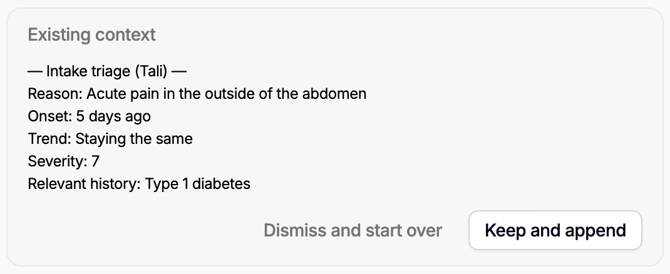
If the appointment already has saved triage context, an Existing context card appears at the top of the triage screen showing the previously saved summary. You have two options:
- Keep and append — keeps the existing summary and adds the new triage to it.
- Dismiss and start over — clears the existing summary and starts fresh.
Each saved triage is stamped in Additional context, so appended summaries stay distinguishable from one another.