
Customize Templates with Template Assistant
Template Assistant lets you personalize supported Tali templates using AI. You can describe the changes you want in plain language, review the updated note preview, inspect the template instructions, and save only when the result matches your preferred documentation style.
This feature is designed to reduce manual note editing by making template customization self-serve and easy to use.
What templates can be edited
Template Assistant is available for all templates in Tali, including:
-
Tali default templates
-
User templates
This means you can use Template Assistant to update SOAP notes, consult letters, referral letters, patient summaries, and other available templates in your workspace.
Open Template Assistant from Templates
- In Tali, go to Templates from the left navigation.
- Under Tali Templates, find the template you want to customize.
- Select the three-dot menu on that template.
- Click Update template.
Template Assistant opens with that template loaded.
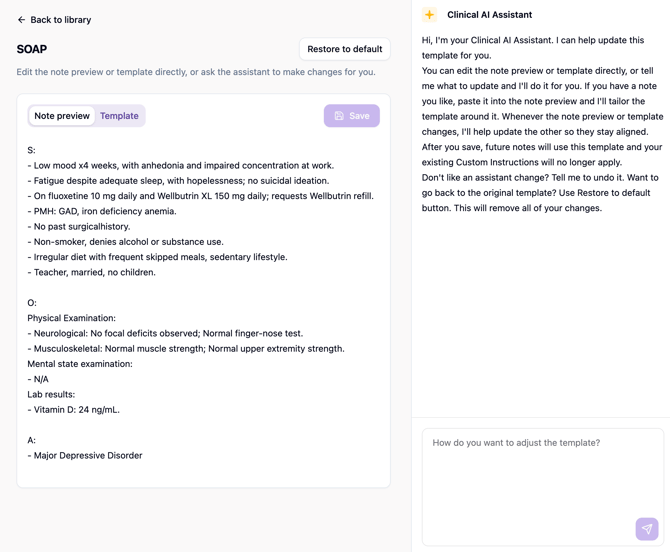
Migrate existing custom instructions into Template Assistant
If you already have custom instructions for a template, you do not need to start from scratch.
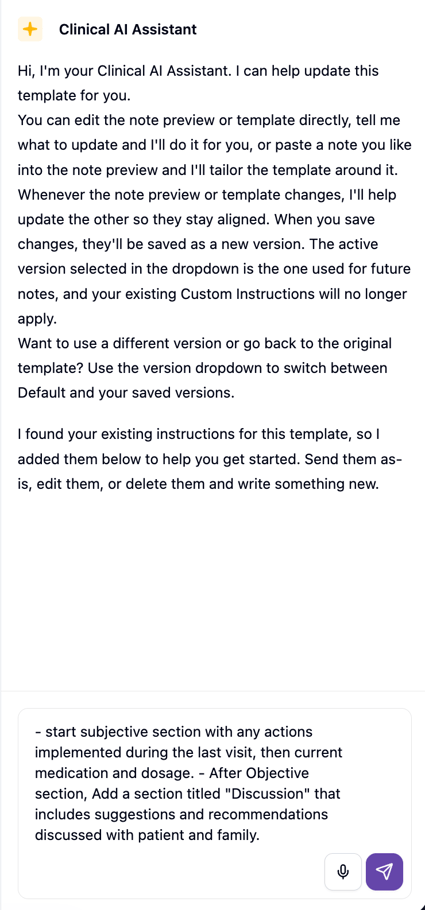
Your existing custom instructions will automatically appear in the Clinical Assistant chat. You can start editing the template directly using your custom instructions. This can be a simple way to move from the older custom instructions experience into Template Assistant while keeping the same overall note preferences.
After sending your instructions to AI:
- Review the updated Note preview and Template.
- Make any additional refinements in chat.
- Select Save when the result matches your preferred style.
This helps you migrate your existing setup to the new experience without having to rewrite everything manually.
Open the Template Assistant from an encounter
When reviewing a completed note, you may see a banner that lets you update the template used for that note.

Use this option when a generated note is close, but you want future notes from that template to better match your preferred structure, tone, or level of detail.
A few things to keep in mind:
- In some cases, another banner or prompt may appear instead.
- Once selected, you will be taken to the correct template in Template Assistant.
Ask the assistant to update your template
In the Clinical Assistant panel, describe the change you want in plain language. You can ask for updates to:
- note structure
- tone
- headings
- level of detail
- phrasing style
Examples:
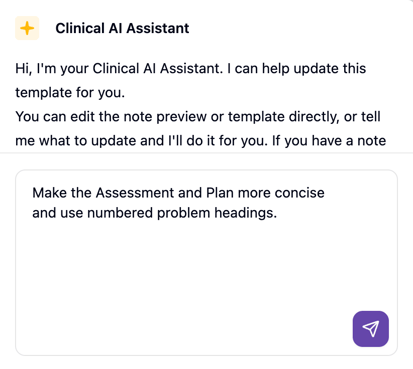
- “Make the Assessment and Plan more concise and use numbered problem headings.”
- “Keep Subjective in short bullets, but write Assessment and Plan in full sentences.”
- “Add a section for relevant negatives under Subjective.”
- “Use problem-based headings in the Plan and include follow-up timing.”
After you send your request, the assistant updates the preview and explains what changed.
Review the result before saving
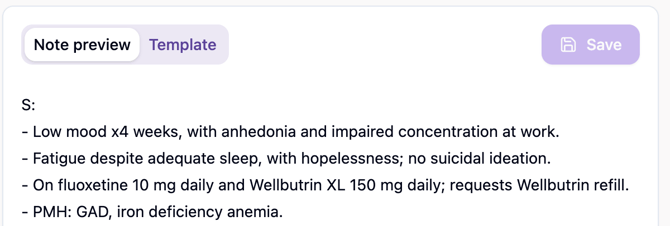
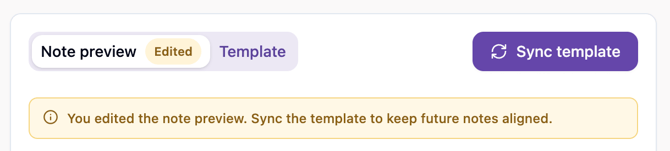
Template Assistant includes two main views:
Note preview
Shows an example of how future notes may look using the updated template.
Template
Shows the reusable template instructions that will guide future note generation.
Review both before saving.
If the result is not right yet, you can continue the conversation with follow-up requests such as:
- “Undo that change.”
- “Make it less detailed.”
- “Use a more formal tone.”
You can also choose Restore to default to remove your changes and return to the original template.
Save your template
When the preview matches your preferred style, select Save.
After saving:
- Future notes using that template will follow the updated version
- Older custom instructions for that template will no longer apply
Tips for best results
- Be specific about what you want to change.
- Focus on one or two changes at a time.
- Review the preview before saving.
- Use follow-up prompts to refine the result instead of trying to get everything perfect in one message.
What Template Assistant is for
Template Assistant gives you more control over how your notes and documents sound, feel, and are structured, without needing to manually rewrite templates or learn prompt-writing techniques.
It is part of Tali’s move toward a more self-serve customization experience for note quality, document structure, and style across all editable templates.