Tali Desktop App
The new Tali Desktop App brings the web experience directly to your computer with a modern design and improved performance. It’s built to make documentation simple, whether you’re in a clinic, working remotely, or conducting telehealth visits—Canada’s leading AI Scribe now also supports telehealth and phone encounters.
Install and Access the Desktop App
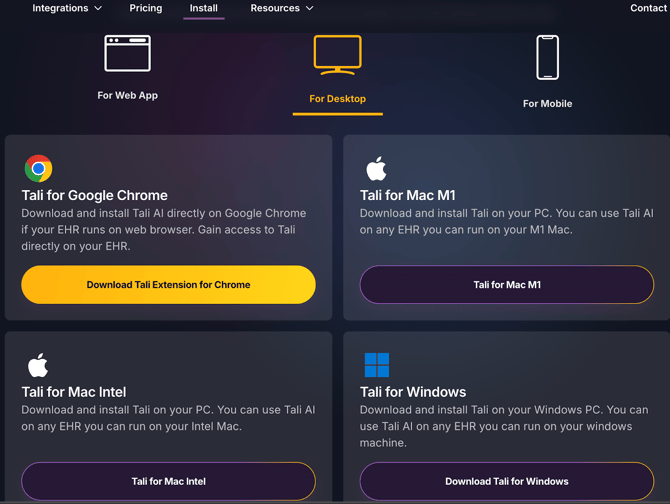
You can install the new desktop app directly from Tali’s download page.
When downloading, simply select your operating system:
- Mac M1
- Mac Intel
- Windows

Once installed, open Tali just as you would any other application on your computer. Users will remain authenticated even after quitting the app, just like before.
What’s Familiar
The core flow remains the same:
- Easy installation
- Opening Tali as a standalone desktop application
- Persistent login (you stay signed in)
What’s New
The new desktop experience introduces several improvements:
- Completely redesigned user interface – Modern, clean, and more intuitive.

- Enhanced Telehealth Support – Record both system and microphone audio, even when using headphones, for virtual visits via web-based telehealth platforms or VOIP calls.
- Light-mode design (Dark mode → Light mode) – Easier on the eyes and consistent with the updated look.
- Wide, resizable window – Adjust the app window to fit your workflow.
- Automatic updates – New features are delivered continuously without manual downloads.
- Custom Templates – Create, edit, and apply templates to streamline documentation across visit types.

- Admin Panel Access – Enterprise clinic administrators can manage their Admin Panel directly from the desktop app.

Key New Feature
Enhanced Telehealth Support
Tali can now record audio that plays through your computer—making it possible to use headphones during virtual visits. Whether you use a web-based telehealth platform or conduct visits through a VOIP phone system, Tali captures both sides of the conversation clearly.
To start a telehealth visit in Tali:
⚠️ Make sure the proper permissions are enabled on your device so Tali can capture system audio correctly. Without them, audio from your telehealth platform may not be recorded. Steps below
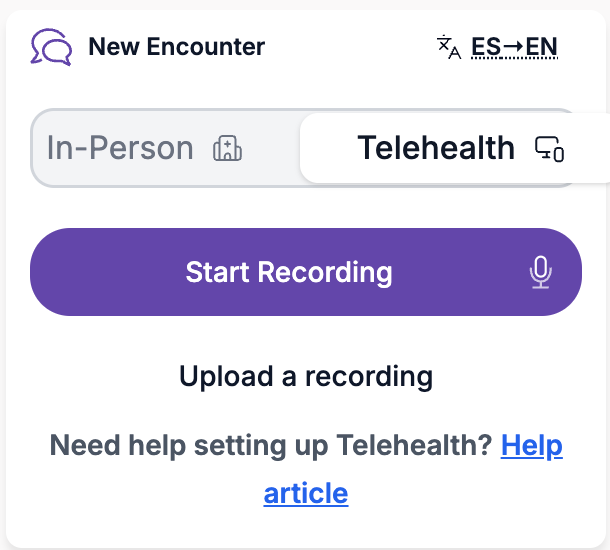
- Open the Tali desktop app on your computer.

- Select Telehealth from the app menu.

- Click Start Recording to begin capturing your encounter.

Once recording starts, Tali captures all audio from both sides of the conversation, including the patient’s voice, even if you are using headphones.
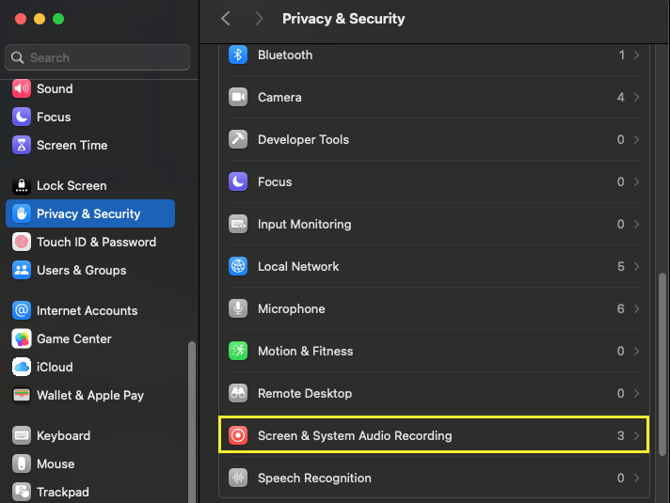
Granting Screen & System Audio Permissions (macOS)
To enable system audio recording for telehealth visits on a Mac, you must grant Tali additional permissions the first time you use the feature.
Follow these steps:
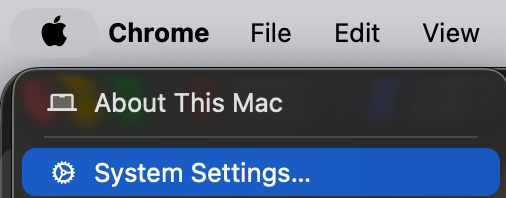
- Click the Apple menu (🍏) in the top-left corner of your screen → select System Settings (or System Preferences if you’re on an earlier macOS version).

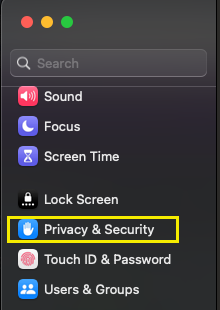
- In the sidebar, scroll down and select Privacy & Security.

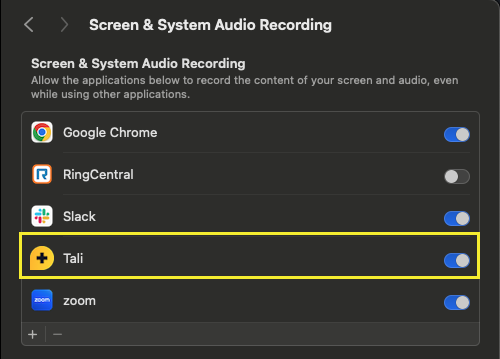
- Locate and select Screen & System Audio Recording.

- Find Tali in the list and toggle the switch ON. You may be prompted to enter your system password.

- If you don't see Tali listed yet, open the Tali app and start a recording. macOS should automatically prompt you to grant permission.

- Restart Tali if required.
Once permissions are enabled, Tali will recognize both you and your patient during a telehealth encounter—ensuring accurate documentation.
Granting System Audio Permissions (Windows)
Windows does not require a separate system-audio permission. However, Tali must have microphone access in order to capture your voice and your patient’s voice during telehealth visits.
FAQs
Do I stay signed in after quitting the app?
Yes. Authentication persists between sessions.
Can I use headphones during virtual or VOIP visits?
Yes. System audio capture now allows Tali to record audio from telehealth platforms while you use headphones.
How often does the app update?
Updates are automatic and frequent. New features roll out continuously.
Can clinic admins access the Admin Panel from the app?
Yes. Admins can open their Admin Panel directly within the desktop app.
What features are included in the desktop app?
The desktop app includes all your favorite Tali features, such as:
- AI Scribe – Automatically generate structured visit notes from your recordings, and now with the option to select In-Person or Telehealth encounters.
- Medical Search – Ask clinical questions and get relevant answers quickly.
- Dictation – Convert speech to structured notes seamlessly.
- Personal Dictionary – Customize and save terms for consistent documentation.
- Custom Templates – Create, edit, and apply templates to streamline documentation across visit types.
- Generate Notes, Letters, and Forms – Quickly create professional documentation and forms based on your visit recordings.
- Admin Panel – Enterprise clinic administrators can access and manage their Admin Panel directly from the desktop app.