
Request the integration
-
Fill out the Integration Request Form to send your request to our team.
-
Note: You will need your Clinic name and Clinic ID (the 6-character code at the start of your Med Access URL, e.g.,
abcdef) to complete the form. -
Once the request form is signed, we will handle the paperwork with Telus.
-
Telus will connect your EMR, which typically takes a few business days.
-
You will receive a confirmation email when the integration is complete.
Note: If another user at your clinic has already requested the integration, it will be available for you to use as soon as it is live.
Activate Tali in Med Access
Note: You must be an administrator to complete these steps.
-
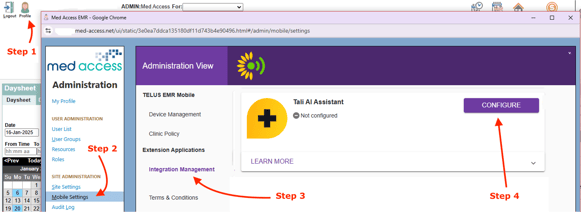
Log into Med Access, go to the Main Toolbar, and click Profile.
-
Click Mobile Settings.
-
Click Integration Management.
-
Next to Tali AI Assistant, click Configure.
-
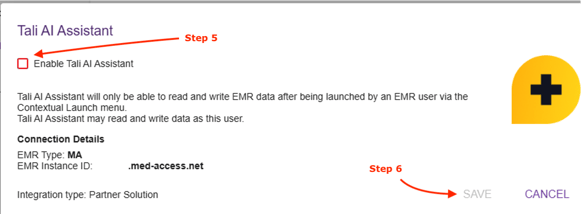
Select the Enable Tali AI Assistant checkbox.
-
Click Save.
If required: Enabling mobile terms and conditions
Most clinics have already completed this and will not need to repeat these steps. Our team will let you know if this is required for your site.
-
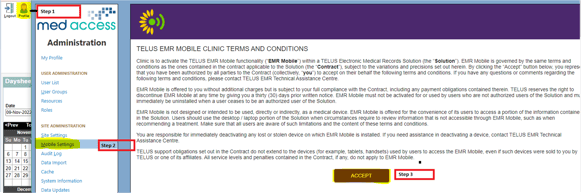
From the Profile page in Med Access, click Mobile Settings on the left navigation bar.
-
Review the EMR Terms and Conditions.
-
Click Accept, then Save.
Getting help
-
Need a Tali account? Create one by following these instructions.
-
Need support? Contact Tali’s Customer Success Team here.
- Having trouble with your EMR? Visit our troubleshooting guide here