
Request the integration
-
Fill out the Integration Request Form to send your request to our team.
Note: You will need your Clinic name and Clinic ID (a 4-digit number found at the top of your EMR) to complete the form.

-
Once the request form is signed, we will submit the paperwork to Telus.
-
Telus will connect your EMR, which may take up to 10 business days.
-
You will receive a confirmation email when the integration is complete.
Activate Tali in PS Suite
Note: You must be an administrator to complete these steps.
-
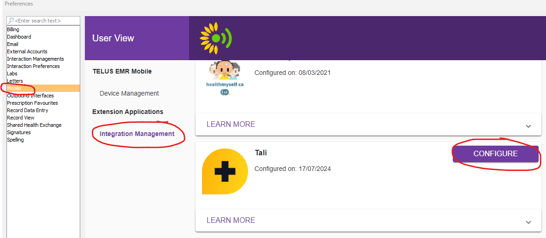
Go to the Main Toolbar and click Settings > Preferences > Mobile > Integration Management.
-
Select Tali from the list and click Configure.
-
Select the Enable Integration Component checkbox.
-
Click Save Your Preferences.
Launch Tali
You must launch Tali from within the patient’s chart. Do not launch Tali from the main page, as it will not pull in the patient context.
-
Open a patient chart.
-
Click the square icon with an arrow on the far right of your toolbar.
-
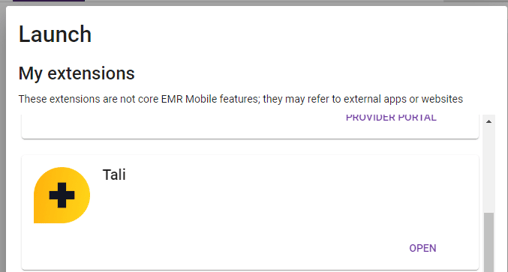
Select Tali from the extension selector and click Open.
- Sign in to Tali in the new browser window. After your first login, Tali will stay connected automatically.
If required: Enabling mobile terms and conditions
Most clinics have already completed this and will not need to repeat these steps. Our team will let you know if this is required for your site.
-
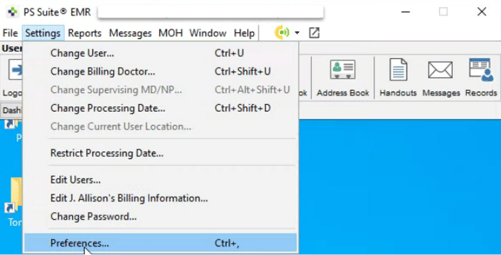
In the PS Suite main toolbar, choose Settings > Preferences.
-
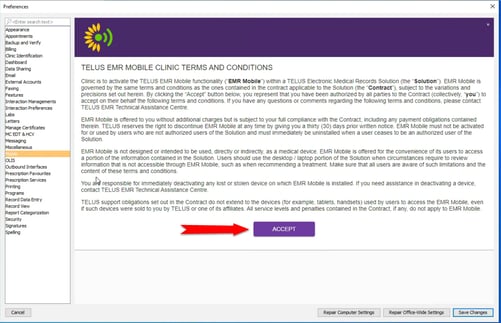
Select Mobile.
-
Click Accept, then Save.
Getting help
- Need a Tali AI account? Create one by following these instructions.
- Need support? Contact Tali’s Customer Success Team here
- Having trouble with your EMR? Visit our troubleshooting guide here