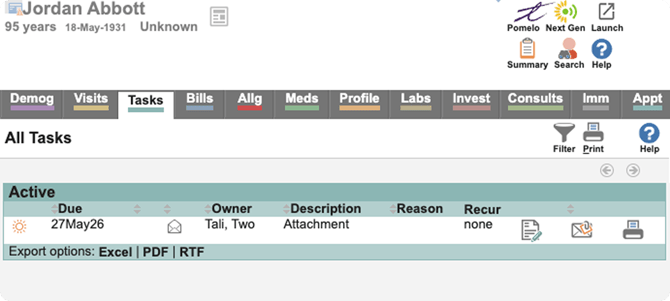
Before you start
Make sure you are uninf Tali-Med Access integration, launching Tali from Med Access, and working from an encounter linked to the correct Med Access patient chart.
How to generate and send a form to Med Access.
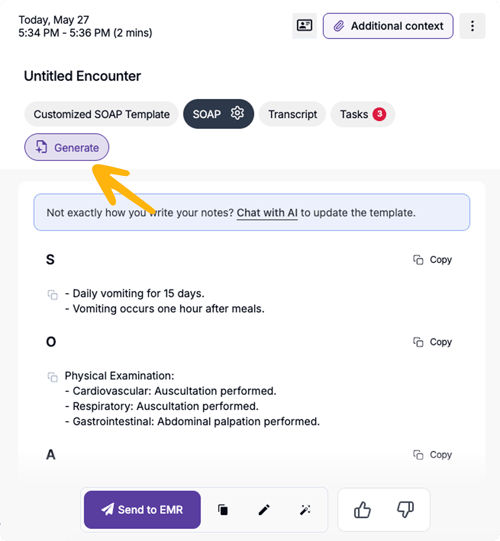
1. Select a form from an encounter
Click Generate.
In the form selection window, go to the Forms tab, then search for or select the form you want to complete.
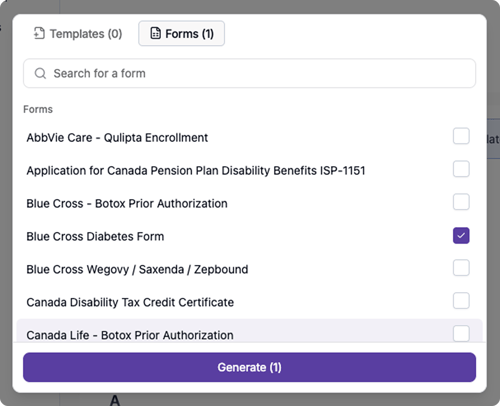
Click Generate to create the form.
3. Review the generated form
Once the form is generated, it will open in the encounter view.
Review the completed fields carefully to make sure the information is accurate and complete.
4. Edit or complete the form
To make changes, click Form Helper.
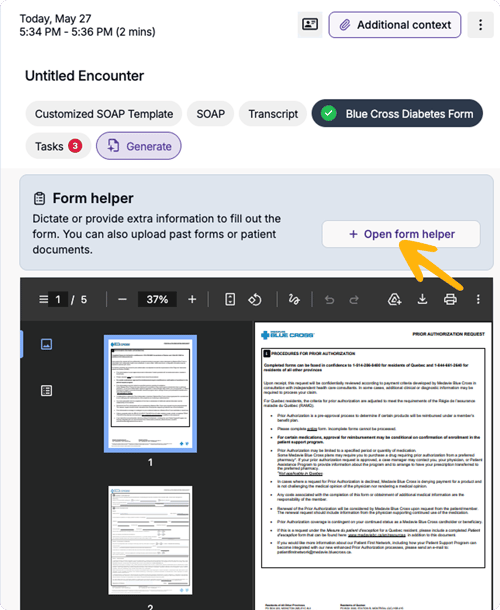
You can edit the form directly and add any missing information before sending it to Med Access.
5. Send the form to Med Access
When the form is ready, click Send to EMR at the bottom of the form viewer.
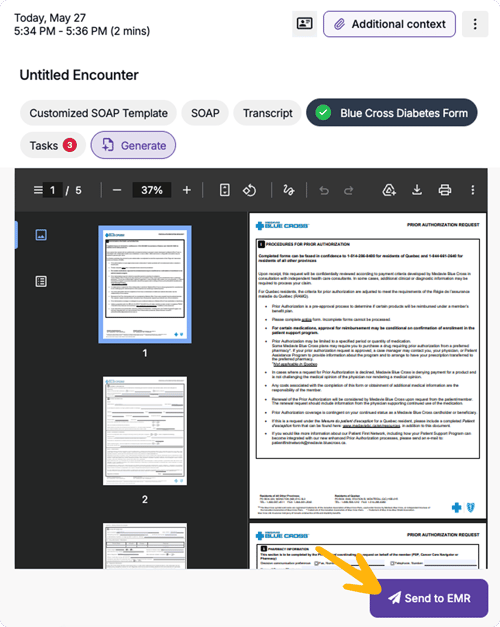
Tali will securely send the completed form to Med Access in one click, removing the extra steps of downloading the file, saving it locally, and uploading it manually.
6. Find the form in Med Access
After the form is sent, open or refresh the patient chart in Med Access.
The completed form will appear in Tasks.