This article covers microphone selection for:
- Web app and Desktop App (AI Scribe)
- Web app and Desktop App (Call a Patient)
- Chrome Extension
Web app (browser) & Desktop app:
-
Click Start Recording
-
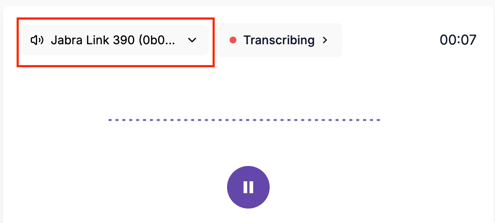
Locate the dropdown menu with a speaker icon on the left—this shows which microphone Tali is currently using.
-
Click the dropdown arrow and select your preferred microphone.
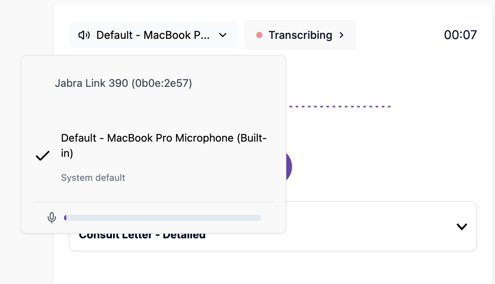
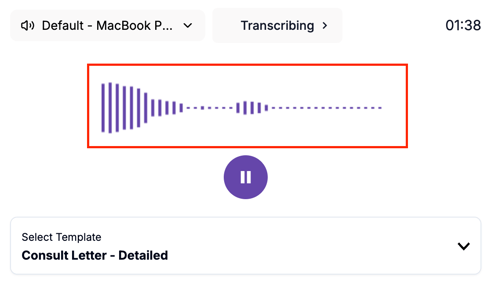
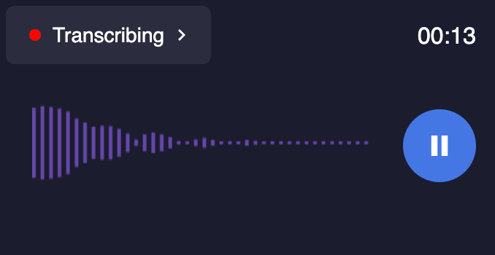
- Speak out loud and check that the audio waveforms move—this confirms your microphone is capturing audio correctly.
Web app (browser) & Desktop app: Call a Patient
- Dial the patient's number
- In the Call a Patient page, locate the dropdown menu with a speaker icon —this shows which microphone Tali is currently using.
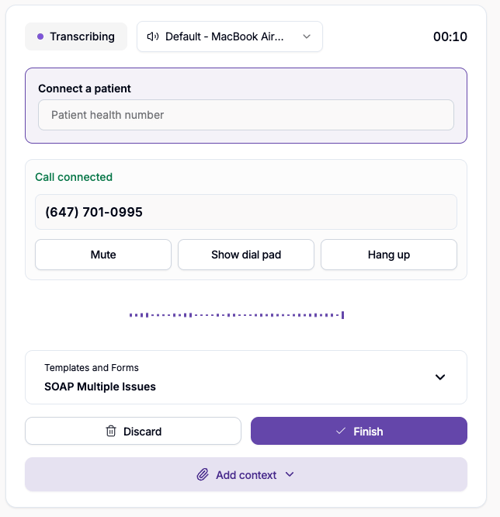
- Click the dropdown arrow and select your preferred microphone.
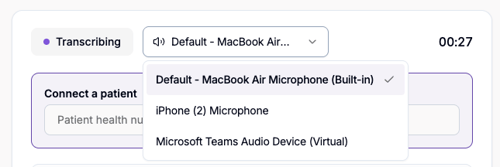
- Speak out loud and check that the audio waveforms move—this confirms your microphone is capturing audio correctly.
Chrome Extension:
How to select your microphone in the Tali Chrome extension:
-
Click Start Recording in the Chrome extension.
-
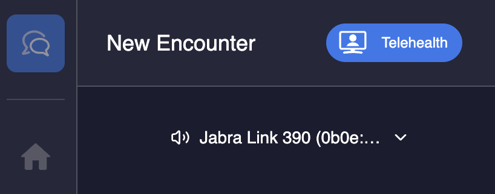
Locate the dropdown menu with a speaker icon on the left—this shows which microphone Tali is currently using.
-
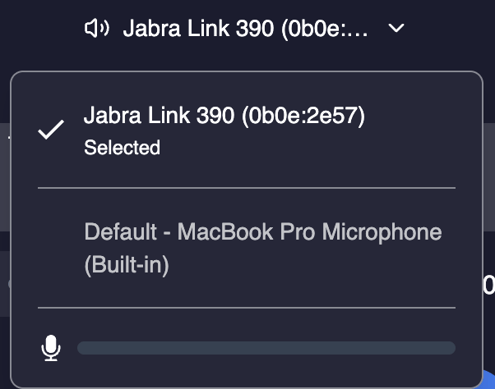
Click the dropdown arrow and select your preferred microphone.
-
Speak out loud and check that the audio waveforms move—this confirms your microphone is capturing audio correctly.
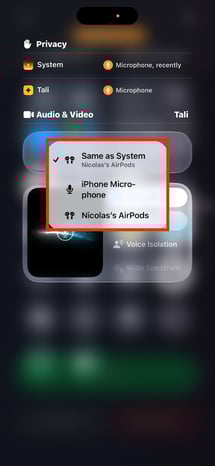
Mobile app (iOS and Android)
To change your microphone while recording a note on your smartphone:
- Tap the + icon at the bottom of the screen.
- Select New Encounter.
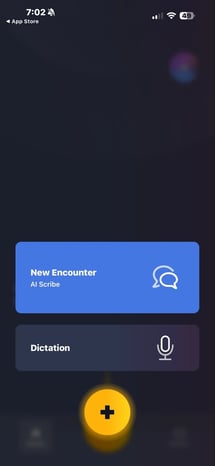
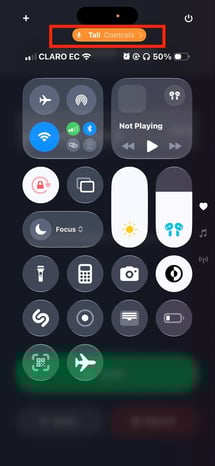
- Once the "Tali is transcribing in the background" message appears, swipe down from the top-right corner of your screen to open your device control center.
- Tap the orange Tali Controls > section at the top.
- Tap Audio Input to view available microphones.
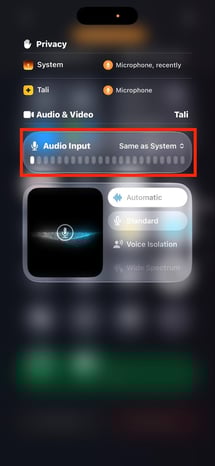
- Select your desired microphone; a checkmark will appear next to your active selection.