
Record an encounter
-
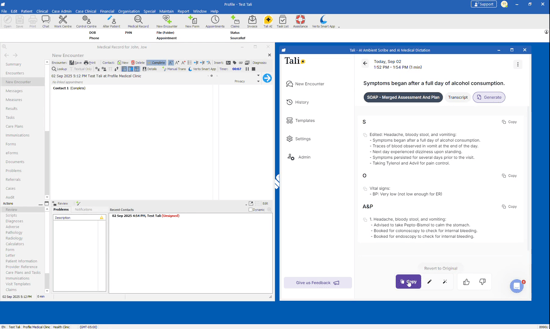
Select a patient: Launch Tali directly from a patient’s chart in Profile. Tali runs in its own window inside Profile, allowing you to multitask and adapt to your clinical workflow without switching applications. You must have a patient selected before launching Tali.
-
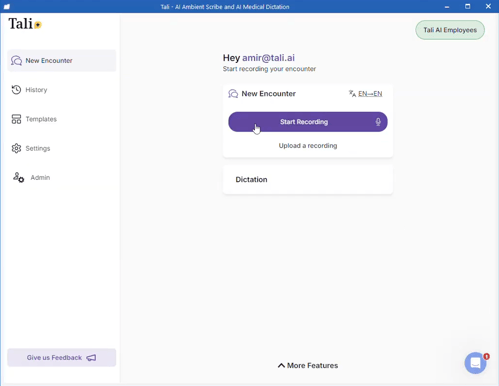
Start recording: Click Start Recording in the New Encounter section.
- Finish recording: Once the encounter is complete, click Finish to generate your note.
Transfer your notes
Once Tali generates your note, use one of the following methods to move it into the Profile encounter:
Method 1: The "Insert AI Notes" button (Fastest)
You must launch Tali from within the patient’s chart.
-
In the Tali window, click Copy on the note or section you want to transfer.
-
In Profile, click the Insert AI Notes into Current Encounter button.
-
Confirm the prompt to automatically populate the note into the chart.

Method 2: Copy and Paste
-
Highlight and copy the text within the Tali window.
-
Paste it directly into the open encounter window in Profile.