
Watch a video walkthrough here
Record an encounter
You must launch Tali from within the patient’s chart.
-
Open Tali: Click the yellow button on your Healthquest sidebar to open the Tali window.
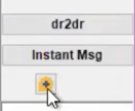
-
Sign in: Click Sign into Tali if you aren't already logged in.
-
Start recording: Click the Home icon or the message icon at the top to begin capturing your encounter.
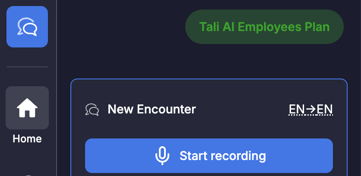
-
Monitor audio: You will see a moving waveform while you speak; this indicates that Tali is successfully capturing your audio.
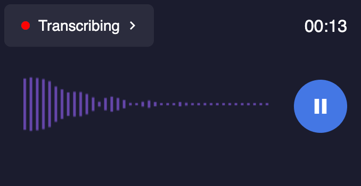
-
Generate your note: Once the encounter is finished, select your preferred template and click Finish.
-
Transfer to EMR: Tali will generate your note, which you can then copy and paste directly into the patient's chart in Healthquest.
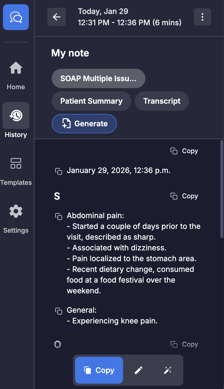
Getting help
-
Need support? Contact Tali’s Customer Success Team here.
-
New to Healthquest? Learn how to set up the Healthquest integration.