
Note: Call a Patient is currently available only on the Tali desktop app and web app.
Tip- What's new:
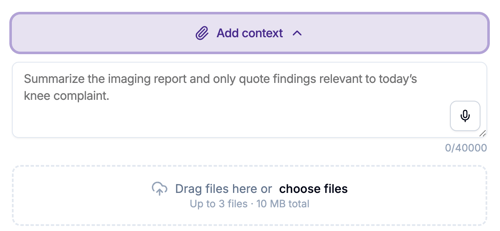
- You can now add context, text, file, and images before the call. The Add Context function on the main encounter page applies to both AI Scribe and Call a Patient.

How to place a call
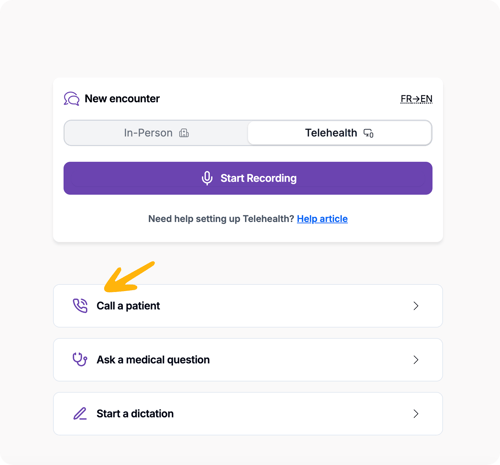
Open a new encounter in Tali the same way you would for an in-person visit, then click Call a patient.
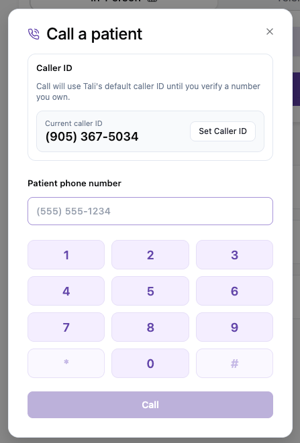
Your Caller ID:
The default caller ID is set as Care Provider, +1 (905) 367-5034.
.png?width=300&height=199&name=IMG_2355%201%20(1).png)
To set your own Caller ID click on the Set Caller ID.
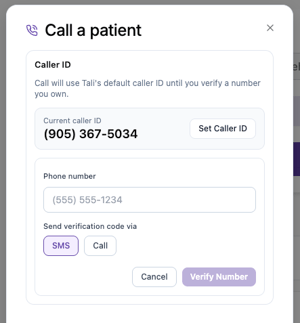
Add the phone number you want to use and verify that number by receiving a code via SMS or Call.
When verified, the patient will see your number and Caller ID when receiving your calls through Tali. You can verify your clinic or mobile phone number based on your preference.
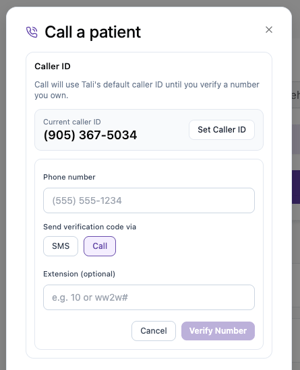
If your clinic or the number you want to verify for caller ID has an extension, you can use the Extension option to add the extension, and use the Call option to verify the number.
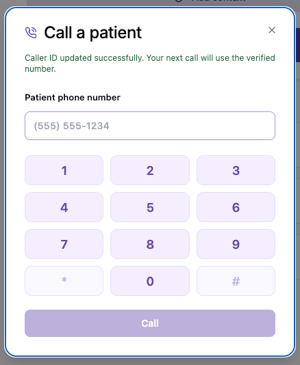
When verified, you'll see the "Caller ID updated successfully" message on the Call a Patient dial pad.
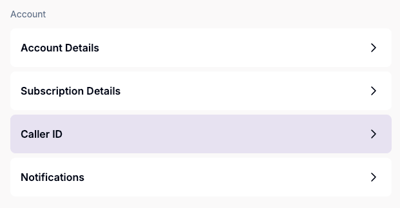
If you want to change your Caller ID or set it back to the default. Go to Settings and click on Caller ID under Account.
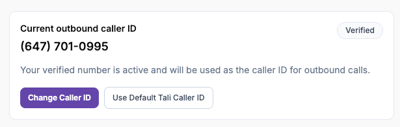
You can Change Caller ID or set it back to the Default Tali Caller ID.
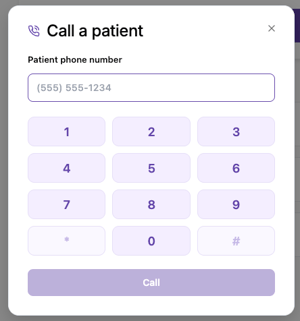
Dialling the patient number:
Use the dial pad or directly enter the phone number and click Call.
Documenting your phone visit:
Once the call connects, continue your phone visit as usual. You will see the call status as Call Connected and Live transcription: Listening, indicating that Tali is actively capturing the conversation.
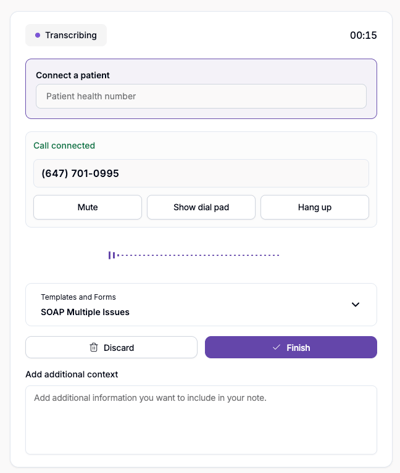
Connect a patient
You can Connect a patient to the encounter using the dropdown to select from existing patients, or you can add a new patient.

Call controls
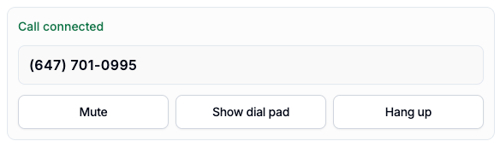
Mute: Mute yourself during the call as needed.
Hang up: Click Hang up to end the call.
Show dial pad: Open the dial pad if you need to enter extensions for your call.
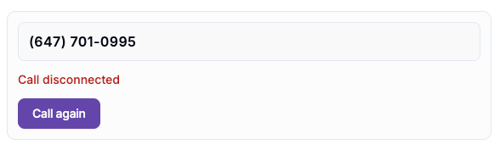
If the call disconnects, you can click on Call again to call back with one click.
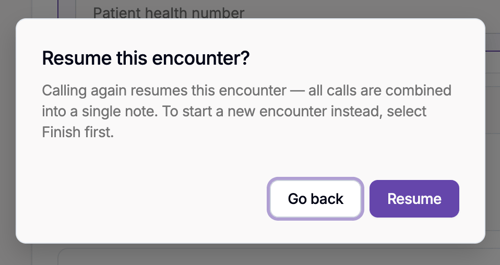
Encounter with multiple redials
If the call is disconnected for any reason, you can redial and continue the conversation. Tali will capture and include all redials for a complete note generation without you having to worry about losing any data.
Template and Form selection
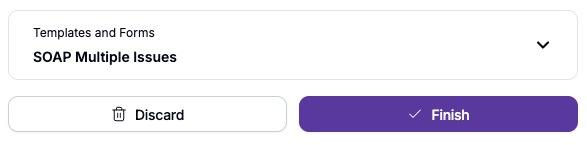
You can select the templates and forms for the visit, during the call or after you hang up. Use the Templates and Forms dropdown to choose the appropriate templates and forms.
Add context
Similar to your regular encounters, you can add additional context for your phone visit. The additional encounter will be included in your notes.
Finish the encounter
When you have concluded your phone call, selected the right templates and forms, and have accessed the applicable additional context, you can click Finish to generate notes and forms for your visit.
Review and send to EMR
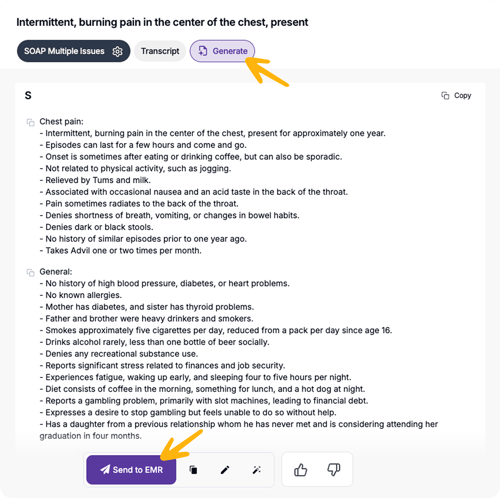
As with your regular Tali workflow, you can review the generated note, make any edits, and send it to your EMR with one click.
Generate additional documents
You can also use the Generate button to create additional documents for the same visit, such as referral letters, patient summaries, and more.
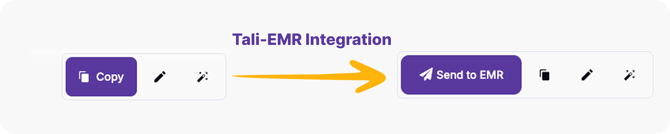
Note: If you use Tali integrated with your EMR, you can send notes directly to your EMR in one click instead of copying and pasting. Check here to see whether Tali is integrated with your EMR and how to enable the integration.
FAQ
Is Call a Patient available to all users?
Call a Patient is currently in beta and available to select users.
Is there an additional cost for this feature?
At this time, this feature is included as part of the regular Tali AI Scribe package until August 28. During this early access period, we are gathering feedback from users to help shape future pricing, including the preferred pricing model, such as usage-based or seat-based pricing. Beta and early access users will receive a discount when paid pricing is introduced after this period.
Can I use my own caller ID?
Yes. You can verify your clinic or mobile number and use it as your caller ID when placing calls from Tali.
Will Tali transcribe the phone call?
Yes. Once the call is connected, Tali captures a live transcript that is used to generate the encounter note.
When is the note generated?
The note is generated after the call ends. You can then review, edit, and send it to your EMR as usual.
Can I create other documents from the same call?
Yes. After the encounter, you can use Generate to create additional documents, such as referral letters or patient summaries.
What VoIP system does Call a Patient use?
Call from Tali uses Telnyx to support outbound calling.
How is data retained for Call a Patient?
Call from Tali follows the same data retention practices as regular Tali encounters. For more details, please refer to our Privacy Policy.