
How to use dictation in Note Edit
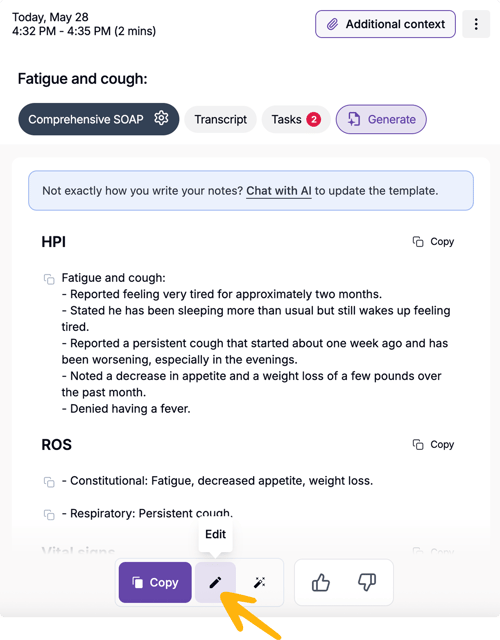
- Open the encounter and go to the generated note.
- Select Edit on the note or note section you want to update.
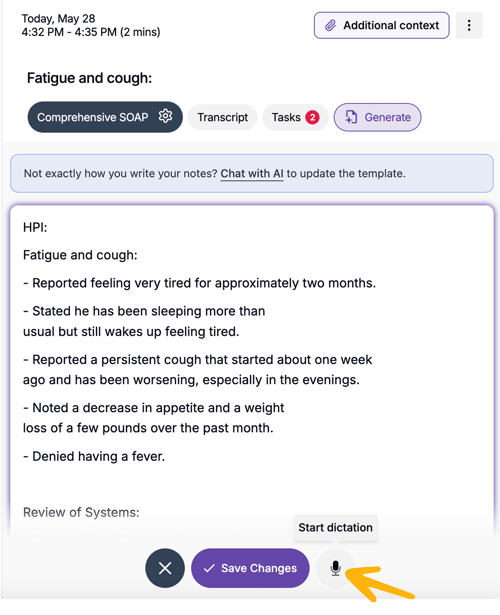
- Click inside the note text area where you want the dictated text to appear.
- Select the microphone button at the bottom of the editor.
- Start speaking.
Your dictated text will be inserted directly at the active cursor position.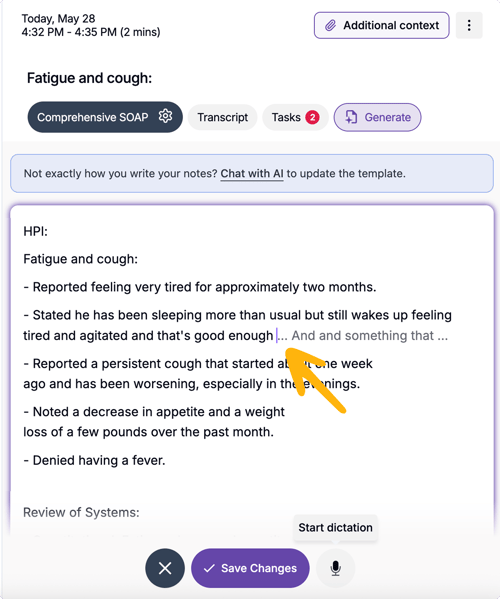
- Continue editing the note manually, if needed.
- When you are done, select Save Changes.What to expect
Dictation works as part of the existing note editing experience.
You can:
- Dictate directly into a generated note
- Add text exactly where your cursor is placed
- Edit manually before or after dictation
- Save the updated note when you are finished
This helps you refine your documentation faster, without needing to type every change or regenerate the note.
Tip: Before starting dictation, place your cursor exactly where you want the new text to be added. Dictated text will be inserted there, rather than automatically added to the end of the note.