
Why this happens
On mobile devices, phone calls and certain audio notifications may take priority over apps that are recording.
During an interruption:
- Tali pauses the recording
- Audio is not captured
- The encounter stays open
- Tali will resume recording when the interruption ends
What you’ll see
On the recording view:
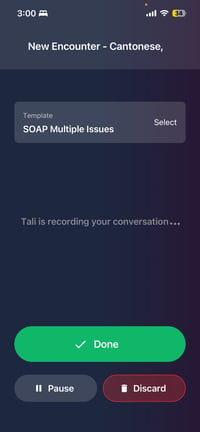
If the recording is interrupted, you will see a Recording Interrupted notice:
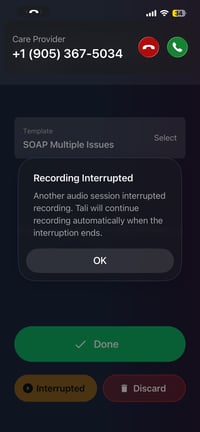
You can address the interruption, such as answering the phone call, while Tali remains paused in the interrupted state.
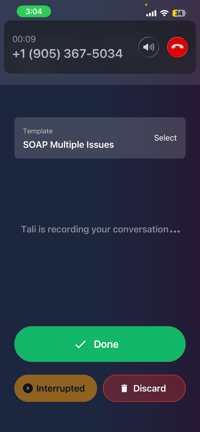
When the call or interruption ends, Tali resumes recording automatically. You can then continue the encounter or pause the recording as needed.
What to do
If your recording is interrupted:
- Address the interruption, such as answering or dismissing the phone call.
- Return to the Tali recording screen.
- Confirm that recording has resumed.
- Continue the encounter as usual.
Add any missing details
Tali can only use the audio and context captured during the encounter.
If important information was discussed while the recording was interrupted, add it before generating.
Best practices
To reduce interruptions on mobile:
- Turn on Do Not Disturb or Focus Mode before starting
- Avoid answering phone calls during an encounter, when possible
- Return to Tali after any call, ring, or audio notification
- Check that recording has resumed before continuing