
This article explains how to:
- Navigate the new Tali iOS app.
- Record an Ambient encounter.
- Dictate a clinical note.
- Review, edit, and manage your notes.
- Continue recording when you are offline.
- Customize your templates, languages, and display settings.
- Call a patient from Tali when the feature is enabled.
-
Old vs. New Tali Mobile: What’s Changed
-
Troubleshoot common recording and upload issues.
Navigate the App
The app includes three main sections:
- Home: Start an Ambient encounter or Medical Dictation.
- History: Access completed notes and recordings waiting to sync.
- Profile: Manage your templates, languages, display preferences, and account settings.
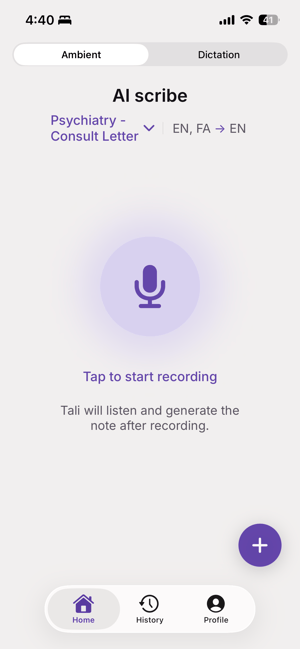
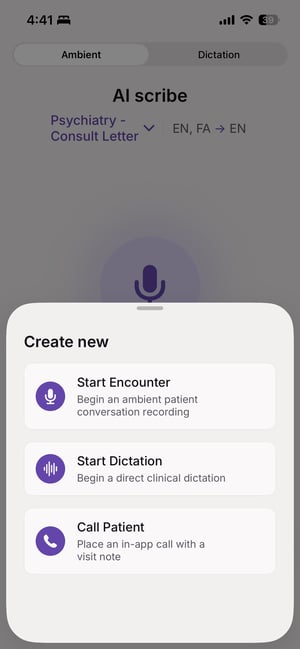
Tap Create new from Home or History to start an encounter, begin dictation, or call a patient when the feature is available.
Record an Ambient Encounter
Use Ambient Scribe to record a patient conversation and generate a structured clinical note.
- Select your preferred template.
- Tap Start to begin recording.
- Pause or resume as needed.
- Tap Stop and submit to generate your note.
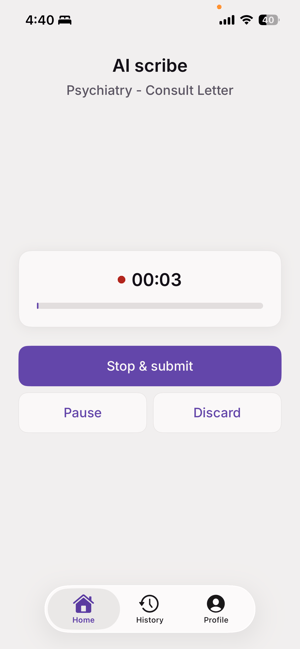
Your recording can continue while the app is running in the background. If a phone call, Siri, or a change in your connected audio device interrupts the recording, Tali will pause it so you can resume when ready.
Dictate a Note
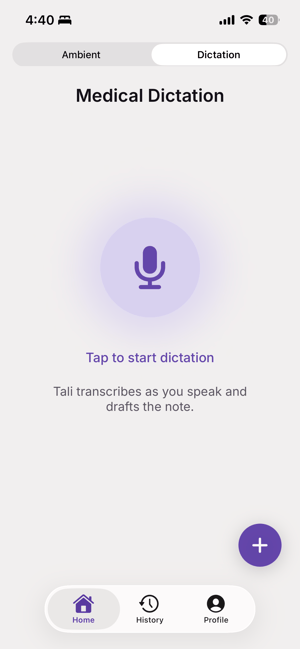
Select Start Dictation to dictate clinical documentation directly. Dictation does not require a template or minimum recording length and supports English and French.
Tali processes your speech to improve punctuation, capitalization, medical abbreviations, and medication names before creating the note.
Review and Manage Your Notes
From History, you can:
- Review and edit generated notes.
- View the encounter transcript.
- Copy or delete notes.
- Generate another note using a different template.
- Resume an encounter when available.
- Retry or delete recordings waiting to sync.
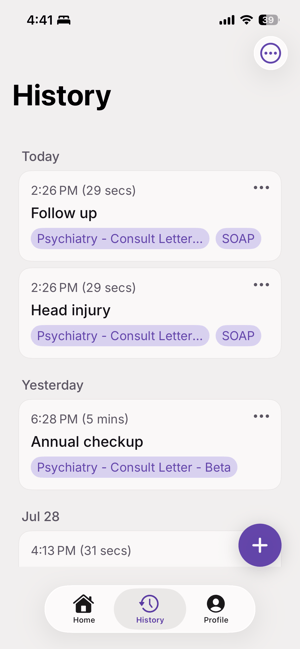
After you submit a recording, Tali automatically takes you to History and opens the new note.
Keep Working Offline
You can continue recording even when your internet connection is unavailable. Tali securely saves the recording on your device and automatically uploads it when your connection returns.
Recordings that have not yet uploaded appear under Waiting to sync in History, where you can review their status, retry the upload, or delete them.
Customize Your Experience
From Profile, you can manage:
- Your default and favourite templates.
- Whether Tali confirms your template before each submission.
- Ambient conversation and summary languages.
- Dictation language.
- Text size and light or dark appearance.
- Support, privacy, and account settings.
Call a Patient
When enabled for your account, select Call a patient from the Create new menu to place a patient call directly from Tali.
You can select a template before the call, record the conversation, and generate an encounter note using the same workflow as an Ambient encounter.
Read more about Call a Patient on Mobile here.
Old vs. New Tali Mobile: What’s Changed
The new Tali iOS app introduces a more streamlined navigation experience, improved offline support, and new mobile workflows. Here’s what has changed from the previous app and what each update means for
| Area | Previous app | New Tali iOS app | What it means for you |
|---|---|---|---|
| Navigation | Home greeting, central Record button, and History, with Profile accessed through your avatar | Three tabs: Home, History, and Profile | Recording is now available from Home. Use Create (+) to start an Ambient encounter, Dictation, or Call a patient. |
| Call a patient | Not available | Available when enabled for your account | You can call a patient directly from Tali and generate a visit note from the conversation. |
| Offline Dictation | Required an internet connection | Can continue offline and upload later | You can dictate without connectivity, and the note will sync when you are back online. |
| Failed or pending uploads | Managed through a separate Retry flow | Shown in History under Waiting to sync | Check History to track or retry uploads that have not finished. |
| Background recording | Less reliable iOS notification experience | iOS notifies you when recording continues in the background | You’ll receive clearer confirmation when recording continues after you leave the app. |
| Display settings | Not available | Text-size and Light or Dark appearance settings | Adjust readability under Profile → Display. |
Having Trouble?
Confirm that Tali has permission to access your microphone in your iPhone settings.
For a recording that has not uploaded, reconnect to the internet and go to History → Waiting to sync to check its status or retry the upload.
If you need support, contact us at help@tali.ai.