
This article explains how to:
- Navigate the new Tali Android app.
- Record an Ambient encounter.
- Dictate a clinical note.
- Review, edit, and manage your notes.
- Keep working when you are offline.
- Customize your templates, languages, and appearance.
- Call a patient directly from Tali.
- Understand what has changed from the previous app.
- Troubleshoot common recording and upload issues.
Navigate the App
The app has two main tabs and a center button:
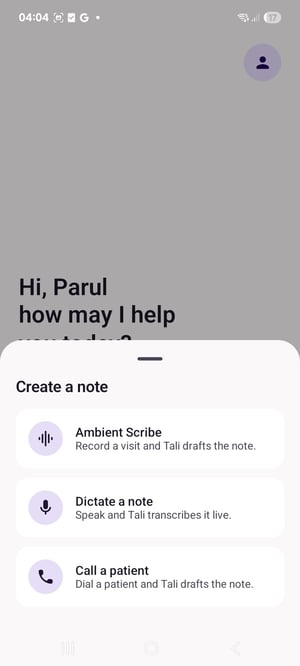
- Home: Start an Ambient encounter or a Medical Dictation.
- History: Access completed notes and recordings waiting to upload.
- Create (+): The center button opens the menu to start recording, dictating, or calling a patient.
.jpg?width=300&height=667&name=Screenshot_20260807_040417_Tali%20(1).jpg)
Tap your avatar to reach Profile, where you manage templates, languages, appearance, and account settings.
Home greets you by name and prompts you to tap + to create a note. If your profile is still loading you'll see a brief loading state, and if you're offline you'll see a card reassuring you that recording still works.
Record an Ambient Encounter
Use Ambient Scribe to record a patient conversation and generate a structured clinical note.
- Tap + and choose Ambient Scribe.
- Select your preferred template (and mark favourites for quick access).
- Tap Start to begin recording.
- Pause or resume as needed.
- Tap Submit to generate your note.
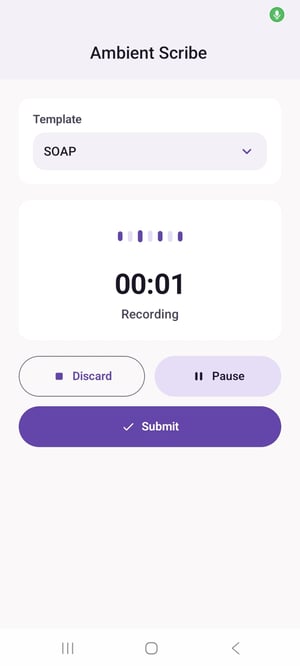
A live timer and voice visualizer show that recording is active. Very short recordings will ask you to confirm before submitting, so nothing is sent by accident.
Recording continues in the background. If you leave the app, an ongoing notification with Pause and Resume keeps the recording running safely. If a phone call comes in, Tali pauses the recording and shows a "phone call interrupted recording — tap Resume" message. Recording does not resume on its own, so you decide when to continue.
Where your note appears: Ambient recordings are uploaded securely and processed on Tali's servers. There is no live transcript on screen while you record — your transcript and note appear in History once processing is complete.
Dictate a Note
Select Medical Dictation to speak a note directly, with live transcription on screen as you talk. Dictation doesn't require a template or a minimum length, and supports English and French.
- Dictation starts automatically; use Pause and Resume as needed.
- Tap Done to submit and open the created note.
- Dictation also continues in the background with an ongoing notification, and pauses for incoming calls the same way Ambient does.
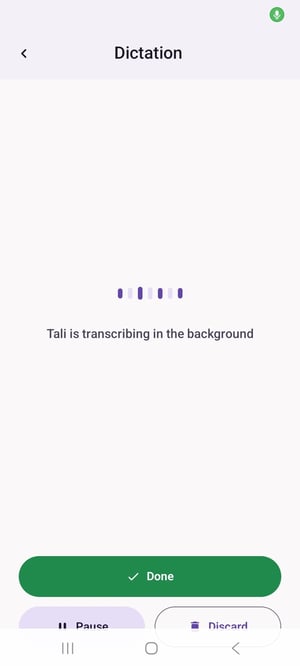
Before creating the note, Tali automatically improves punctuation, capitalization, medical abbreviations, and medication names, and applies your spoken voice commands.
Review and Manage Your Notes
From History, your notes are grouped by date and can be pulled to refresh. Open any note to:
- Switch between the transcript and the generated note, and select among multiple notes.
- Generate more notes using additional templates.
- Edit the title and edit the note (with awareness of SOAP sections).
- Copy the note or transcript — copied text is marked sensitive so it stays out of your clipboard history.
- Share the note text through the Android share sheet.
- Download the recording to share through your phone's system sharing options.
- Resume an encounter or retry a stuck upload directly from the note.
- Delete an encounter, or clear all history.
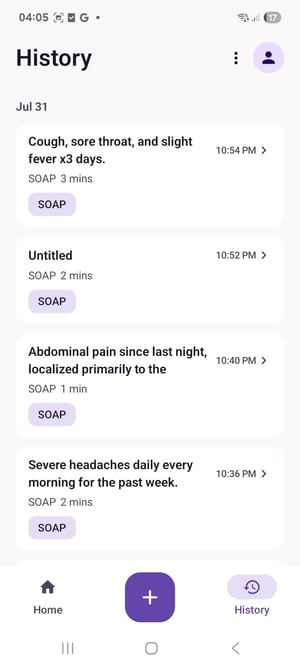
The note updates automatically while it's being processed, so you'll see it change from processing to ready without refreshing.
Waiting to upload: Recordings that haven't uploaded yet appear in their own section in History. From there you can force a retry, finish an interrupted recording, or delete it.
Keep Working Offline
You can keep recording even without an internet connection. Tali saves your recording securely on your device and uploads it automatically when you reconnect — including after a crash or restart. A banner and a card on Home reassure you that recording continues while you're offline.
Recordings waiting to upload appear under Waiting to upload in History, where you can check their status, retry, or delete them.
Customize Your Experience
From Profile, you can manage:
- Your account details — name, email, role, phone, EHR, app version, and device ID (view only).
- Templates — your default template, favourites, and whether Tali confirms your template before each submission.
- Ambient languages — conversation and summary languages.
- Dictation language — English or French.
- Appearance — a dark-mode toggle.
- Support and legal — Talk to an Expert, Terms of Use, and Privacy Policy.
- Logout — signing out securely ends your session and removes local clinical data from the device.
.jpg?width=300&height=667&name=Screenshot_20260807_040429_Tali%20(1).jpg)
Call a Patient
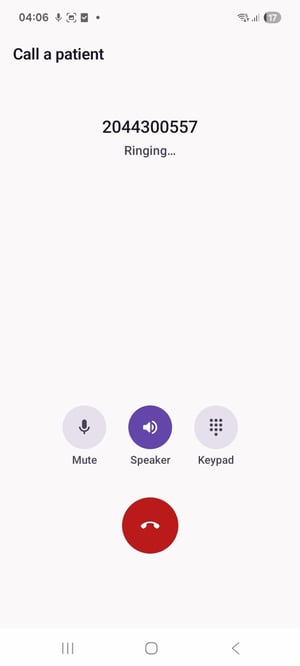
Select Call a patient from the Create (+) menu to place a call directly from Tali.
- Enter a number and place an outbound call, with in-call controls and a background service so the call keeps running if you leave the app.
- The call feeds the same Ambient workflow, so it produces a visit note in History — just like an in-person encounter.
- Calls count toward your monthly Ambient allowance.
This version supports outbound calls only.
Old vs. New Tali Mobile: What's Changed
The core workflow — Ambient, Dictation, History, templates, and languages — works the same. The biggest changes are patient calling, sharing note text, and more dependable background recording and data handling.
| Area | Previous app | New Tali Android app | What it means for you |
|---|---|---|---|
| Call a patient | Not available | Available to all users | Place a call from Tali that becomes a visit note. |
| Share a note | Could share the recording file only | Can share the note text through the Android share sheet | Easier to send the written note. |
| Failed or pending uploads | Managed through a separate Retry screen | Shown in History under Waiting to upload | Retry or manage stuck uploads from History. |
| Background recording | Less reliable | Ongoing notification with reliable background upload | Safer if you leave the app or lose signal mid-recording. |
| Appearance | No in-app setting | Dark-mode toggle in Profile | Choose light or dark. |
Having Trouble?
- Microphone: Confirm that Tali has permission to use your microphone in your phone's settings. If access is off, the app will guide you to the right screen.
- A recording hasn't uploaded: Reconnect to the internet and go to History → Waiting to upload to check its status or retry.
- A dictation error: If a timeout or size error appears, use the recovery option to copy your transcript so nothing is lost.
If you need more help, contact us at help@tali.ai.