
Macros let you turn a short command into a longer, reusable block of text. Use them to quickly insert common phrases, clinical findings, instructions, or other content you enter frequently.
Create a macro
- Go to Settings > AI Scribe > Adaptive Memory > Macros.
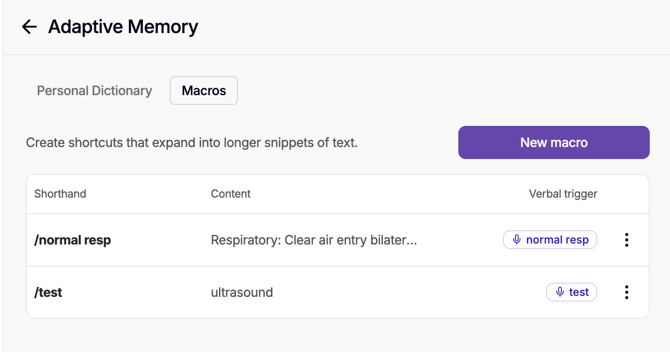
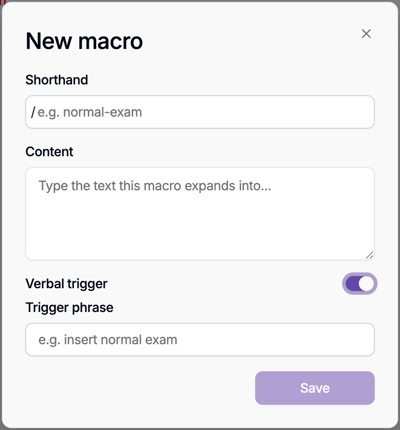
- Select New macro.
- Enter a Shorthand, such as
/normalresp. - Add the full text you want the shorthand to insert.
- To activate the macro by voice, turn on Verbal trigger and enter the phrase you want Tali to recognize.
- Select Save.
Create a macro while editing a note
You can turn text from an existing note into a reusable macro:
- Highlight the text you want to save.
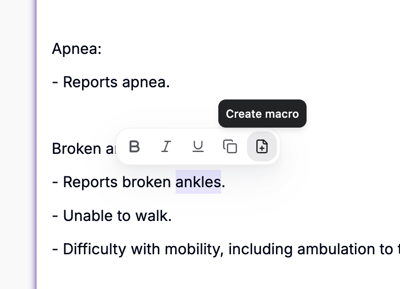
- Select Create macro from the formatting toolbar.
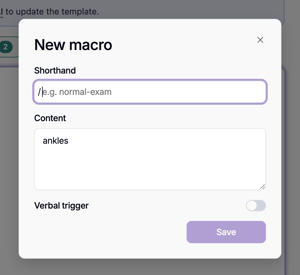
- Enter a shorthand command for the macro, such as
/normal-exam. - Review or update the selected text in the Content field.
- Optionally enable Verbal trigger to use the macro through dictation.
- Select Save.
The macro will be available for future note editing.
Use a macro when editing a note
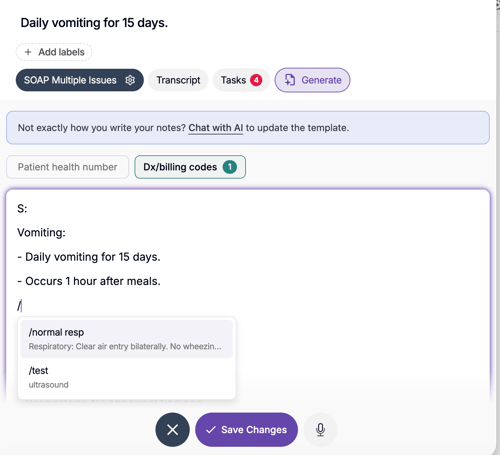
While editing a generated note, type "/" to see all the shorthands. You can select or type out the shorthand to replace it with the full macro content.
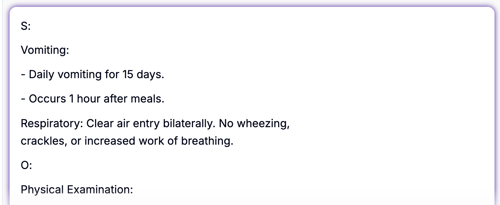
After selecting or typing out the shorthand:
When Verbal trigger is enabled, you can also say the trigger phrase while dictating your edits.
For example:
Shorthand: /normalresp
Content: Respiratory: Clear air entry bilaterally. No wheezing, crackles, or increased work of breathing.