
Import your Med Access schedule into Tali to prepare for upcoming visits, add context ahead of time, and start phone or in-person encounters directly from the Appointments tab, without recreating each appointment manually.
Before you begin
Make sure:
- The Tali Chrome extension is installed, open, and logged in.
- You are using the same Tali account connected to your Med Access integration.
- Your Med Access Daysheet is displaying the provider and date you want to import.
Import appointments from Med Access
- In Med Access, open the Daysheet and select the appropriate:
- Date
- Provider or resource
- The Tali Chrome extension will detect the appointments displayed on the Daysheet.
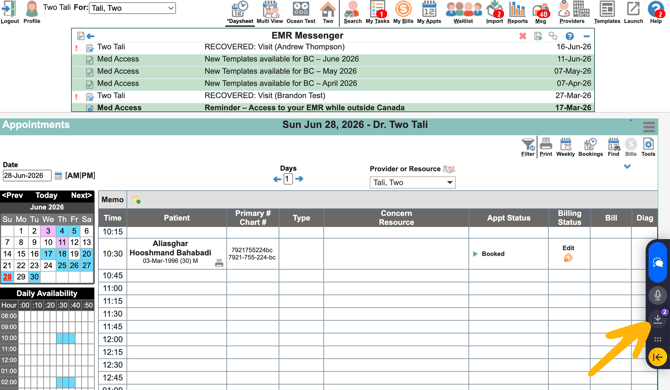
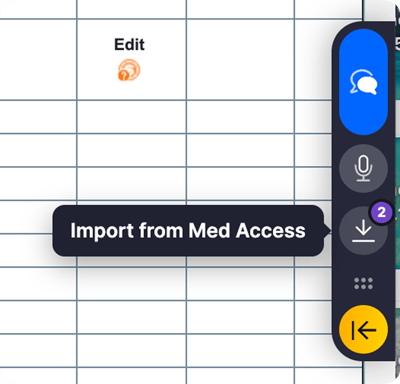
- In the Tali extension toolbar, select Import from Med Access.
- A pop-up will open, listing the import details. Review the import details, including:
- The Tali account receiving the appointments
- Provider
- Date
- Number of appointments detected
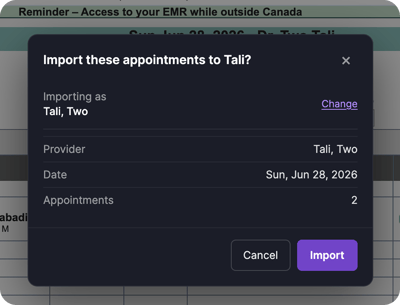
- If all looks correct, then select Import.
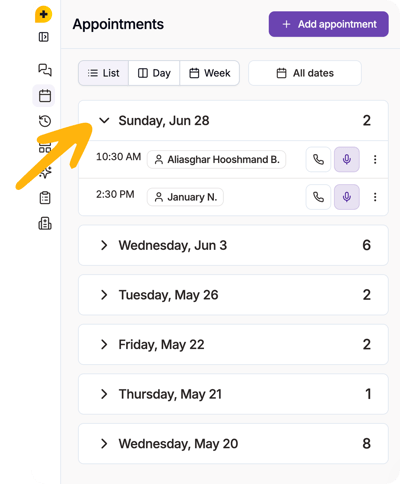
Tali will add the appointments to the Appointments tab. The Appointment tab is available through Tali's web app, desktop app, and the new Chrome Extension.
Check your Med Access provider identity
Before importing, confirm that the provider shown under Importing as represents you.
To select a different provider:
- Select Change beside the current identity.
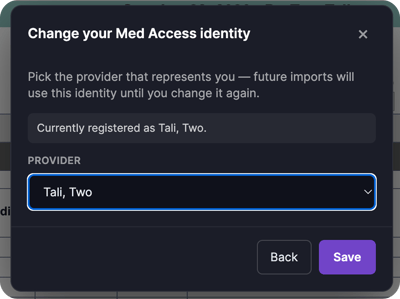
- Choose your provider from the dropdown menu.
- Select Save.
- Return to the import confirmation and select Import.
Tali will use this provider identity for future imports until you change it again.
From the Appointments tab, you can:
- Add context before a visit
- Start an in-person encounter
- Call a patient from Tali
- Review or edit appointment details
You can also view the import confirmation to see how many appointments were imported and how many were successfully linked to patients.