
Viewing Automatic Q-Code Calculations
- Navigate to the Billing > FHO+ menu in the sidebar.
- Review the table showing daily totals for direct care Q-codes (q310 and q311) automatically calculated from your encounters.
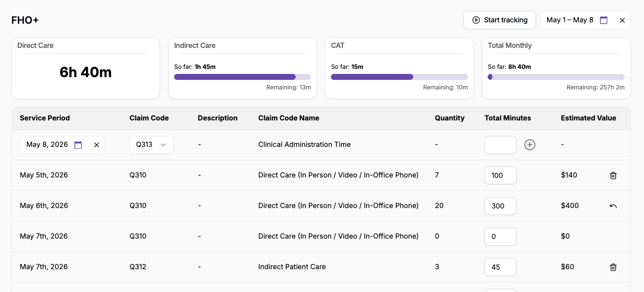
- Adjust the date range using the date picker in the top right to view Q-codes of a different time window.
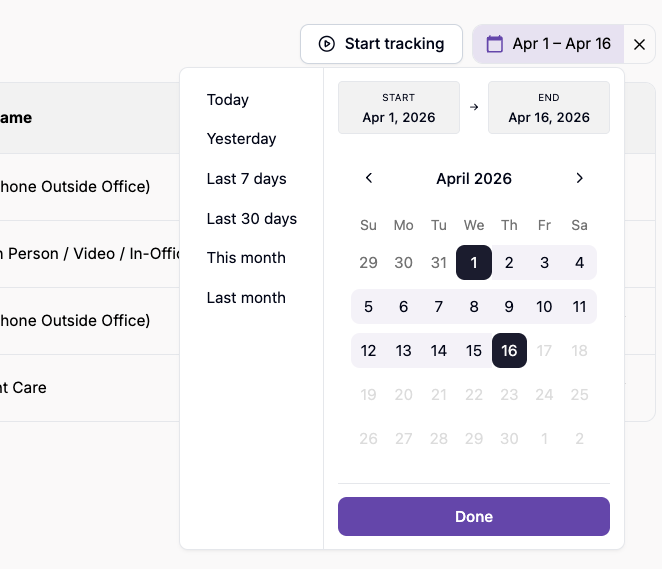
Modifying Durations
- Click on the duration total for a specific entry.
- Enter the new duration in minutes; Press enter on your keyboard or just click away.
- Tali will automatically recalculate the Q-code totals.
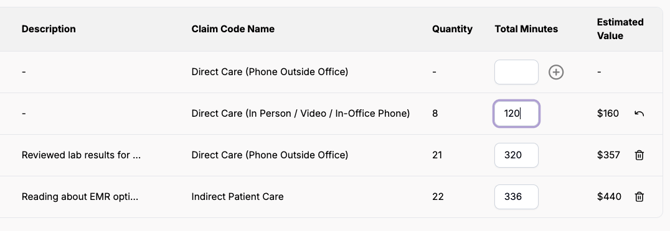
- Use the {undo} button to revert to the initial calculation if needed.
|
Note that units are rounded up to a full 15 minutes once the 8-minute mark is passed. |
Manually Adding Entries
- Select the desired date.
- Choose the type of code (Q310 or Q311 for Direct care, Q312 for Indirect care or Q313 for Clinical Administrative Task).
- Enter the total duration in minutes.
- Click the + icon to add the entry to the table.

Tracking Time with the Stop Function
- Click the ‘start tracking’ button.
- Perform your tasks; tracking continues even if you close Tali or navigate away.
- Ensure the correct code type is selected (Indirect care vs. CAT).

- Return to the page and click the stop tracking button to add a new row to the table.
|
Note that if the date remains the same, you can manually adjust the total duration or resume tracking; these sessions will be consolidated into that day's specific Q-code. |
Adding Descriptions
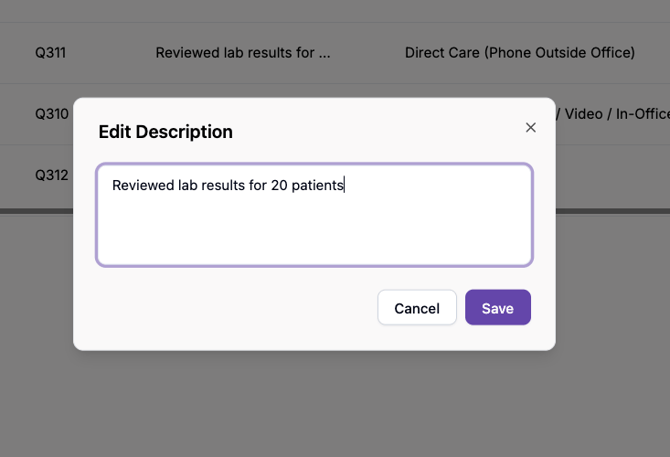
- Click on the pen icon beside the description column of a an entry.
- Type a concise summary of the work performed (e.g., “Reviewed lab results for 20 patients”).
- Click save.

|
Note that Q312 Indirect Care and Q313 Clinical Admin Task require a short description upon submission. |