Tali Realtime Billing Agent will integrate with MC EDT, and using your billing history, will recommend accurate billing codes eligible for every visit.
To enable this capability, you need to set Tali AI as an assignee in the portal. This requires:
- You will -> Set Tali as a designee (takes about 1 minute)
- Tali will -> Accept the designation
- You will -> Set permissions for designee (takes about 1 minute)
- Tali will -> retrieve the information from MC EDT (take about 1 business day)
1. Setting Tali as a designee
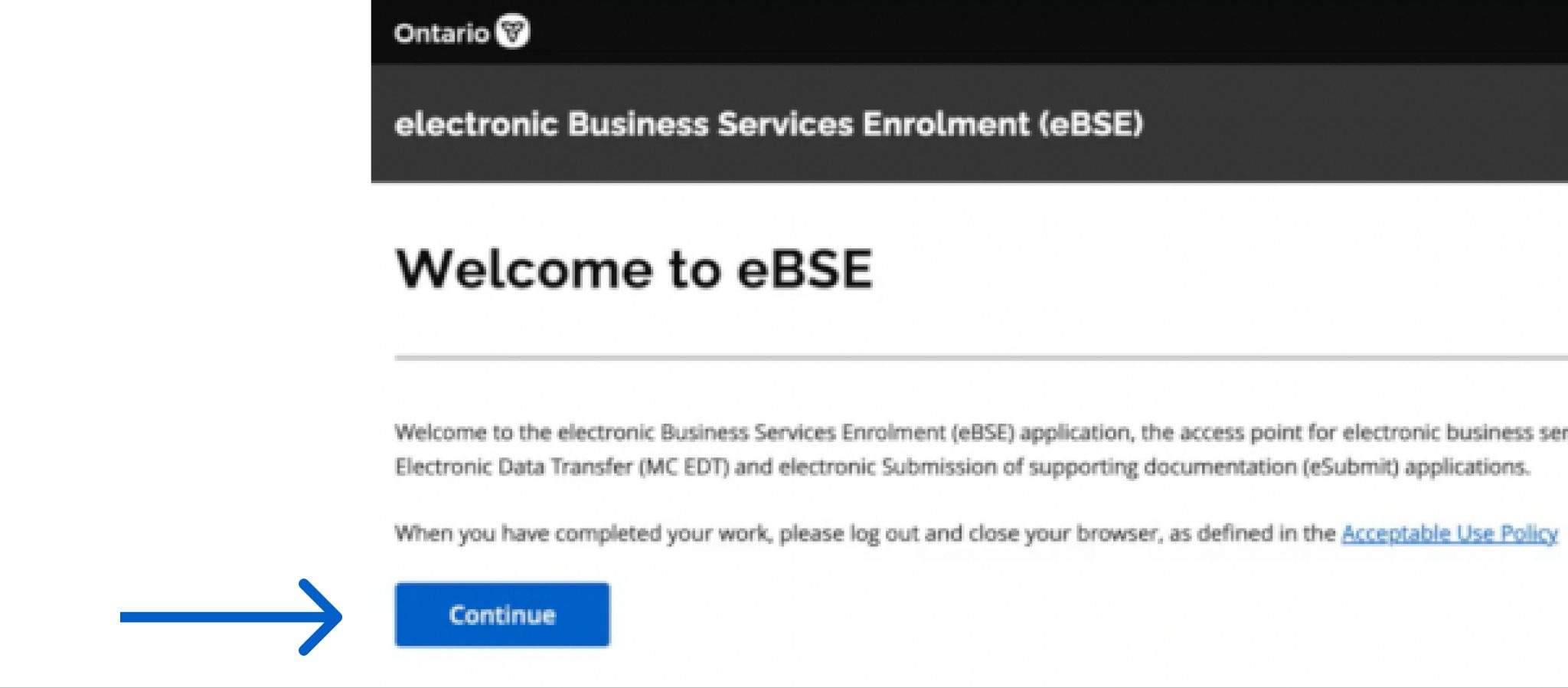
- Log into your BPS Secure account, then click Continue.
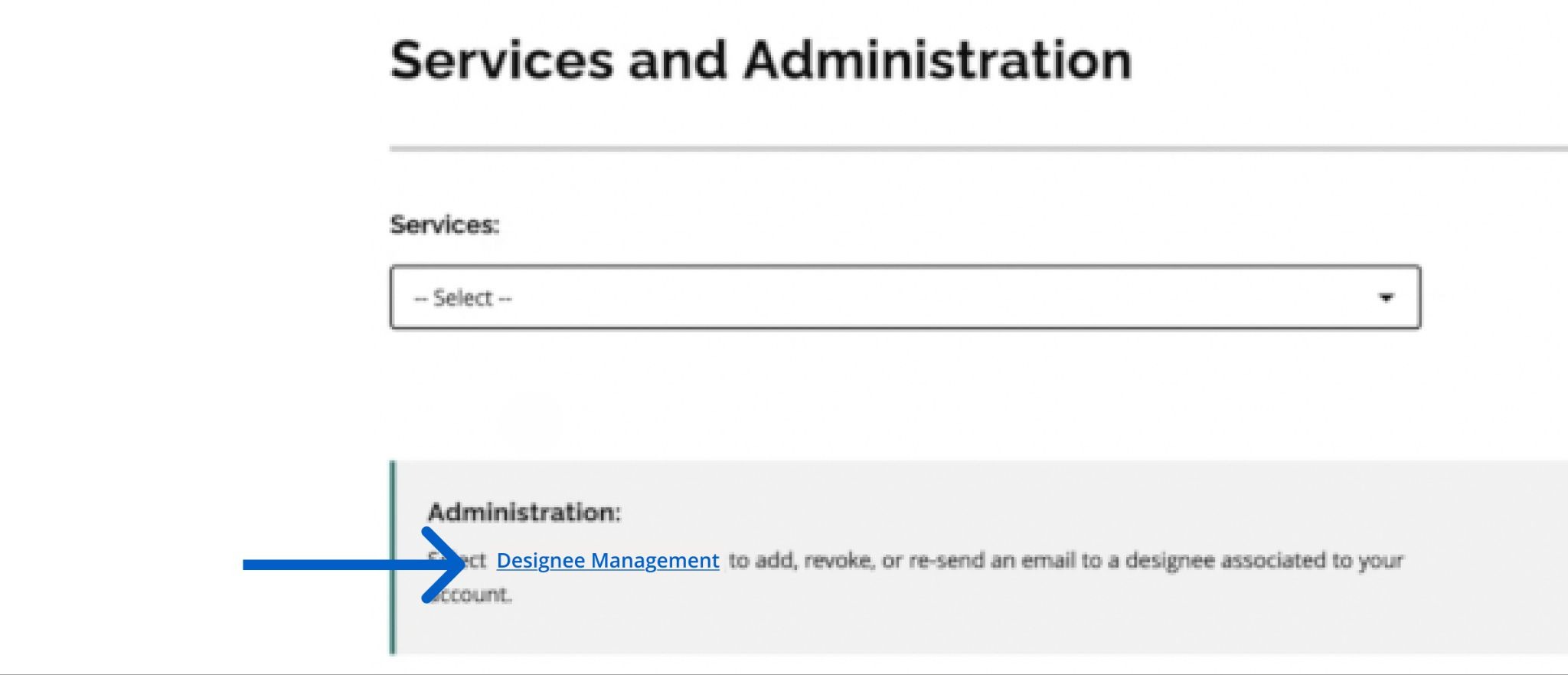
- Click on the link called Designee Management.
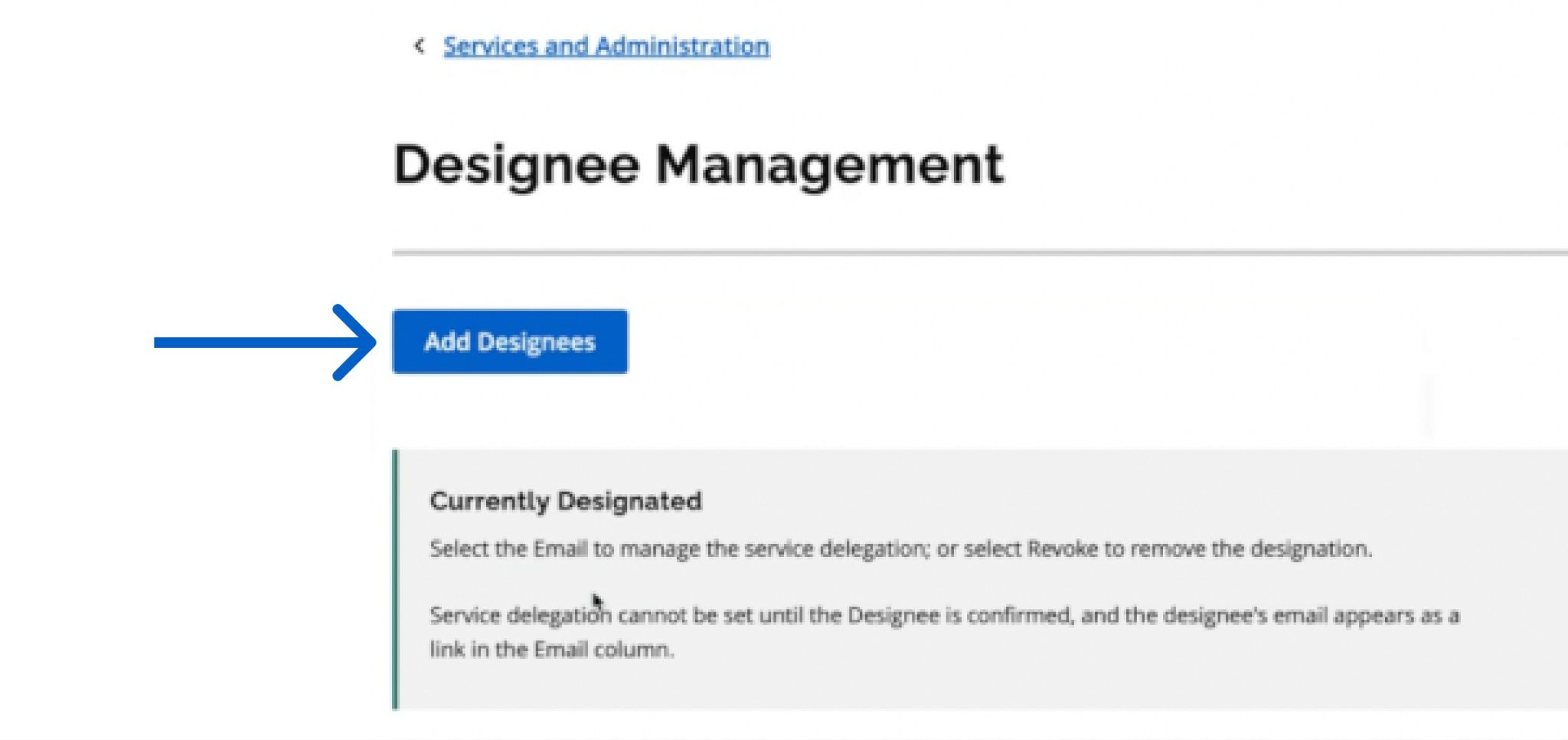
- Click on the Add Designees button.
- Set a new designee with the following information:
Full Name: Tali AI
Email: help@tali.ai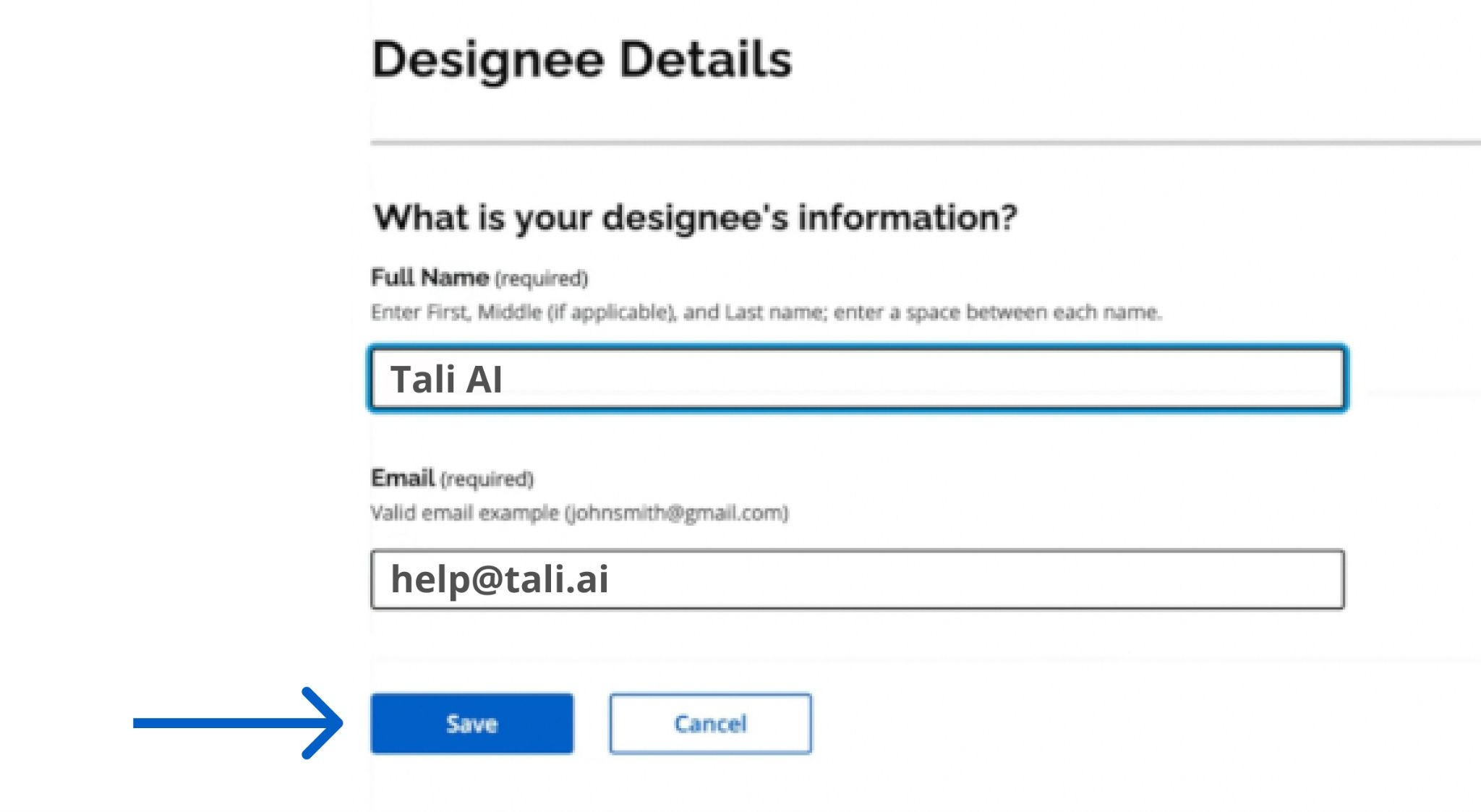
- You will see a success message, we will receive an email and accept the designation request within one hour.

2. Set permissions for designee
After we accept the designation, you will receive an email. Clicking on the link will take you back to the BPS Secure account.
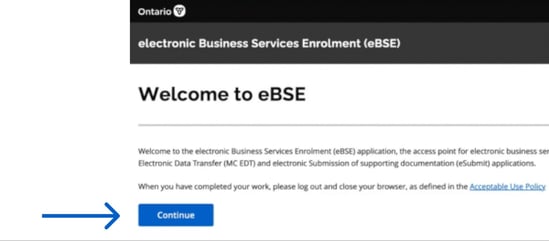
- Log into your BPS Secure account, then click Continue.
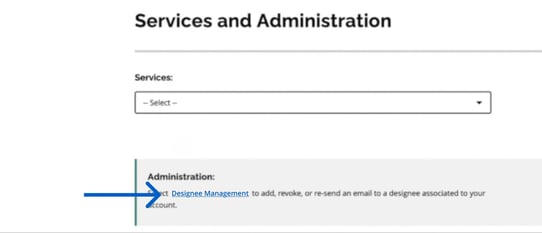
- Click on the link called Designee Management.
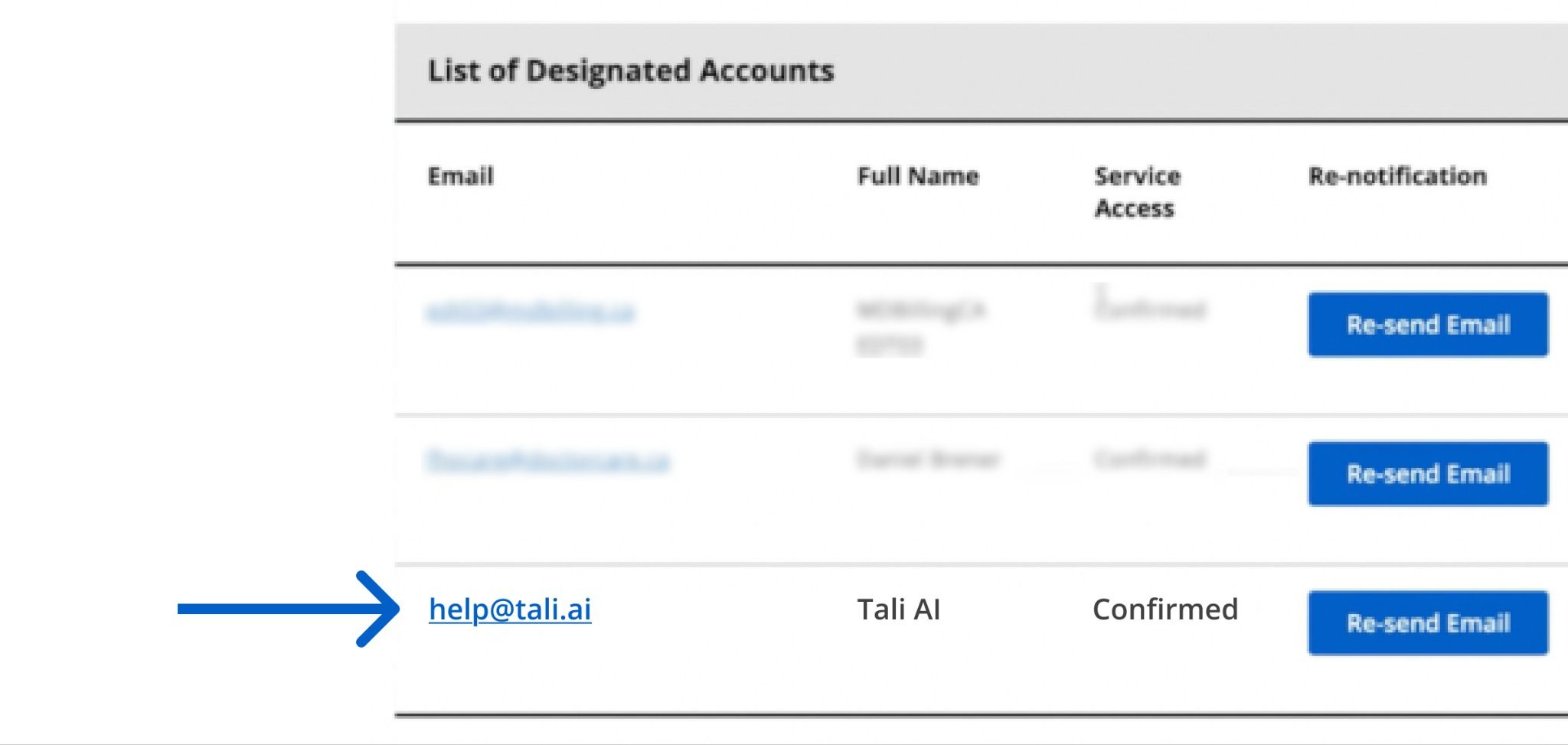
- Scroll down and find help@tali.ai email in the table, click on the email.
- In the Services table, the link labeled MC EDT SERVICE (UPLOAD/DOWNLOAD), and click on the label.
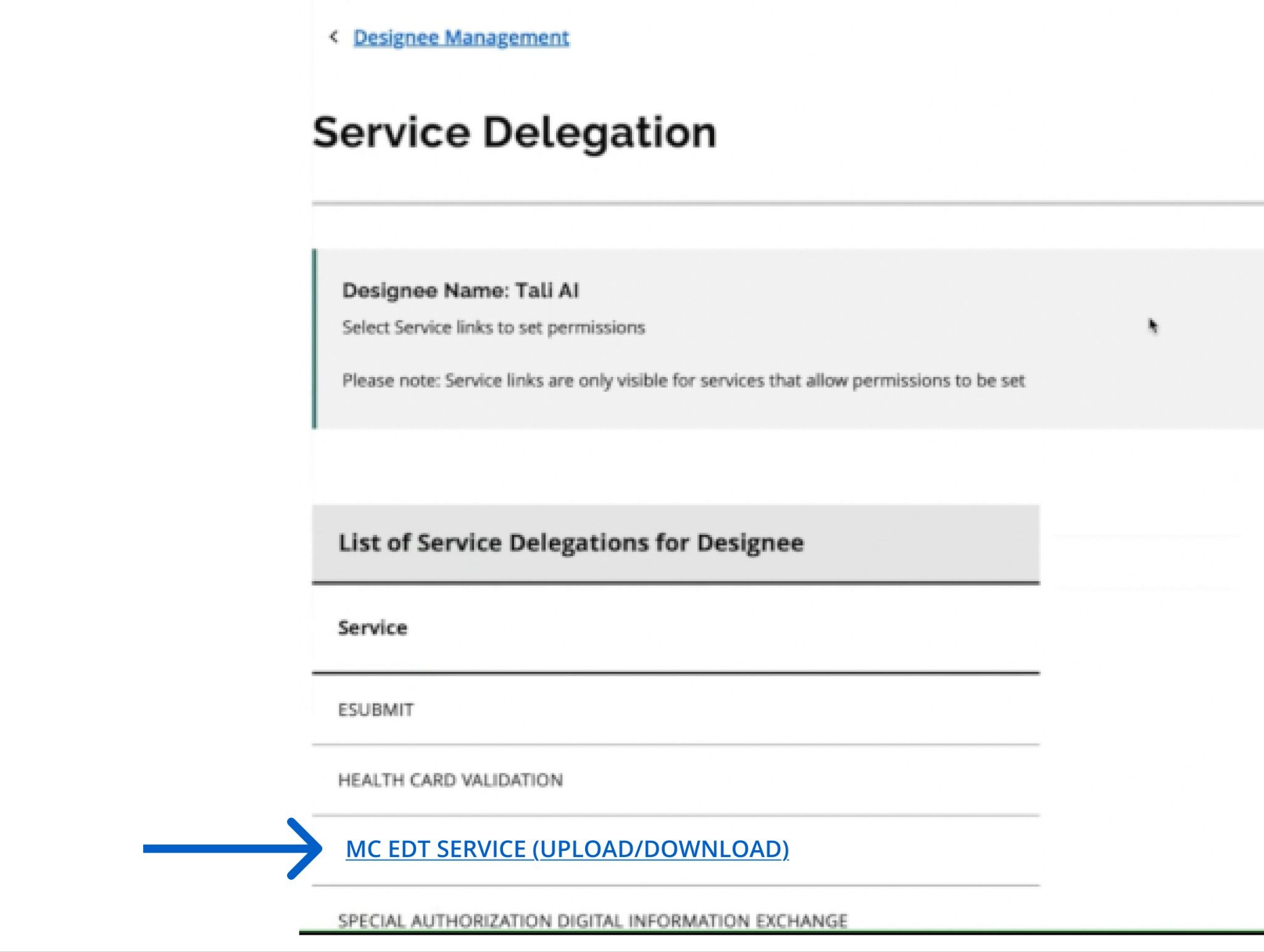
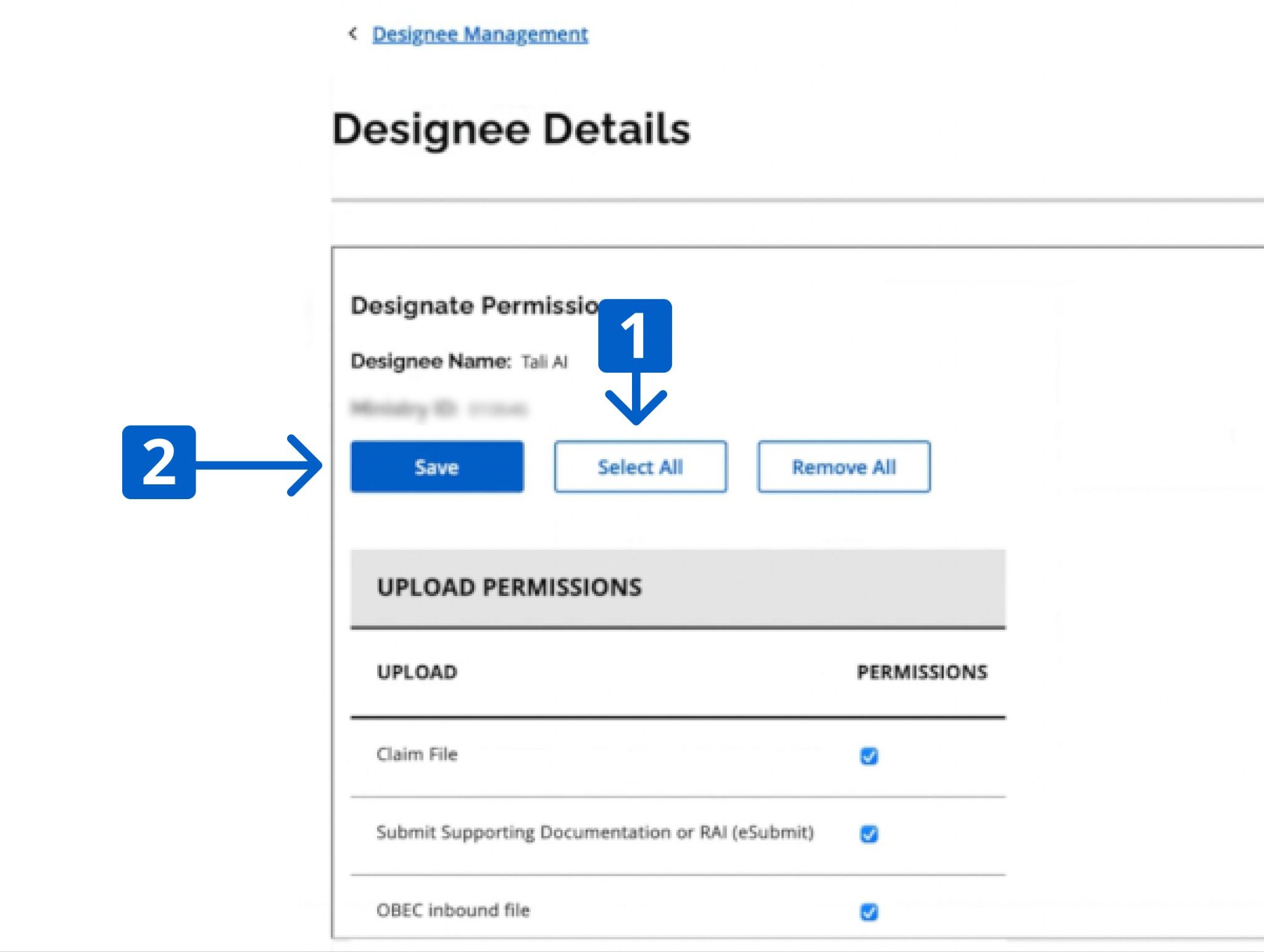
- In the Designee Details page, first click on the button labeled Select All, then click on the Save button.
Note: Remember to click on Select All, even if all items already have checkboxes.