
Tali automatically creates a claim for every encounter completed in Tali. From the Claims page, you can review the recommended billing codes, make any necessary changes, approve the claim, and submit it to OHIP through MC EDT.
You can also create a claim manually when you need to submit billing that is not associated with a Tali encounter.
Before you begin: Your Tali Billing account must be connected to MC EDT before you can submit claims to OHIP.
You can set it up yourself using this step by step guide, or book a 15 minute setup call.
How claims are added to Tali
Claims can be added to your Claims page in two ways:
Automatically from an encounter
When you complete an encounter in Tali, a claim is automatically created and added to your billing queue. Tali’s billing recommendations will appear within the claim for you to review.
Manually without an encounter
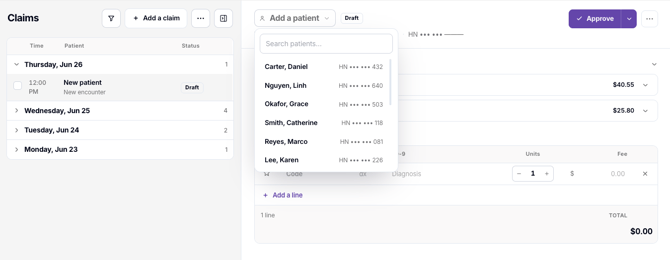
You can also create a standalone claim without completing an encounter in Tali:
- Open Billing, then select Claims.
- Select Add claim.
- Choose the patient and enter the claim details.
- Add the appropriate service and diagnosis codes.
- Save the claim as a draft or approve it for submission.
Open your claims
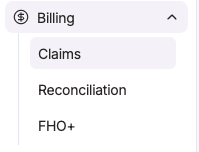
- In Tali, select Billing from the left navigation.
- Select Claims.
- Use the filters to view claims by status or provider.
Claims are grouped by date, helping you quickly identify what needs attention and what is ready to submit.
Review a claim
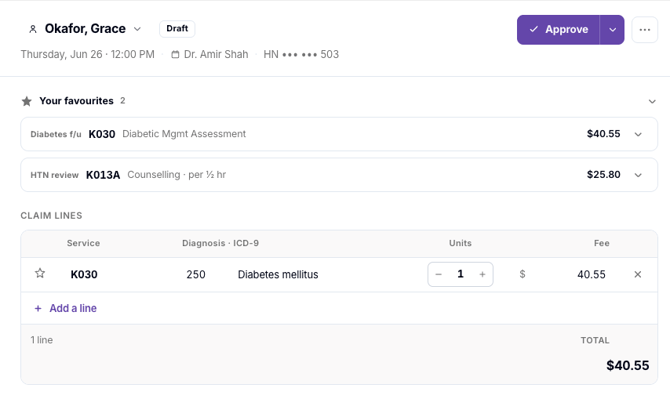
Select a claim from the list to open it.
From the claim details, you can:
- Confirm the patient and provider information.
- Review billing codes recommended by Tali.
- Add codes from Your favourites.
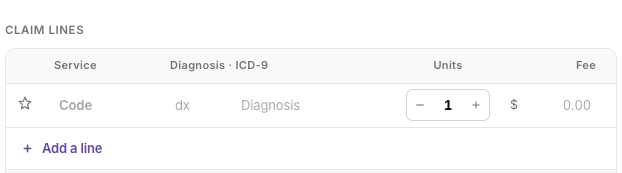
- Update the diagnosis code or number of units.
- Add or remove claim lines as needed.
The fee is automatically calculated using the OHIP Schedule of Benefits and cannot be edited manually.
Add a recommended code
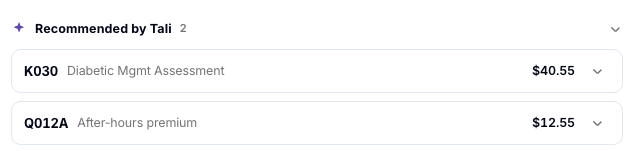
Under Recommended by Tali:
- Review the recommended service code and supporting details.
- Select Add to claim.
- Confirm the diagnosis code and units in the claim line.
You can also view when the code was last billed to help you review the recommendation.
Add a code manually
If the code you need is not listed:
- Select Add a line.
- Search for the service code.
- Enter the diagnosis code and number of units.
- Add the line to the claim.
Approve or save the claim
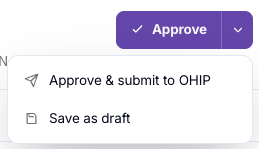
Once you have reviewed the claim, select one of the following options:
- Approve: Marks the claim as ready to submit.
- Save as draft: Saves your changes without marking the claim as ready.
- Approve and submit to OHIP: Approves and immediately submits the claim.
A claim must contain at least one valid claim line before it can be approved.
Submit multiple claims to OHIP
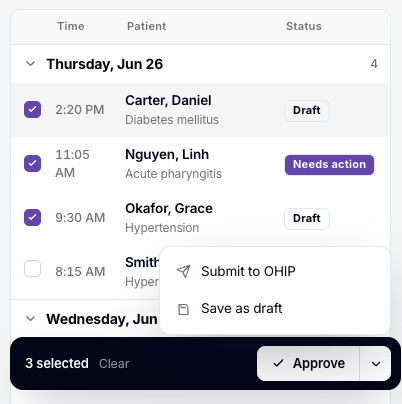
You can approve and submit several claims at once.
- Select the checkbox beside each claim you want to include.
- Select Approve to mark the claims as ready.
- Open the additional actions menu and select Submit to OHIP.
- Review the number of claims and total amount being submitted.
- Choose the billing number to submit under, if prompted.
- Select Submit.
Tali sends the selected claims to OHIP through MC EDT.
Understanding claim statuses
Needs action
The claim has not yet been fully reviewed.
Draft
The claim has been edited and saved, but is not ready to submit.
Ready
The claim has been reviewed and approved.
Submitted
The claim has been sent to OHIP. Submitted claims are locked and cannot be edited.
Paid
Payment for the claim has been confirmed through the Remittance Advice.
The Claims page is designed around this progression from review to submission and payment.
Note: Once a claim has been submitted, its values remain locked. Any later changes are reflected through the Ministry of Health Remittance Advice.