
What are Offline Encounters?
Offline Encounters lets you start, record, and finish an Ambient Scribe encounter in Tali even when your device temporarily loses internet access. Audio is captured and stored on your device, and Tali automatically uploads and processes the encounter as soon as your connection returns — no manual re-recording or uploading required.
When does Tali consider me "offline"?
Your browser tells Tali when your network drops (for example, Wi-Fi disconnects, a captive portal blocks traffic, or your device sleeps). When that happens, you'll see a yellow notice at the top of the New Encounter screen:
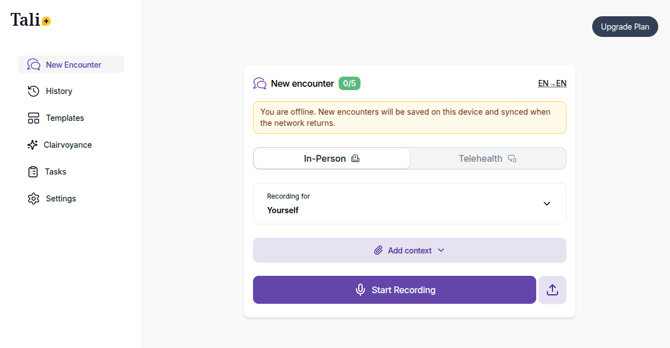
When connectivity comes back, Tali automatically detects it (no refresh needed) and starts syncing in the background.
Recording an encounter while offline
- Open Tali on the device you'll use during the visit while you still have a connection (this loads the app and your templates into the browser).
- If you go offline, you'll see the yellow offline notice on the New Encounter screen.
- Tap Start Recording.
- Record the visit. The microphone, pause, and end-encounter controls all work the same way they do online.
- When you finish the encounter, Tali saves the audio and your encounter settings on the device. You can navigate away or close the tab safely — your encounter will not be lost.
Tip: Don't sign out of Tali or clear your browser data while offline encounters are still pending. Your unsynced encounters are stored in browser storage and clearing it will delete them.
Where do I see encounters that haven't synced yet?
Open the History page. At the top you'll see a new section called Pending Encounters:
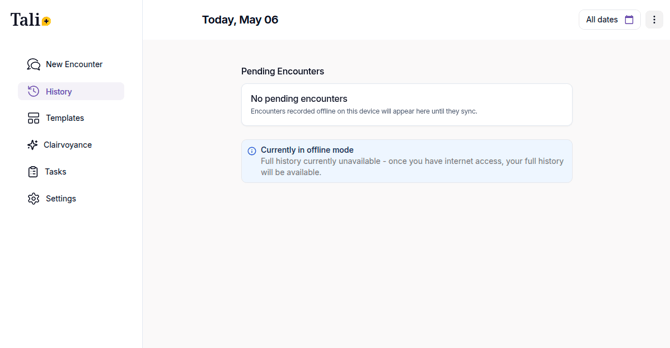
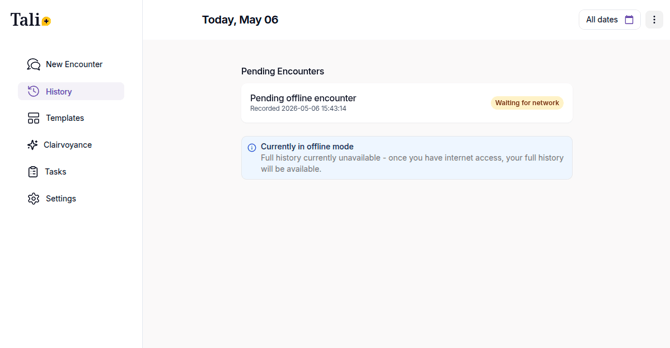
- Possible statuses are:
- Waiting for network – your device is still offline (or the encounter is queued behind another sync).
- Syncing – Tali is actively uploading the encounter.
- Sync complete – the upload succeeded; the encounter will move into your regular history shortly.
- Sync failed – something went wrong; an error message appears under the card. Tali will retry automatically; if it keeps failing, see Troubleshooting below.
While you're offline, the regular history list is hidden and replaced with an info banner:
Currently in offline mode — Full history currently unavailable. Once you have internet access, your full history will be available.
This is intentional — the previously loaded list could be out of date, and you can't open or edit those encounters without a connection. Your existing encounters are safe in the cloud and reappear the moment you're back online.
Opening a pending encounter
If you tap a pending encounter card, you'll see a read-only Preparing your encounter screen. It shows:
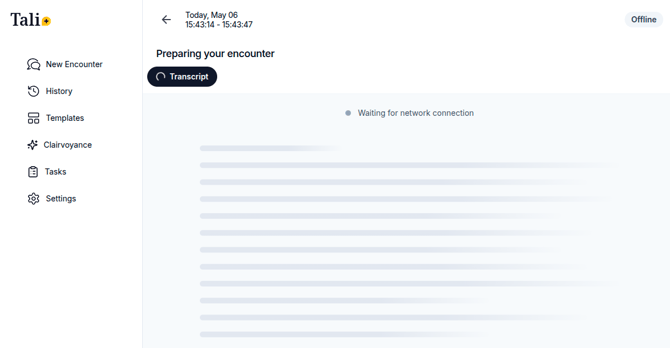
- The date and time of the recording.
- A status pill (Offline / Syncing / Synced / Sync failed).
- A progress step describing what Tali is currently doing:
- Waiting for network connection – your device hasn't reconnected yet.
- Starting encounter sync session – Tali is opening a session with the server.
- Uploading recorded audio – the recording is being transferred.
- Finalizing encounter – the server is closing out the encounter so the note can be generated.
You can leave this page and come back any time — the upload continues in the background. Editing, copying, and other note actions become available once the encounter has finished syncing and appears in your normal history.
What happens when I get back online?
- Tali detects the reconnection automatically.
- Each pending encounter is processed in order: starting the sync session → uploading audio fragments → finalizing.
- Once an encounter is fully synced and the note is ready, the pending card disappears and the encounter shows up in your regular date-grouped history. Open it like any other encounter to review the transcript, generate notes, edit, copy, and so on.
You don't need to stay on the History page for sync to run — it works in the background as long as Tali is open in at least one tab.
What works (and what doesn't) while offline
Available offline:
- Starting and recording a new Ambient Scribe encounter.
- Viewing your pending encounter cards on History.
Unavailable until you're back online:
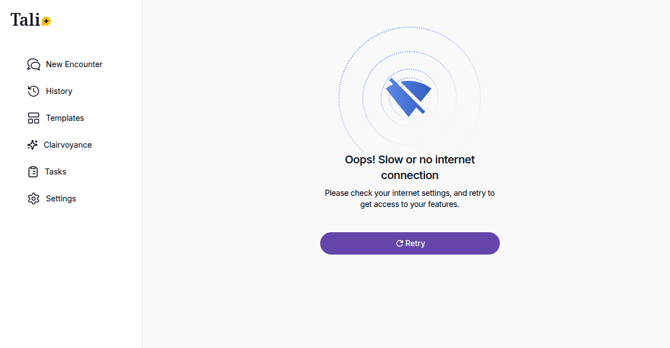
- Browsing or opening previously recorded encounters.
- Editing notes, regenerating notes, or running Smart Edits.
- Medical Search and "Ask a medical question."
- Patient calling / Call a patient.
- Uploading an audio file.
- Changing templates from the Templates studio.
- Most settings, admin, and profile pages.
If a button is greyed out or a page won't load, it's almost always because Tali is currently offline and the action requires the server.
Troubleshooting
My pending encounter says "Sync failed." Tali retries automatically in the background. If the failure persists:
- Confirm you're online (try loading any other website).
- Stay on the History page for a minute so the background sync can run.
- If it still won't sync, contact Tali support and share the time you recorded the encounter — do not refresh, sign out, or clear your browser storage, because that will delete the local recording.
I closed the tab/laptop before the encounter synced. That's fine. Re-open Tali and sign in on the same browser/device. Your pending encounters are stored locally and will resume syncing automatically once Tali is loaded and you're online.
I don't see the "Pending Encounters" section even though I recorded it offline. Make sure you're signed in as the same user on the same device and browser you used to record. Pending encounters are stored locally per-user, per-device, and aren't synced across devices.
I don't see the offline banner when my Wi-Fi drops. Your account may not have the Offline Encounters feature enabled yet. Without it, Tali behaves as before and most actions are blocked while you're offline. Contact your admin or Tali support to confirm rollout status.
FAQ
Does the patient need to be present for the upload? No. The recording is captured during the visit; uploading and note generation happen later, automatically.
Is my audio safe? Yes. The recording stays in encrypted browser storage on your device until it's uploaded to Tali over the same secure channel used for normal encounters. Once Tali confirms the encounter is on the server, the local copy is cleaned up.
Can I record offline encounters on multiple devices and have them sync to one place? Each device syncs its own pending encounters to your Tali account. Once they finalize on the server, they all appear together in your regular History from any device.
What if I'm offline for several hours or overnight? That's supported — your pending encounters wait safely on the device. Just sign back in on the same browser when you reconnect; Tali will pick up where it left off.