
How it works
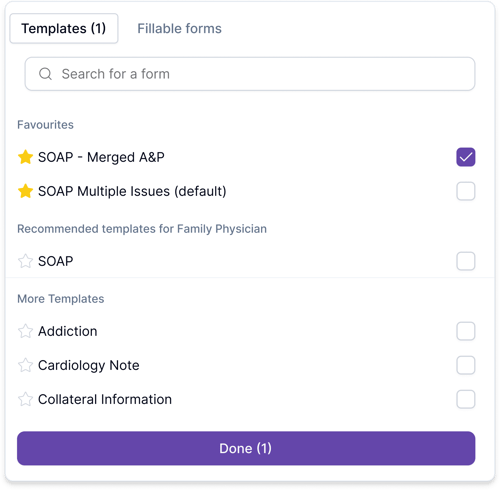
When you open the Template library, you can click the star next to a template to add it to your favourites. You can do the same when opening the Templates and Forms selection window in an encounter.
Once a template is starred, it appears in the Favourites section in both the Template library and the encounter Templates selection window for quicker access.
.png?width=500&height=377&name=Component%2020%20(1).png)
How to favourite a template
From the Template Library
- Open the Template Library
- Find the template you want to save for quick access
- Click the star icon beside the template
- The template will move into the Favourites section
From the Templates and Forms selection window
- Open the Templates and Forms selection window
- Find the template you want to save for quick access
- Click the star icon beside the template
- The template will move into the Favourites section
How to enable a template on Mobile
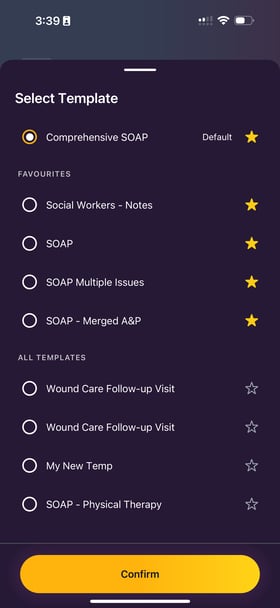
During a recording or from your Template Settings, tap the star next to any template to mark it as a favourite. Your template list automatically organizes itself; your default is at the top, your favourites next, then everything else; so the templates you use most are always within reach without scrolling.Your favourites sync across devices, so what you star on desktop shows up on mobile and vice versa.
How to remove a template from favourites
To remove a template from favourites, click the star again. The template will be removed from the Favourites section and returned to the rest of the library.