
Call a Patient is currently available only on the Tali desktop app and web app.
Instead of starting a document from scratch, Tali uses the task details, encounter context, and available patient context to draft the right document in your workflow. This helps reduce manual writing, keep next steps connected to the visit, and support a smoother post-encounter workflow.
What you can generate from tasks
Document generation from tasks supports:
- Referral letters
- Consult letters
Other document types are not currently supported.
How it works
When Tali identifies a task that requires a referral letter or consult letter, a Generate button appears on the task.
The button shows the document template Tali has selected, so you can quickly see what will be generated. If needed, you can use the dropdown to choose a different referral or consult letter template before generating the document.
Generate a document from a task
- After generating notes from an encounter
- Go to the Tasks tab.
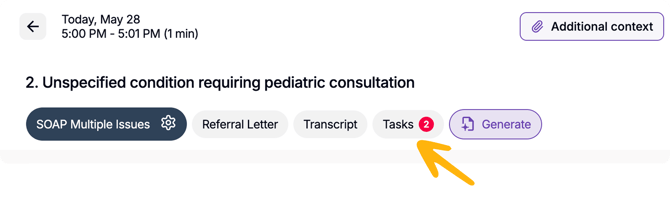
- Find a referral letter or consult letter task.

- Review the template shown on the Generate button.
- To change the template, click the dropdown and select another available option.
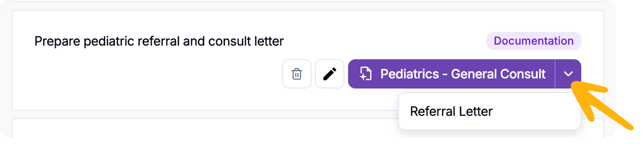
- Click on the Generate button of the task.
- The generated document appears alongside other documents.
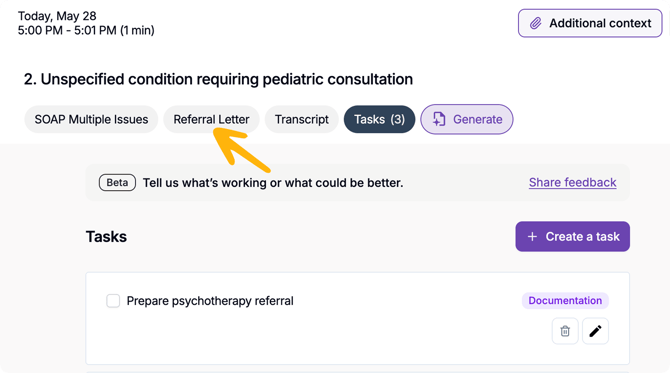
Automatic task approval
When a document is generated from a task, the task is automatically approved.
This removes an extra step from your workflow and helps keep your task list aligned with the actions you have already completed.
Why use this
Document generation from tasks helps turn clinical intent into action. Whether you need to send a referral or prepare a consult letter, Tali helps you move from “this needs to be done” to a ready-to-review document with less effort.
This helps you:
- Streamlines the handoff between task management and documentation.
- Helps you act on follow-up tasks directly from the task list.
- Reduces workflow switching after the encounter.
- Keeps referral and consult documentation closer to the clinical action that triggered it.
- Helps move post-encounter work forward with fewer clicks.
Notes
-
The Generate button only appears for eligible referral letter and consult letter tasks.
-
Tali selects a default template automatically, but you can change it using the dropdown before generating.