
Labels help you organize related encounters and find them more easily in the History tab. You can label encounters by clinic, visit type, follow-up status, or any other category that supports your workflow.
A label appears as a coloured dot and name next to the encounter title.
This article covers how to:
- Create and manage labels
- Add a label to an encounter
- Create a label while adding it to an encounter
- Remove a label from an encounter
- Filter your history by label
- Group your history by label
Create labels from Settings
To create your first label:
- Go to Settings > Account > Labels.
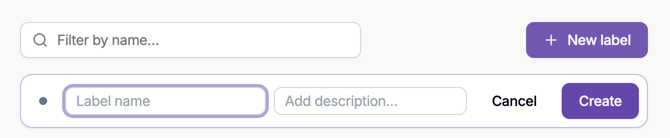
- Select New label.
- Choose a colour for the label.
- Enter a label name.
- Add an optional description.
- Select Create.
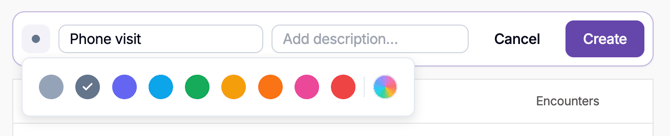
The label is added to your label list and is now available to apply to encounters.
Repeat these steps to create additional labels for the categories you want to use, such as clinic location, visit type, or follow-up status.
View and manage your labels
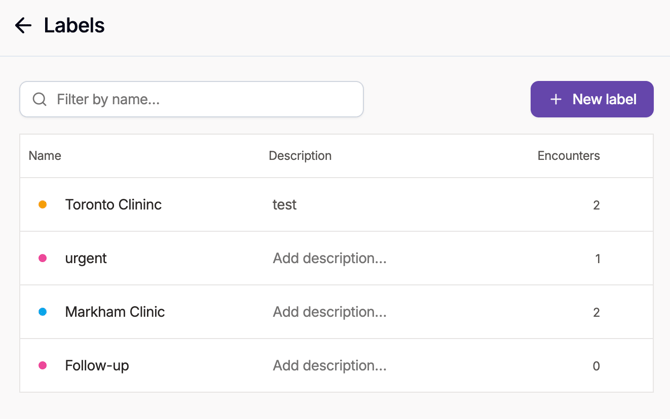
Go to Settings > Account > Labels to view all your labels.
From the Labels page, you can:
- Search for a label using Filter by name
- View each label’s name and description
- See how many encounters use each label
- Create additional labels
You can also open this page by selecting Manage labels from the label picker on an encounter.
Add a label to an encounter
Once you have created your labels:
- Open the History tab.
- On the encounter, select a label pill, the +N indicator, or the add-label control next to the encounter title.
- In the label picker, type to search your labels.
- Select a label to apply it to the encounter.
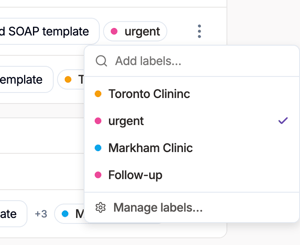
Your selection is saved automatically.
You can apply multiple labels to the same encounter. When an encounter has several labels, the first label appears alongside a +N indicator. Select the indicator to view all labels applied to the encounter.
A label appears as a coloured dot and name next to the encounter title.
Create a label from an encounter
You can also create a label directly from the label picker while organizing an encounter.
- Open the label picker on the encounter.
- In the Add labels field, enter the name of the new label.
- If no existing label matches, select Create “label name”.
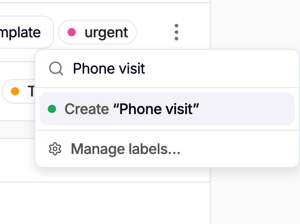
The new label is created, applied to the encounter, and added to your label list for future use.
Remove a label from an encounter
- Open the label picker on the encounter.
- Select the applied label to turn it off.
Removing a label from an encounter does not delete the label. It remains available to apply to other encounters.
Filter your history by label
Use the Label filter to display only encounters with specific labels.
- Open the History tab.
- Select Filter in the toolbar.
- Choose Label, then select one or more labels.
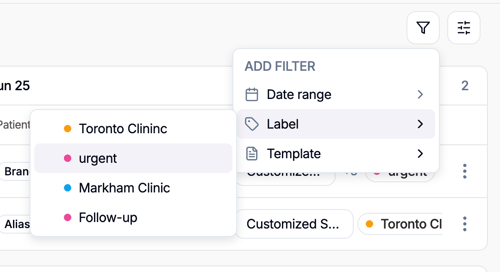
Your history updates to show only encounters that match the selected labels. You can combine label filters with date and template filters to narrow the results further.
Group your history by label
Group encounters by label to view related visits together.
- Open the History tab.
- Select Display options in the toolbar.
- Under Grouping, select Label.
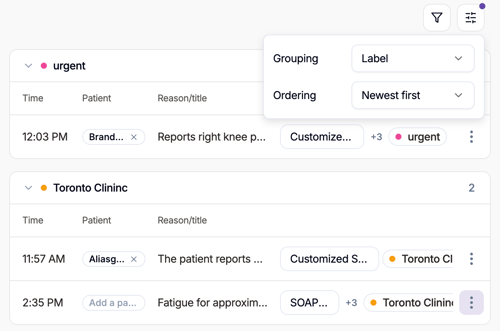
Encounters are organized under their corresponding label headings. Encounters without a label appear in a separate group.