
Overview
Both the Appointments tab and the History tab have a Display options control for changing how encounters are laid out, grouped, and sorted. Once you pick your setup, Tali remembers it. This article covers where to find Display options, what each option does, and exactly how long your choices are kept on each tab.
Note: The Appointments tab is available when your clinic has appointments enabled. The exact options you see can vary depending on the features turned on for your account.
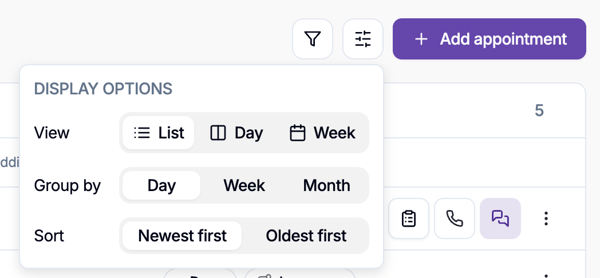
Where to find Display options
On both pages, look for the sliders icon near the top of the list. Selecting it opens the Display options popover.
A small coloured dot appears on the sliders icon whenever your current selection differs from the default — an at-a-glance reminder that a custom view is active.
Appointments tab
Open Display options to choose:
- View — how the schedule is laid out:
- List — appointments as a grouped list of rows (the default)
- Day — a single-day calendar-style grid
- Week — a full-week calendar-style grid
- Group by (List view only) — Day, Week, or Month
- Sort (List view only) — Newest first or Oldest first
What is retained
- View and Group by are saved to your browser. These choices survive refreshing the page, opening Appointments in a new browser tab, and closing and reopening your browser.
- Sort is applied while you're on the page but is not saved. It returns to Newest first after a refresh.
So if you switch to Week view or group your list by Month, Tali keeps you there the next time you open Appointments — even after restarting your browser.
History tab
Open Display options to choose:
- Group by — Day, Week, Month, or Label (Label appears when encounter labels are enabled for your account)
- Sort — Newest first or Oldest first
The History tab also remembers any filters you apply — for example, label, template, patient, and date range — alongside these display choices.
What is retained
- Your Group by, Sort, and applied filters are saved for the rest of your current browsing session. They survive moving to another page and coming back to History, and refreshing the page.
- Because these are session-scoped, they reset to the defaults (Group by Day, Newest first, no filters) once you fully close the browser or open History in a brand-new tab.