
You can use dictation to:
- Add context before generating a note
- Search for medical information
- Edit or revise generated notes
- Provide instructions to Tali
- Add details to appointment or call workflows
Here you can see the dictation function for Additional Context and Medical Search during an encounter:
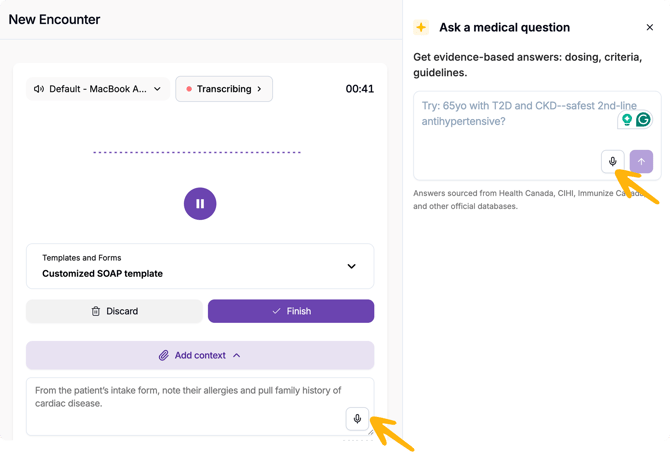
Where you can use dictation
You can use dictation in supported text areas across Tali, including:
- Additional context fields on the Encounter, Recording, Notes, Call a Patient, and Appointments pages
- Medical Search on the Notes and Call a Patient pages
- Note editing, including manual edits and Smart Edit
- AI Template Assistant, including the chat box
- Form Helper text areas
Dictation may also be available in other supported text areas as the experience continues to expand.
How dictation works
To start dictating:
- Select the text area where you want to add content.
- Place your cursor where you want the dictated text to appear.
- Select the dictation button.
- Start speaking.
As you speak, Tali inserts the dictated text at your active cursor position.
This means you can:
- Add new text exactly where you need it
- Continue typing before or after dictation
- Edit dictated text the same way you edit typed text
- Review and adjust the content before saving, submitting, searching, or generating
Dictation works within the existing editing experience, so you do not need to change how you normally work in Tali.
Using dictation in multiple text areas
Some pages may have more than one dictation button.
Only one dictation session can be active at a time.
If dictation is already active in one text area and you start dictation in another text area:
- Tali pauses the first dictation session
- Tali starts dictation in the newly selected field
- New dictated text is added to the new active field
This helps make sure your dictated text is added to the right place.
What happens if you close a dialog
If you close a dialog while dictation is still active, Tali automatically stops dictation.
This helps prevent dictation from continuing in the background after you have left the text area or closed the workflow.
Reviewing dictated text
After dictation is added to a text area, you can review and edit it like regular typed text.
Before saving, submitting, searching, or generating content, we recommend quickly checking that the dictated text was captured correctly.