
Tali captures the conversation and uses your selected template to generate an Ambient-style visit note in History, allowing you to complete both the visit and its documentation through the mobile app.
Note: Call a Patient is currently available in the native Tali iOS app for accounts with calling enabled.
How Call a Patient supports your workflow
Call a Patient is designed for clinical conversations that are better suited to a mobile workflow, including:
- After-hours or on-call care
- Calls made while moving between clinical locations
- Phone visits when a laptop or desktop is not readily available
Once the call is complete, the generated note follows the same workflow as your other Ambient encounters. You can review and edit the note in History, generate additional notes using other templates, or copy the documentation into your usual clinical workflow.
Before you begin
To place a patient call, you need:
- The native Tali iOS app
- Microphone access enabled for Tali
- An internet connection to start the call
Call a Patient uses the same monthly allowance as Ambient encounters. You cannot start a call while another Ambient or Dictation recording is already in progress.
Always follow your clinic’s policies for informing patients and obtaining consent before recording a clinical conversation.
Start a patient call
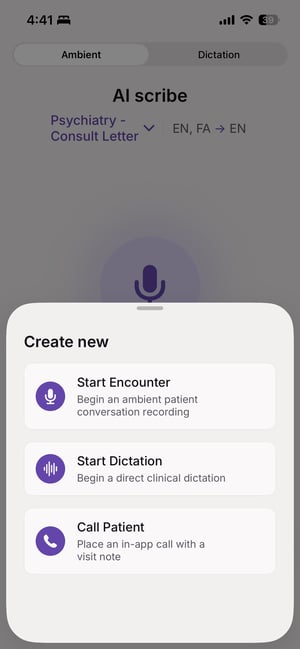
- From Home or History, tap the Create (+) button.
- Select Call a patient — Place an in-app call with a visit note.
- Enter the patient’s number in the Patient phone number field.
- Select the template you want Tali to use for the note.
- Tap Call.
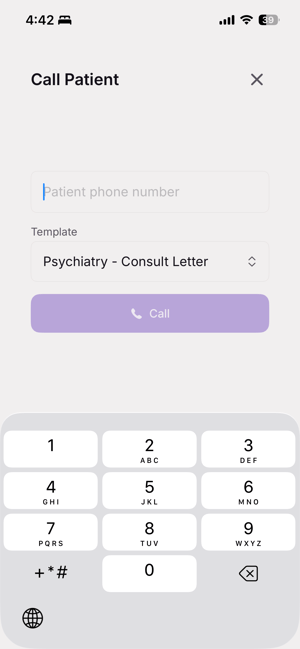
Tali accepts:
- Standard 10-digit North American phone numbers
- 11-digit numbers beginning with
1 - Supported international numbers beginning with
+
The Call button remains disabled until a valid phone number is entered.
When available, the dialer also displays the number the patient will see under Calling from.
Choose a template
Before placing the call, you can select the template Tali will use to generate the visit note.
The template picker defaults to your preferred Ambient template. Selecting the most appropriate template can help the generated note better match the type of phone visit you are conducting and reduce the amount of editing required afterward.
For example, you may choose a comprehensive template for a scheduled phone consultation or a shorter progress-note format for a brief follow-up.
During the call
After you tap Call, the status progresses through:
- Connecting…
- Calling…
- Ringing…
- A live timer once the call is connected
When the patient answers, Tali begins capturing the conversation for the visit note. The screen displays either:
- Recording for visit note
- Note recording paused
During the call, you can use:
- Mute/Unmute to control your microphone
- Speaker to switch the audio output
- Keypad to enter extensions or navigate phone menus
- End Call to hang up
You can place Tali in the background without ending the call. The iPhone’s system call interface may also appear, and its mute and end-call controls remain synchronized with the Tali app.
If the visit note cannot be recorded
The phone call can continue even if Tali cannot capture the recording needed to generate a note.
In this situation, you will see:
“The visit note can't be generated for this call. The call itself is unaffected.”
You can continue the conversation without interruption, but you will need to document the visit using another method afterward.
Finish or discard the note
After the call ends, Tali displays the call status and duration when available.
The status may appear as:
- Call ended
- Call interrupted
- Call failed
If the visit was successfully recorded, you can choose Finish Note or Discard.
Finish Note
Tap Finish Note to submit the recording for transcription and note generation.
When processing is complete, the encounter appears in History like a standard Ambient encounter.
Depending on your connection, Tali may open the completed note immediately or display:
“The call recording is saved and will upload automatically. The note will appear in History.”
Tap Done. Tali will upload and process the recording when connectivity is available.
If an error occurs while submitting the recording, you can retry Finish Note or select Discard.
Discard
Tap Discard to permanently delete the call recording without generating a note.
This action cannot be undone.
If no recording was captured, tap Close to return to the app.
Find and use the note in History
Finished call notes appear in History once processing is complete.
From the encounter, you can:
- Review the transcript
- Review and edit the generated note
- Edit the encounter title
- Generate another note using a different template
- Copy or delete the note
- Download the recording when recording downloads are available
Call notes are treated as Ambient encounters and use Ambient monthly usage rather than Dictation minutes.
Connectivity and pending uploads
An internet connection is generally required to start a patient call.
If the call recording is captured but cannot be uploaded immediately, Tali securely saves it and automatically retries the upload later. This allows the call to be completed without losing the recording because of a temporary connectivity issue after the conversation.
Pending recordings appear in History as waiting-to-sync encounters. Keep Tali connected to the internet and pull down to refresh History if the note has not appeared yet.
Troubleshooting
“Call a patient” is missing
Confirm that you are using the native Tali iOS app. The feature may not yet be enabled for your account or app version. Contact your administrator or Tali Support for assistance.
The Call button is disabled
Enter a complete, valid phone number.
Tali needs microphone access
Open your iPhone Settings, select Tali, and enable Microphone.
The call cannot be started
Check your internet connection and try again. You may see:
- “Couldn't start the call. Check your connection and try again.”
- “Couldn't start the call. Please try again.”
The patient cannot hear you, or you cannot hear them
Check Mute, Speaker, and your active Bluetooth or headset connection. Confirm that Tali has microphone permission, then end the call and redial if necessary.
The note is not in History
Check your connection and look for a waiting-to-sync encounter in History. Pull down to refresh the page.
You have reached your plan limit
Call a Patient uses your Ambient allowance. When your allowance is exhausted, the dialer cannot be opened until your usage resets or your plan changes.
Another recording is already active
Finish or discard the current Ambient or Dictation recording before starting a patient call.