
Before you begin
To place a patient call, you need:
- The native Tali Android app
- Microphone permission (required to place a call)
- Notification permission on Android 13+ (recommended — see below)
- An internet connection to start the call
Always follow your clinic's policies for informing patients and obtaining consent before recording a clinical conversation.
Note: This version supports outbound calls only.
Start a patient call
- Tap the Create (+) button in the center of the bottom bar.
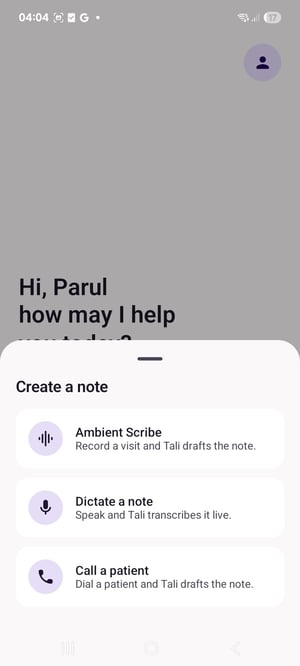
- In the Create a note sheet, tap Call a patient — Dial a patient and Tali drafts the note.
- Enter the patient's number in the Patient phone number field.
- Select the template Tali should use for the note.
- Tap Start call.
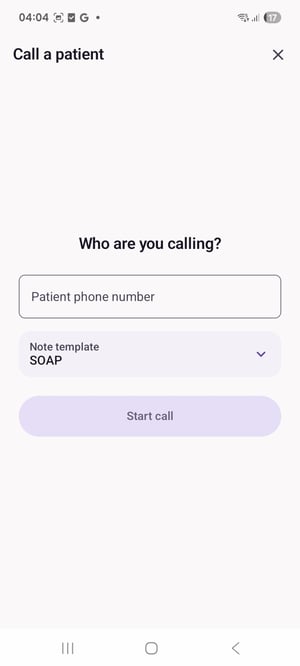
Tali accepts standard 10-digit North American numbers, 11-digit numbers beginning with 1, and supported international numbers beginning with + (8–15 digits). Start call stays disabled until a valid number is entered. When available, the dialer shows the number the patient will see under Calling from.
To leave the dialer before a call starts, use the X in the top bar.
Choose a template
The Note template row shows your default, or Select a template if none is set. Tap it to open a searchable picker; templates load in the background, so you can search and select while they finish loading. Choosing the right template helps the note match the visit type and reduces editing afterward.
During the call
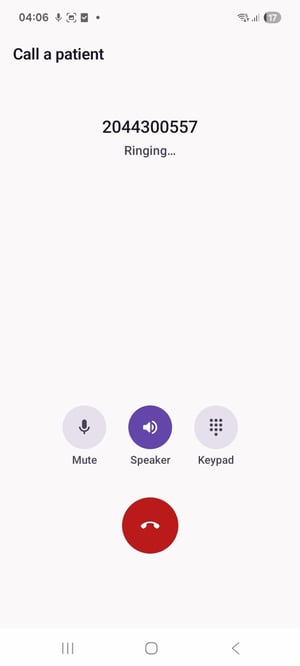
The status progresses through Connecting…, Calling…, Ringing…, then a live timer once connected. When the patient answers, Tali begins capturing the conversation.
Controls: Mute / Unmute, Speaker, Keypad (for extensions or phone menus), and Hang up (the red button).
Running in the background: The call keeps running if you leave the app. An ongoing notification shows Tali is calling… or Tali call in progress, with Tap to return to the call. and a timer once connected. The hardware Back button does nothing during an active call — use the in-app buttons.
If the note can't be recorded: You'll see a banner — "Transcription is unavailable for this call — the call continues, but no note will be drafted." The call is unaffected, but you'll need to document the visit another way.
Finish or discard the note
After the call ends, Tali shows the status (Call ended, Call interrupted, or Call failed) and duration when available. You can still change the template here before finishing.
Finish note ends the call (if still connected) and submits the recording. Depending on your connection:
- Note submitted — Tali opens the new encounter in History.
- Queued offline — the note still counts; it uploads automatically and appears in History later.
- Submit failed — an error appears and the recording is kept, so you can retry Finish note.
- Nothing recorded — the screen simply closes.
Discard permanently deletes the recording without generating a note. Tali confirms first:
Discard this call note? "The call recording and its note draft will be deleted. This can't be undone."
If nothing was captured, tap Close to return to the app.
Find and use the note in History
Finished call notes appear in History once processing completes and behave like standard Ambient encounters. From the encounter you can review the transcript, review and edit the note, generate another note with a different template, copy or share the note text, download the recording, and delete it. Call notes use Ambient monthly usage, not Dictation minutes.
Connectivity and pending uploads
You generally need connectivity to start a call. If a captured recording can't upload right away, Tali saves it encrypted and retries automatically when you reconnect. Pending recordings appear in History under Waiting to upload — keep Tali connected and pull down to refresh if the note hasn't appeared yet.
Troubleshooting
| Problem | What to try |
|---|---|
| Call a patient is missing | Confirm you're on the native Tali Android app, then contact your admin or Tali Support. |
| Start call is disabled | Enter a complete, valid phone number. |
| "Tali needs microphone access to place calls. Enable it in Settings." | Go to Android Settings → Apps → Tali → Permissions → Microphone. |
| "Couldn't start the call. Check your connection and try again." / "Please try again." | A connection or dial failure. Check your internet and try again. |
| Can't get back to a minimized call | Allow Tali's notification permission, then tap the Tali call in progress notification. |
| Banner says transcription is unavailable | Finish the call normally; create the note another way (Ambient or Dictation) if needed. |
| Finished note not in History yet | Check your connection, look under Waiting to upload, and pull to refresh. |