
This feature is currently in beta and available to select users.
How to Use Task Management in Tali
After an encounter, Tali suggests tasks based on what was discussed, such as follow-ups, orders, prescriptions, documentation, or billing actions. You can review each suggested task, make changes, delete it, or approve it before it is added to your task list.
How Task Management works
Tali generates suggested tasks from the encounter once the note has been created. These tasks are recommendations. You stay in control of what gets added to your task list.
From the Tasks tab in the encounter, you can:
-
Review AI-generated task suggestions
-
Edit a task title or category
-
Delete tasks you do not need
-
Approve tasks you want to keep
-
Create a new task manually
Once approved, tasks are added to your Task Library, where you can manage them later.
Reviewing tasks from an encounter
-
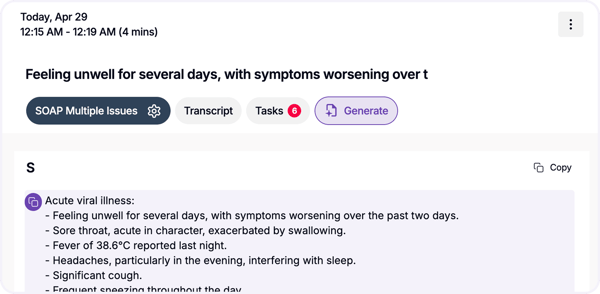
Open an encounter after the note has been generated.
-
Select the Tasks tab.
-
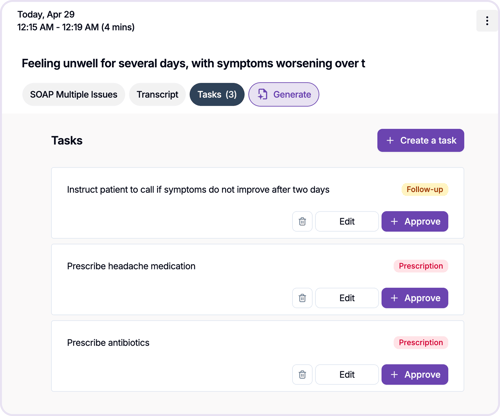
Review the suggested tasks.
-
For each task, choose one of the following:
-
Approve to add it to your task list
-
Edit to update the task title or category
-
Delete to remove the suggestion
-
You can edit the title and the category of a task.
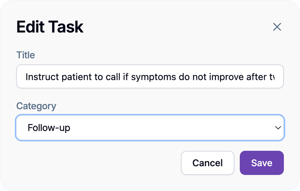
Approved tasks will appear in your main Tasks page.
Creating a new task from an encounter
You can also create your own task manually.
-
Click Create a task.
-
Add a task title.
-
Select a category.
-
Click Create Task.
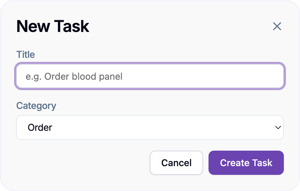
The task will be added to your task list.
Managing tasks in the Task Library
The Task Library gives you one place to view and manage your approved tasks.
From the Task Library, you can:
-
Search for tasks
-
Filter tasks by date created
-
Hide or show completed tasks
-
Create new tasks
-
Edit existing tasks
-
Delete tasks
-
Mark tasks as complete
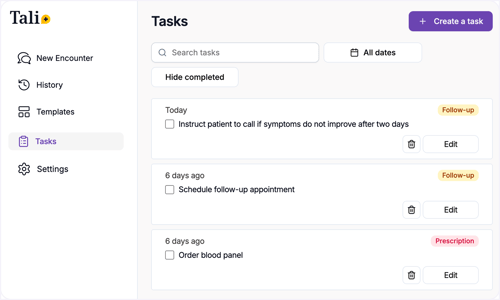
Editing a task
To edit a task:
-
Click Edit on the task.
-
Update the task title or category.
-
Click Save.
Completing a task
To mark a task as complete, select the checkbox beside the task.
Completed tasks can be hidden using the Hide completed option.
Deleting a task
To delete a task, click the trash icon beside the task.
Deleted tasks are removed from your task list.
FAQ
Are tasks automatically added to my task list?
No. Tasks generated from an encounter are suggestions. You need to approve a task before it is added to your Task Library.
Can I change a suggested task before approving it?
Yes. You can edit the task title or category before approving it.
Can I create tasks myself?
Yes. You can manually create a task from the encounter’s Tasks tab or from the main Task Library.
What types of tasks can Tali generate?
Tali may suggest tasks related to follow-ups, orders, prescriptions, documentation, billing, or other next steps discussed during the encounter.
Can I complete tasks in Tali?
Yes. Once a task is in your Task Library, you can mark it as complete using the checkbox.