
Call a Patient is currently available only on the Tali desktop app and web app.
Use Appointments to quickly review your upcoming visits, add relevant prep notes, and start the right visit workflow when you’re ready. Whether the visit is in person or over the phone, Appointments helps keep your pre-visit preparation connected to the encounter and documentation workflow.
Open Appointments
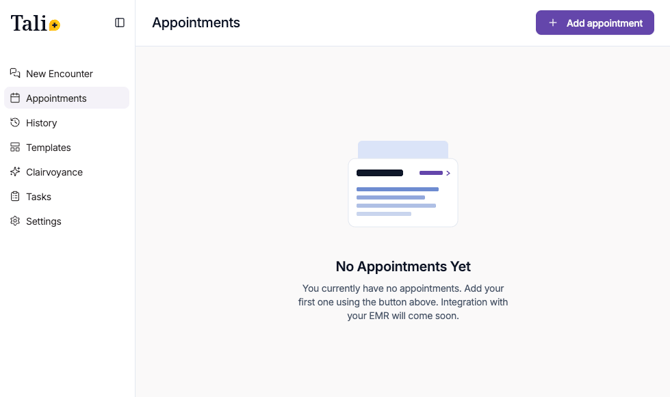
From the left navigation, select Appointments.
If you do not have any appointments yet, you’ll see an empty state where you can add your first appointment.
Add an appointment
To create a new appointment:
-
Select Add appointment.
-
Enter the appointment start time.
-
Select the appointment date.
-
Select or add the patient.
-
Add any relevant additional context for the encounter.
-
Select Save.
The start time and date are required. The patient and additional context fields help connect the appointment to the right visit and give Tali more information to support your prep workflow.
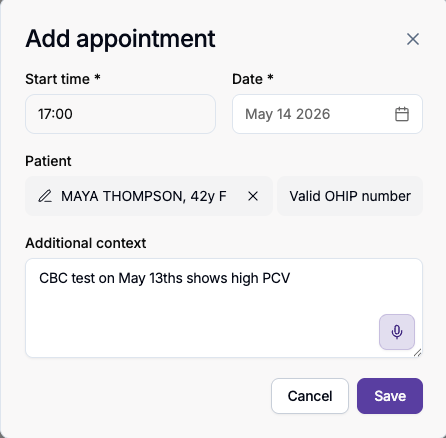
You can type or paste or dictate context into the Additional context field. This can include notes, reminders, visit reason, relevant history, patient concerns, or anything else you want available before the encounter starts.
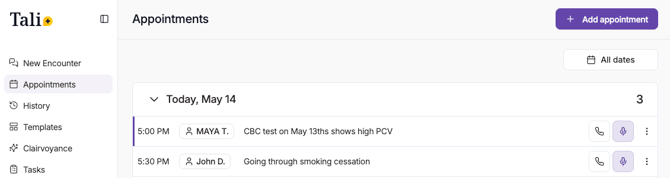
Once saved, the appointment will appear in your Appointments list.
Start a visit from an appointment
When you’re ready to begin the visit, you can start directly from the appointment row in the Appointments tab.
From an appointment, you can:
-
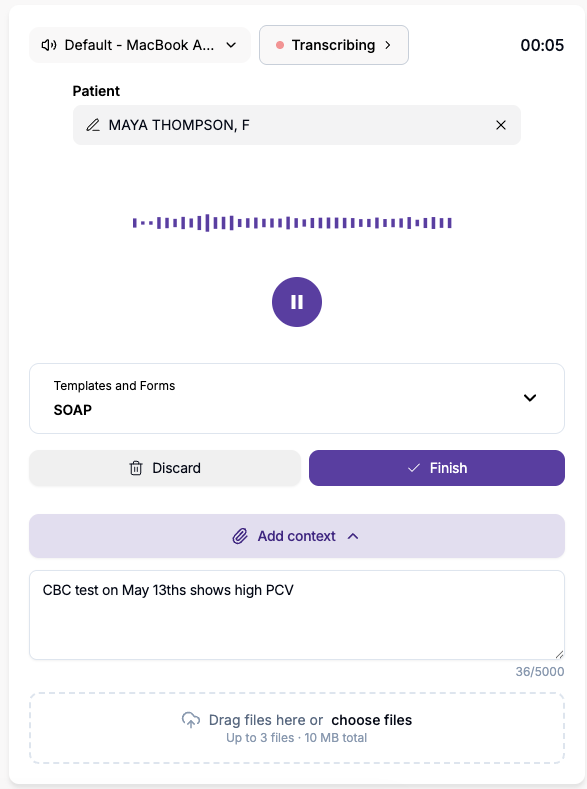
Start an in-person encounter
-
Start a phone visit using Call a Patient directly inside Tali
This helps keep your pre-visit prep, patient context, and encounter documentation connected in one workflow. Whether the visit is happening in person or over the phone, you can move from the appointment into the right visit type without switching tools.
Edit or delete an appointment
Each appointment can be edited or deleted from the appointment row.
To edit an appointment:
-
Find the appointment in your list.
-
Select the edit action.
-
Update the appointment details, such as time, date, patient, or additional context.
-
Select Save.
To delete an appointment:
-
Find the appointment in your list.
-
Select the delete action.
-
Confirm the deletion.
View appointments by date
Appointments are grouped by date, making it easier to find, review, and access visits for a specific day.
You can use the date groupings to quickly scan upcoming visits, review past appointments, and start the right visit from the appointment list.
Historical dates appear below the current date, so past appointments remain available without interrupting your view of current and upcoming appointments.
Access a past appointment
You can click on a past appointment to open the encounter page associated with that appointment.
This allows you to return to a previous visit, review the encounter, and access the documentation connected to that appointment.
FAQ
What is Appointments used for?
Appointments is used to organize upcoming visits and prepare for them ahead of time by adding relevant context before the encounter starts.
What details do I need to add when creating an appointment?
You need to add the appointment start time and date. You can also select or add a patient and include additional context for the encounter.
What should I include in additional context?
You can include any information that may help with pre-visit preparation, such as visit reason, relevant history, reminders, patient concerns, or details you want available before the encounter begins.
Can I start a visit directly from an appointment?
Yes. You can start a visit directly from the appointment row. You can start an in-person encounter or use Call a Patient to begin a phone visit directly inside Tali.
Can I edit or delete an appointment?
Yes. Each appointment can be edited or deleted from the appointment row.
How are appointments organized?
Appointments are grouped by date, making it easier to find and access visits for a specific day.
Can I access a past appointment?
Yes. Past appointments remain available in the Appointments tab. You can click on a past appointment to open the encounter page associated with that visit.