
What appointment status is
Every appointment on your Appointments page has a status showing where the scheduled visit stands — from booked, to the patient arriving, to the visit being done.
Status is about the visit's schedule — is the patient here yet? did they cancel? It's separate from your recording/note status, which tracks whether Tali has captured and written up the encounter. A visit can be Cancelled and still have a Tali note, or the other way around.
This article covers appointments you create in Tali. Appointments brought in from your EMR show the status your EMR reports and are managed in your EMR, not in Tali.
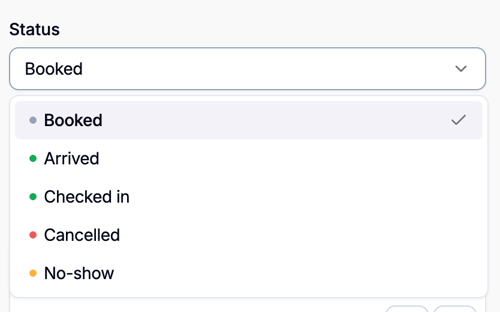
The statuses you'll see
Tali keeps the list intentionally quiet — a normal booked appointment shows no badge, so the ones that need attention stand out.
| Status | What it means | How it looks |
|---|---|---|
| Booked | The normal, confirmed scheduled visit. | No badge. |
| Arrived | The patient is here; the visit hasn't started yet. | Green badge. |
| Checked in | Pre-visit admin is done and the patient is ready for the clinician. | Green badge. |
| Done | The visit is complete. Tali sets this for you automatically. | Neutral badge. |
| Cancelled | The visit was cancelled. | Red badge; row is dimmed and drops out of "next up." |
| No-show | The patient didn't come. | Amber badge; row is dimmed and drops out of "next up." |
Setting status when you book (Add appointment)
When you add an appointment in Tali, you can choose a starting Status:
- Booked — the default; use it for a normal future appointment.
- Arrived — for a walk-in patient already standing at the desk.
- Checked in — for a walk-in who's checked in and ready to be seen.
You can't set Cancelled or No-show here — you're booking a visit that hasn't happened yet, so those outcomes don't apply until later.
Changing status later (Edit appointment)
Open an appointment and choose Edit to update its status. From here you can set Booked, Arrived, or Checked in (same as when booking), plus:
- Cancelled — the visit won't happen.
- No-show — the patient didn't show up.
Marking a visit Cancelled or No-show dims the row and removes it from your "next up" highlight, so your active schedule stays focused on the patients you'll actually see.
"Done" is set for you automatically
You don't mark an appointment Done by hand. When you start a recording from an appointment, Tali automatically moves it to Done — starting the visit is the signal that it's underway, so there's no extra step to keep your schedule accurate.
The only appointments Tali won't auto-complete this way are ones you've already marked Cancelled or No-show.
Removing an appointment you shouldn't have booked
If an appointment was created by mistake, delete it rather than looking for a "remove" status. Deleting is the correct way to take an erroneous appointment off your schedule.
Good to know
- A dimmed row still works. Even when an appointment is Cancelled or No-show, Tali never blocks you — you can still start a recording on that row if the patient turns up after all. A cancellation might be stale, and a walk-in shouldn't be locked out.
- Status ≠ your note. Appointment status tracks the schedule; your recording and note have their own status. Changing one doesn't change the other.