
Appointment modality tells Tali whether a scheduled visit is In-person or Telehealth. It lives on each appointment on the Appointments page and determines the encounter type Tali starts when you record or call the patient.
Availability: Modality rolls out gradually. If you don't see a Modality column or field, it isn't enabled for your account yet.
The two values
- In-person — patient seen face-to-face. This is the default: new appointments, and any created before modality existed, read as In-person until changed.
- Telehealth — visit happens remotely by phone or video.
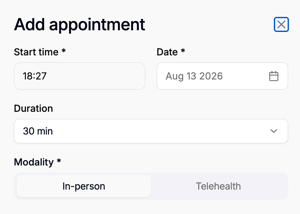
Every appointment has exactly one modality. You pick one of the two values — you can't add your own.
Setting modality
On a new appointment: In the Add appointment form, use the Modality toggle to pick In-person or Telehealth (it starts on In-person), then click Save.
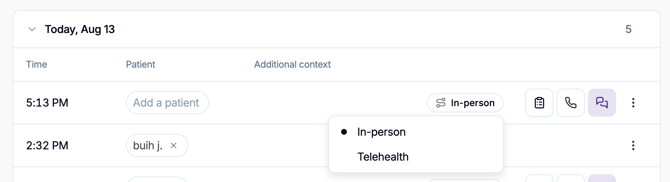
On an existing appointment — two ways:
- Edit dialog: Open the row menu → Edit, change the Modality toggle, then Save.
- Inline tag (one click): Click the modality pill in the row's Modality column and pick the other value. It saves immediately — no dialog, no separate Save step. (Clicking the tag only opens the modality menu; it doesn't open the appointment.)
Modality stays editable on EMR-synced appointments. The inline tag is editable for your own active appointments; completed or ownerless rows show it as read-only.
Filtering by modality
Open Filters → Modality, then select In-person, Telehealth, or both. Selecting nothing (or both) shows every appointment. Filtering applies to appointments already loaded on the page. To reset, remove the Modality filter or use Clear all filters.
How modality routes encounters
When you Start recording or Call patient from an appointment, Tali reads its current modality:
- In-person → in-person (ambulatory) encounter.
- Telehealth → virtual encounter, with telehealth recording mode turned on.
- Call patient → always a virtual encounter, regardless of the stored modality.
Modality also shapes the generated note. Because Tali knows whether the visit was in-person or virtual, it can keep the note consistent with how care was delivered — for example, not describing a physical exam when the visit happened by phone or video.
Tali reads the live value the moment you start, so the most recent change always wins. Flip the inline tag and the next recording or call uses the updated value right away. Set modality before you record so the encounter routes — and the note reads — the way you expect.
FAQ
Do I have to set modality? No — untouched appointments stay In-person.
Can I add other modality values? No, it's a fixed choice between In-person and Telehealth.
Why is the tag read-only on some rows? It's editable only for your own, still-active appointments; completed or ownerless rows are read-only.