
Additional Context Update
You can now:
- Paste images directly from your clipboard as attachments, making it easier to include screenshots, forms, or relevant clinical documents.
- Add longer context without running into the previous character limit.
- Generate a note using Additional Context only (minimum 200 characters), even if no encounter recording was captured.
How to add documents and additional context to an encounter or note
You can add written context and supporting documents to help Tali generate a more accurate note. This is useful for things like lab reports, intake forms, referral letters, or any details you want included in the note.
You can add context in three places:
- before you start recording
- during an encounter
- after a note has already been generated
You can:
- Enter up to 40,000 characters of written context
- Upload up to 3 files
- Upload up to 10 MB total
- Paste images directly from your clipboard as attachments
- Generate a note from Additional Context (minimum 200 characters), even if no encounter recording was captured
Add context before starting an encounter
- Open New encounter.
- Click Add context.
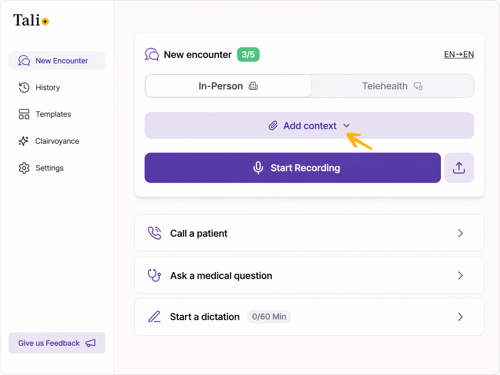
- Add context:
- Type any instructions or relevant details into the text box.
- Drag files into the upload area, or click choose files to upload them.
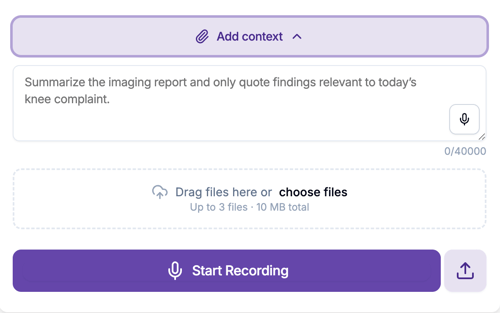
- Once your context is added, click Start Recording.
Add context during an encounter
- While an encounter is in progress, click Add context.
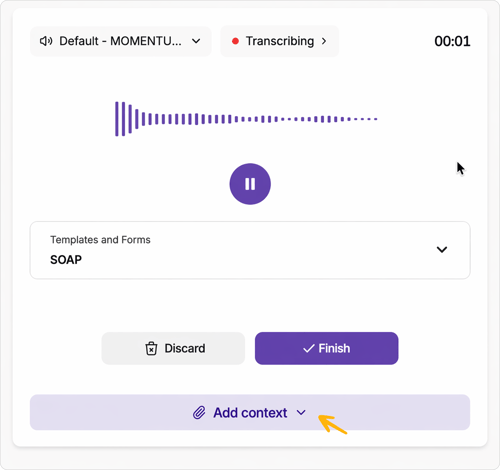
- You can see any context you've added before starting the enounter, and you can add or edit during the encounter. This is helpful when new information comes up mid-visit and you want it reflected in the note.
- Continue the encounter, or click Finish when you are done.
Add context after a note is generated
- You can see the Additional context button at the top right of the notes page.
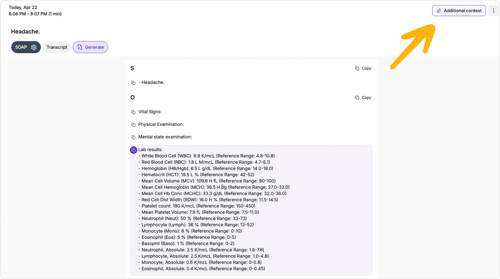
- Click Additional context in the top-right corner to access the context.
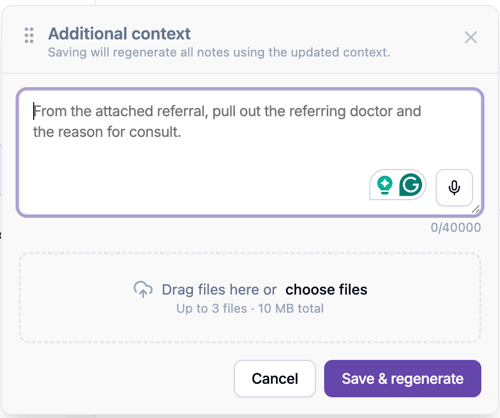
- Add written context and/or upload files.
- Click Save & regenerate.
Tali will regenerate the note using the updated context.
What kinds of context should you add?
You might use this feature to:
- include findings from a lab report
- pull details from an intake form
- add relevant patient history
- include information from a referral or supporting document