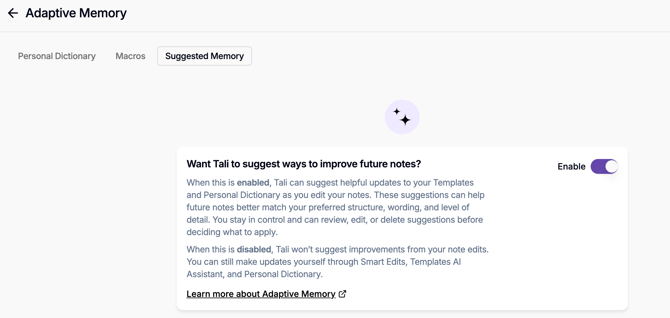
What is Adaptive Memory?
Adaptive Memory helps Tali remember repeated edits you make to your notes, so future notes can better match the way you document.
When you edit notes manually or use Smart Edit, Tali looks for repeated patterns. If the same type of edit keeps happening, Tali may suggest a way to remember that preference for future notes.
Adaptive Memory does not automatically change your notes, templates, or Personal Dictionary. Tali only suggests changes. You choose what to apply, edit, ignore, or remove.
What Adaptive Memory can suggest
Adaptive Memory currently supports two types of suggestions.
1. Template suggestions
Tali may suggest updates to a template when your repeated edits look like a documentation preference.
Examples include:
- Removing empty headings.
- Making a section shorter or more direct.
- Changing formatting or bullet style.
- Changing sentence style or wording.
- Reorganizing a section in the same way.
Template suggestions only apply to the template where the pattern was found. For example, SOAP edits may create suggestions for your SOAP template, while Referral Letter edits may create suggestions for your Referral Letter template.
2. Personal Dictionary suggestions
Tali may suggest adding medical terms or drug names to your Personal Dictionary when it notices that you frequently correct them in your notes.
Once a term is added to your Personal Dictionary, Tali can use it across future notes, templates, and encounter types.
What Adaptive Memory does not memorize
Adaptive Memory is not meant to memorize every edit.
Some edits are specific to one patient or one encounter and should not become a template preference. For example, Tali should not memorize changes to a patient’s diagnosis, lab result, medication dose, vital signs, exam findings, patient name, clinician name, demographics, or pronouns.
Adaptive Memory also does not treat one-time edits as preferences. It looks for repeated patterns before suggesting anything.
How suggestions are created
Adaptive Memory reviews edited notes in small groups.
In the current version, Tali waits until you have edited three notes generated from the same template. Then it reviews those notes together to look for repeated editing patterns.
For example, if you edit three SOAP notes, Tali may suggest updates for your SOAP template. If you edit three Consult notes, Tali may suggest updates for your Consult template. Notes from different templates are reviewed separately.
This means you should not expect a suggestion immediately after one edit. Tali needs a few edited notes from the same template before it can suggest something useful.
Where to find Adaptive Memory
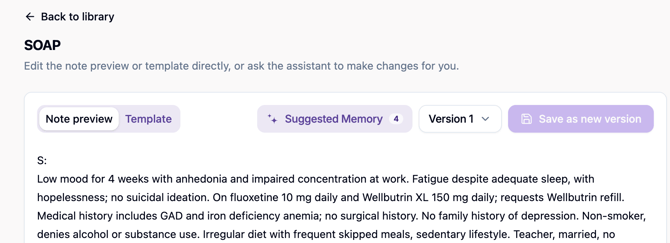
Adaptive Memory appears as a sparkle icon in the encounter page, next to the note action buttons.

When there are no suggestions available, the sparkle icon appears without a number. There is nothing you need to do.
When suggestions are available, a number appears on the sparkle icon. The number shows how many suggestions are available for the note you are currently viewing.

If an encounter has multiple notes, the sparkle icon updates based on the selected note. For example, if you are viewing a SOAP note, you will see SOAP-related suggestions. If you switch to a Referral Letter note, you may see different suggestions for that template.
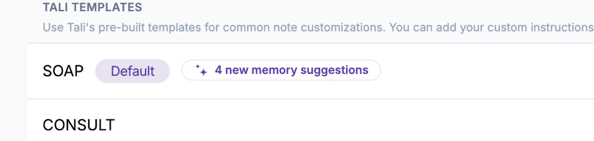
You can also find template suggestions from the Templates page. If Tali has suggestions for a template, you may see a memory suggestions pill next to that template.
Reviewing template suggestions
To review template suggestions, open Adaptive Memory from the sparkle icon or from the template’s Suggested Memory button in Template Assistant.
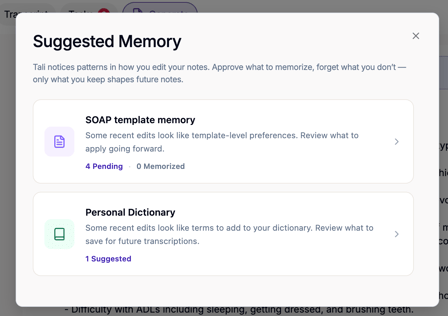
You will see a list of pending suggestions. Suggestions are selected by default. Selected suggestions will be used to update the template when you click Update template.
You can uncheck any suggestion you do not want Tali to memorize. You can also edit a suggestion before applying it.
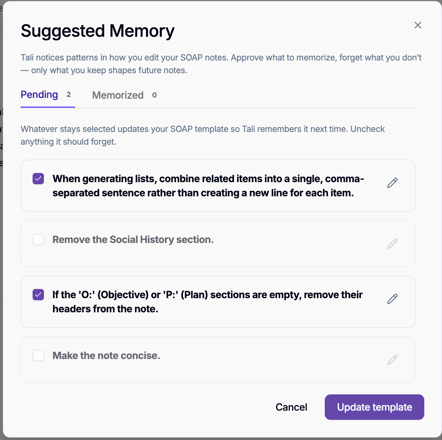
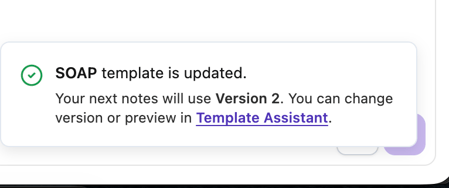
When you update the template, Tali creates a new version of that template. Future notes generated from that template will use the new version.
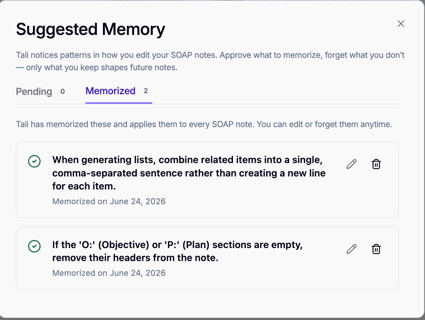
You can also open the Memorized tab to see what Tali has already memorized for that template. From there, you can edit or delete memorized items later.
Reviewing template versions
When Adaptive Memory updates a template, it creates a new template version.
You can view template versions in Template Assistant. Versions created from Adaptive Memory are marked so you can tell which versions were created from memorized suggestions.
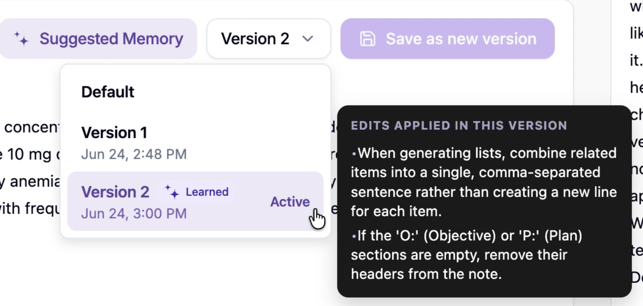
You can hover over a memory-created version to see which edits were applied in that version. You can also switch back to an earlier version if you do not want to keep using the updated version.
Each generated note also shows which template version was used to create it. You can see the version next to the template name in the encounter page.

Adding Personal Dictionary suggestions
When Tali notices medical terms or drug names you frequently correct, it may suggest adding them to your Personal Dictionary.
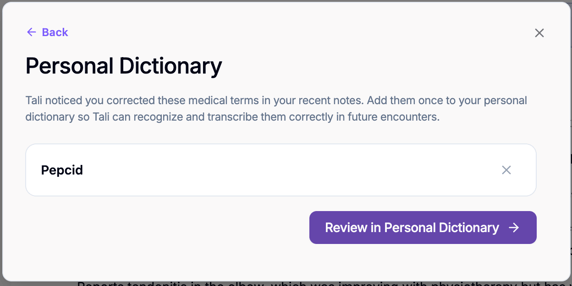
Open the Personal Dictionary suggestion and click Review in Personal Dictionary. Suggested terms are marked so you can see which ones came from Tali.

To add a term, click Record & add. You will need to record yourself using the term in a couple of English sentences. A recording is required to save the term.
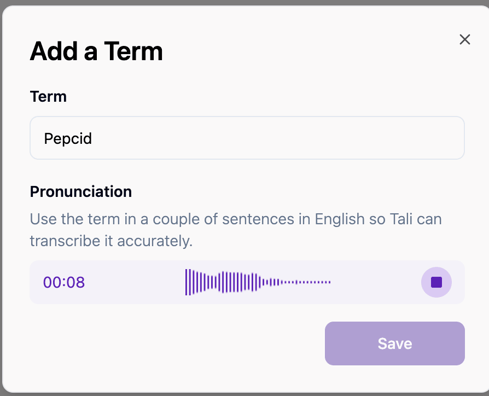
After recording, review what Tali heard and correct the transcription if needed. Then save the term.
Once saved, the term is added to your Personal Dictionary and can be used across future notes and templates.

You can return to Personal Dictionary later to play the recording, edit the term, redo the recording, or delete the term.
Learn more about Personal Dictionary
You stay in control
Adaptive Memory only makes suggestions. Nothing is memorized, added to your Personal Dictionary, or applied to your template unless you choose to save or update it.
You can ignore suggestions, uncheck suggestions before applying them, edit suggestions, delete memorized items, or switch back to an earlier template version at any time.
If you prefer not to receive Adaptive Memory suggestions, you can turn this feature off at any time in Settings.