
Using TeleHealth with AI Scribe
If you are using teleconference software to conduct patient visits over the phone, you can use Tali AI’s TeleHealth feature to record the conversation and automatically generate your notes. This is available on our Chrome extension and our Desktop App. The Desktop App now also allows you to capture audio that plays through your computer—so you can comfortably use headphones during virtual visits. Whether you’re using a web-based telehealth platform or a VOIP phone system, Tali captures both sides of the conversation clearly.
How do I use it?
Chrome Extension
-
In a Chrome Browser, start your patient visit using your teleconference software
-
Open Tali's Chrome Extension and press the blue 'New Encounter' button to start recording in Tali AI

-
Press the blue TeleHealth button in the top right corner
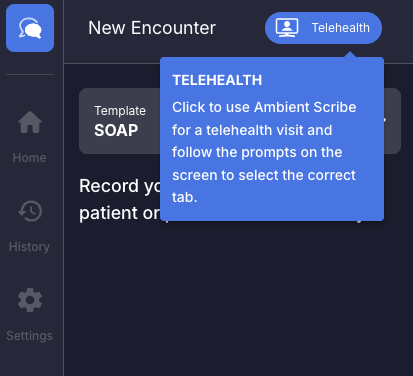
-
A popup screen appears asking you to share a Chrome Tab
-
Select the Tab where your teleconference is running and click the 'Share' button
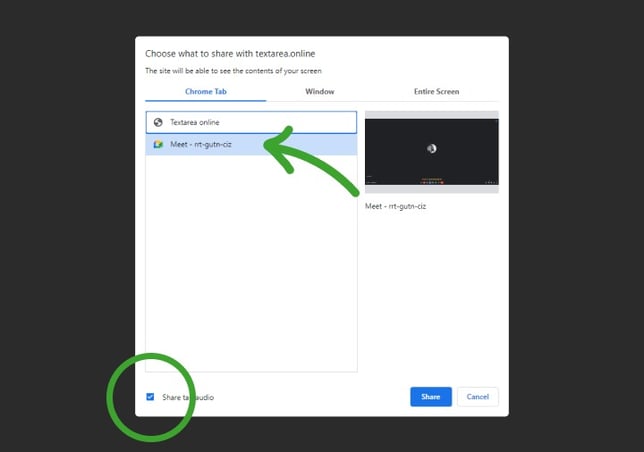
-
Tali can hear your patient visit now, and it labels the Clinician and Patient as the meeting progresses

Desktop App
Tali can now record audio that plays through your computer—making it possible to use headphones during virtual visits. Whether you use a web-based telehealth platform or conduct visits through a VOIP phone system, Tali captures both sides of the conversation clearly.
To start a telehealth visit in Tali:
⚠️ Make sure the proper permissions are enabled on your device so Tali can capture system audio correctly. Without them, audio from your Telehealth platform may not be recorded (Steps below)
- Open the Tali desktop app on your computer.

- Select Telehealth from the app menu.
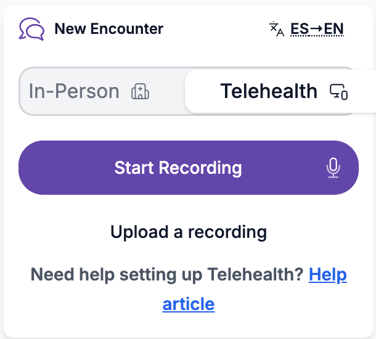
- Click Start Recording to begin capturing your encounter.
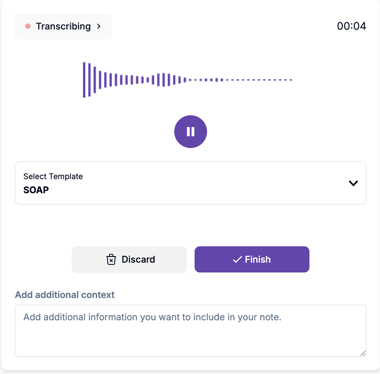
- Once recording starts, Tali captures all audio from both sides of the conversation, including the patient’s voice, even if you are using headphones.
Granting Screen & System Audio Permissions (macOS)
To enable system audio recording for telehealth visits on a Mac, you must grant Tali additional permissions the first time you use the feature.
Follow these steps:
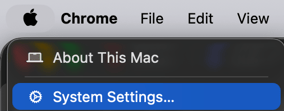
- Click the Apple menu (🍏) in the top-left corner of your screen → select System Settings (or System Preferences if you’re on an earlier macOS version).
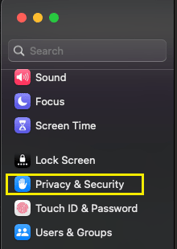
- In the sidebar, scroll down and select Privacy & Security.
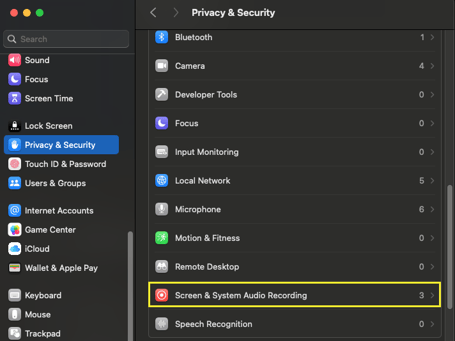
- Locate and select Screen & System Audio Recording.
- Find Tali in the list and toggle the switch ON. You may be prompted to enter your system password.

- If you don't see Tali listed yet, open the Tali app and start a recording. macOS should automatically prompt you to grant permission.
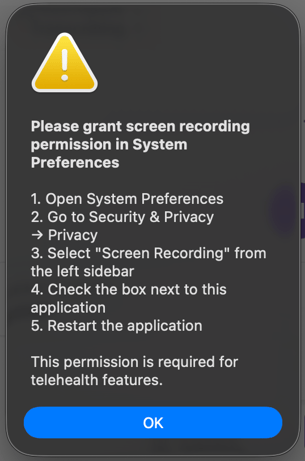
- Restart Tali if required.
Once permissions are enabled, Tali will recognize both you and your patient during a telehealth encounter—ensuring accurate documentation.
Granting System Audio Permissions (Windows)
Windows does not require a separate system-audio permission. However, Tali must have microphone access in order to capture your voice and your patient’s voice during telehealth visits.
FAQs
Why doesn't AI Scribe show the Clinician / Patient labels (Chrome Extension)?
AI Scribe is only able to use a single microphone on your computer, so it won't be able to label different people speaking.
However, AI Scribe uses the context of the conversation to determine who is the clinician and who is the patient. Tali then uses this context to intelligently generate the summary note.
Can I use headphones during virtual or VOIP visits (Desktop)?
Yes. System audio capture now allows Tali to record audio from telehealth platforms while you use headphones, this is only available on our Desktop App.
Can I use Tali AI for group visits, like telehealth sessions with multiple patients?
Yes, but you will need to clarify which patient is speaking and what patient you are referring to throughout the session. This ensures that Tali AI records each patient’s notes accurately and completely, with no confusion between patients.