
Note: You can create and edit templates on the Tali web app. These templates sync automatically to the Chrome extension, Desktop, and mobile apps.
To create a new template
- Log in to the Tali web app.
- Select Templates from the left navigation menu.
- Select Add template.
- You will be taken to the Clinical AI Assistant page.
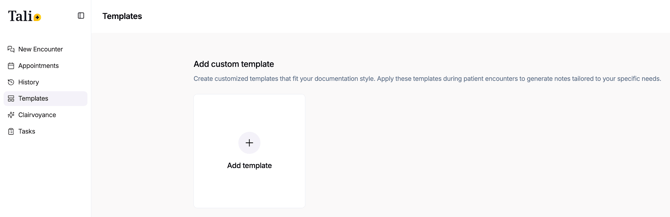
From here, you can create a template in two ways.
Option 1: Start with a sample note
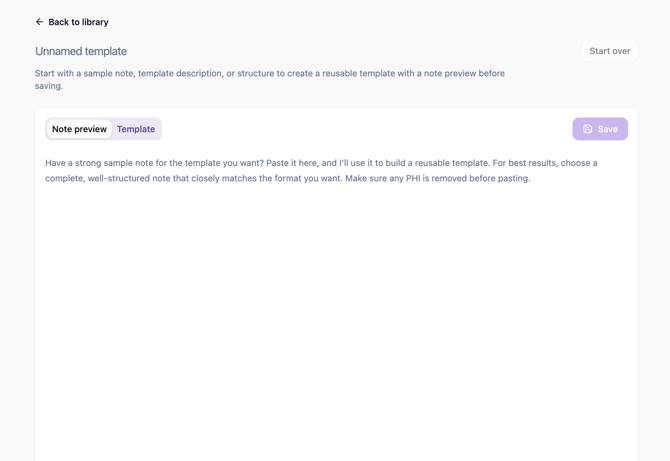
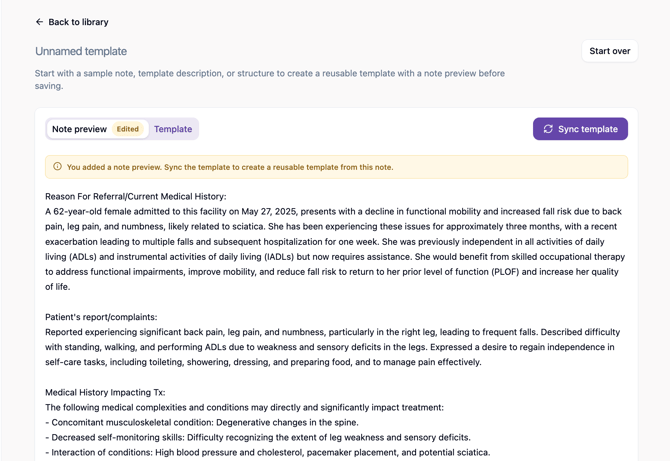
If you already have a note that matches the format you want, paste it into the Note preview tab.
For best results, use a complete, well-structured sample note that closely matches the note you want Tali to create. It should reflect your preferred sections, wording, formatting, level of detail, clinical tone, and overall note flow.
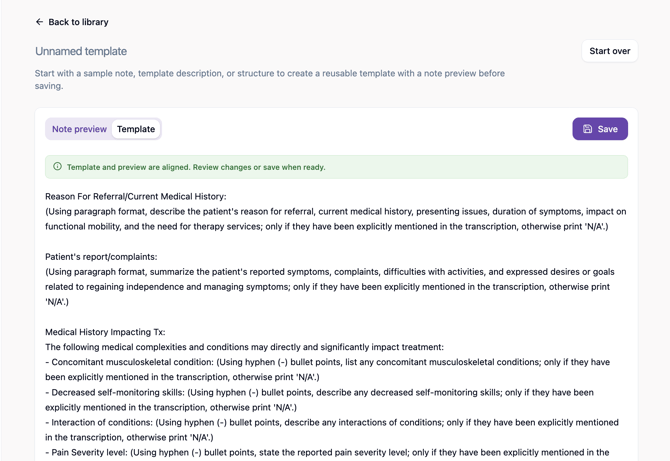
After you add the note preview, select Sync template. Tali will create a reusable template based on the structure and style of your sample note.
1.
2.
3.
Option 2: Describe the template you need
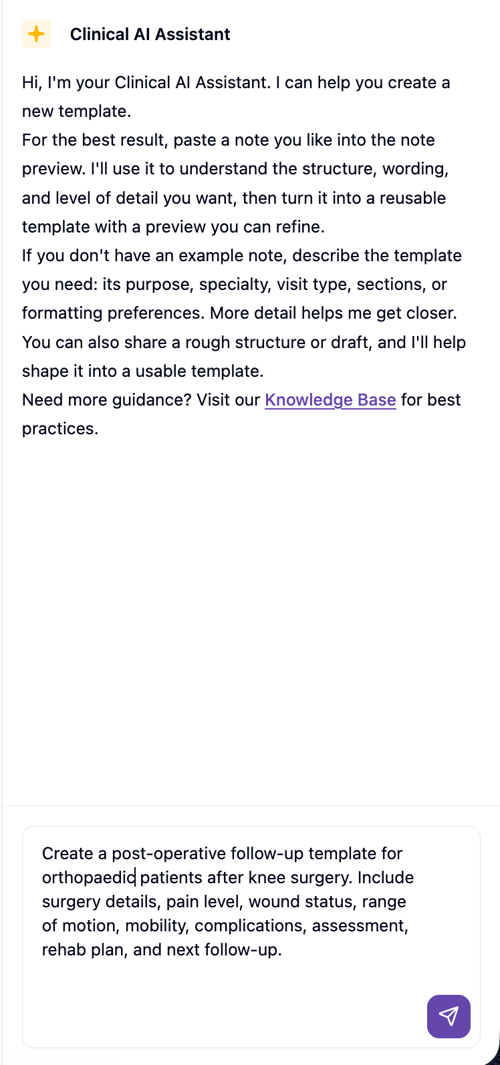
If you do not have a sample note, describe the template in the chat box. Include details such as the purpose, specialty, visit type, sections, or formatting preferences.
Example:
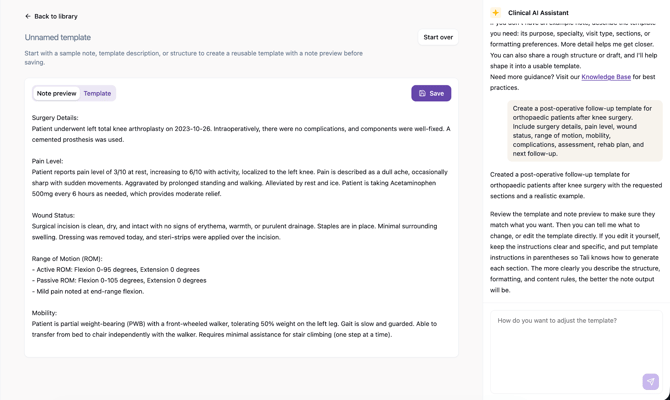
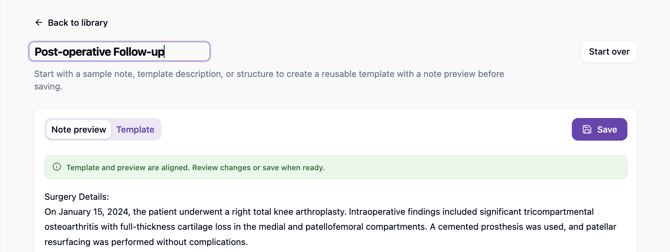
Create a post-operative follow-up template for orthopedic patients after knee surgery. Include surgery details, pain level, wound status, range of motion, mobility, complications, assessment, rehab plan, and next follow-up.
Tali will generate both a template and a note preview.
Option 3: Start with an existing template
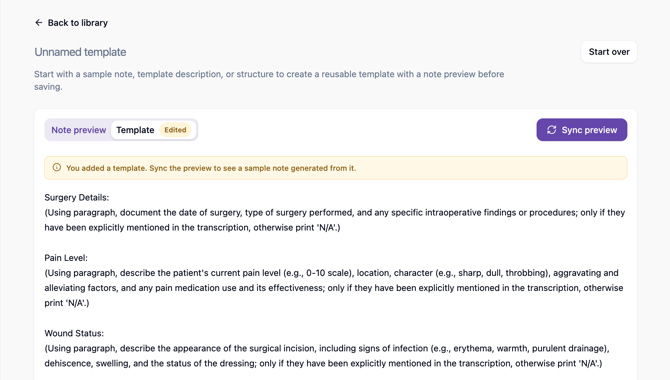
If you already have a complete, well-structured template, paste it into the Template tab. A well-structured template has clear section headings, instructions in parentheses under each heading, and specific guidance on what to include, how to write it, and what format to use.
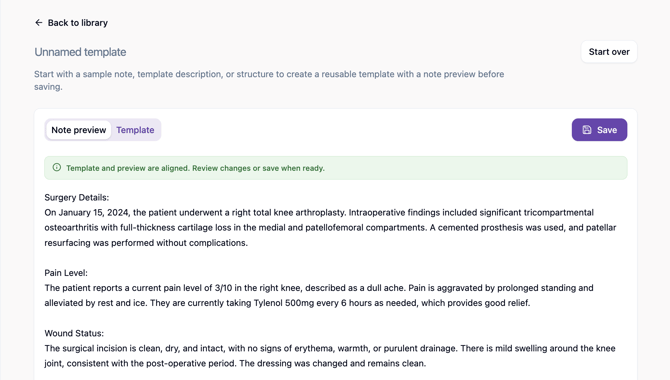
After you add the template, select Sync preview. Tali will generate a sample note preview from the template so you can review what the output will look like.
Review, name, and save
After the template and preview are created, review both tabs. You can edit the template directly, edit the note preview, or ask the AI Assistant to make changes.
Add a template name at the top of the page, then select Save. If you want to start from scratch or discard what was generated, select Start over. The template will be added to your custom templates list and can be used for future encounters.
Learn more about refining your template in our advanced guide, How to Customize a Template with Template Assistant.